
Installing a template is a very easy process.Two methods occur that the installation process can be carried out..
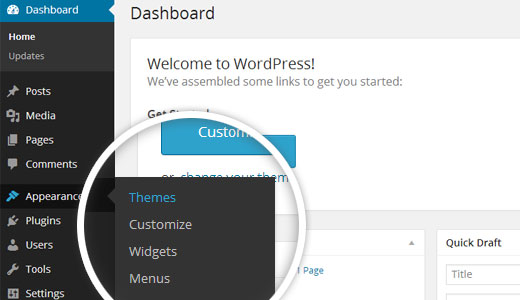
The first step is to log in to your WordPress admin dashboard. then click on
1. Select Appearance ---> Themes from the menu.
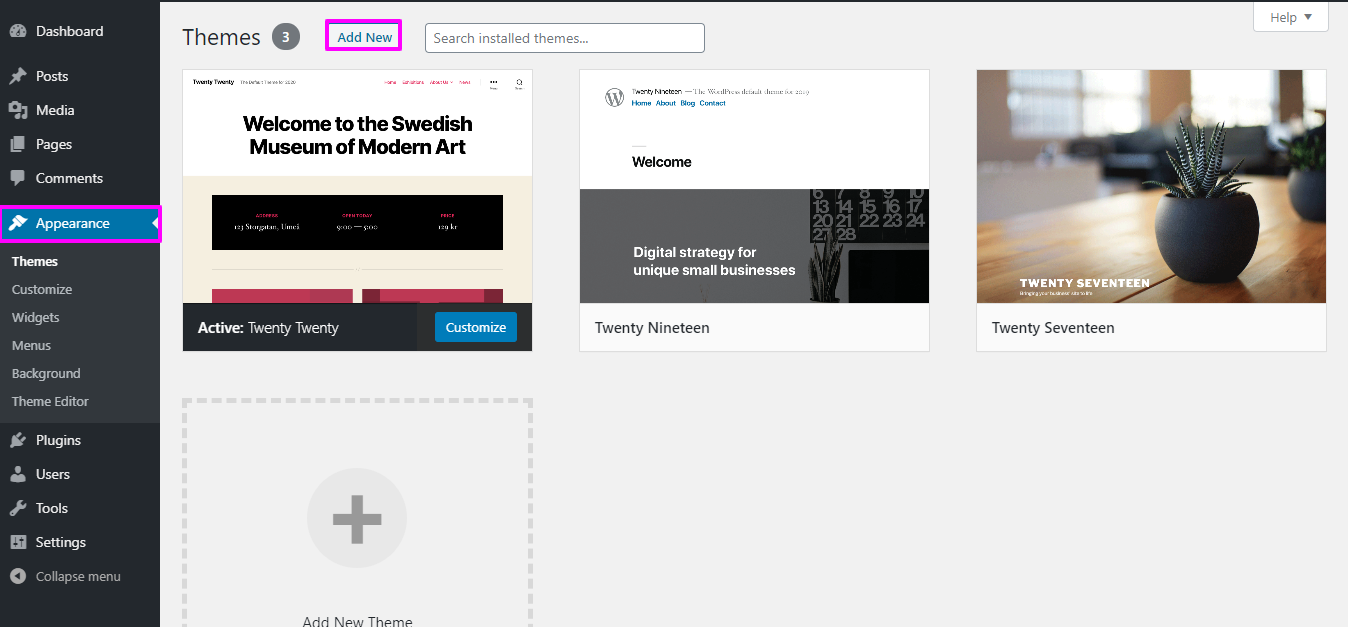
2. Click the Add New button at the top of the themes page afterwards you've arrived there.
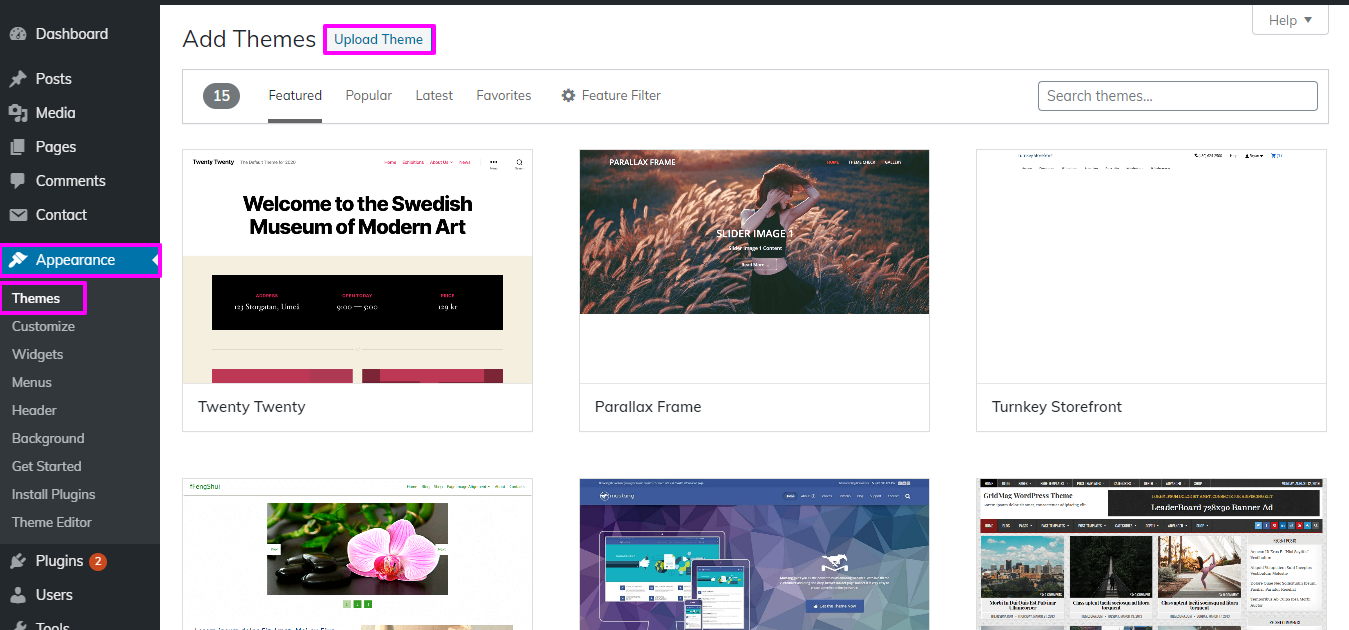
3. To upload a theme, click the button.
4. Select your vacation-rental-booking.zip theme through choice of the Browse button, then click the Install Now button.
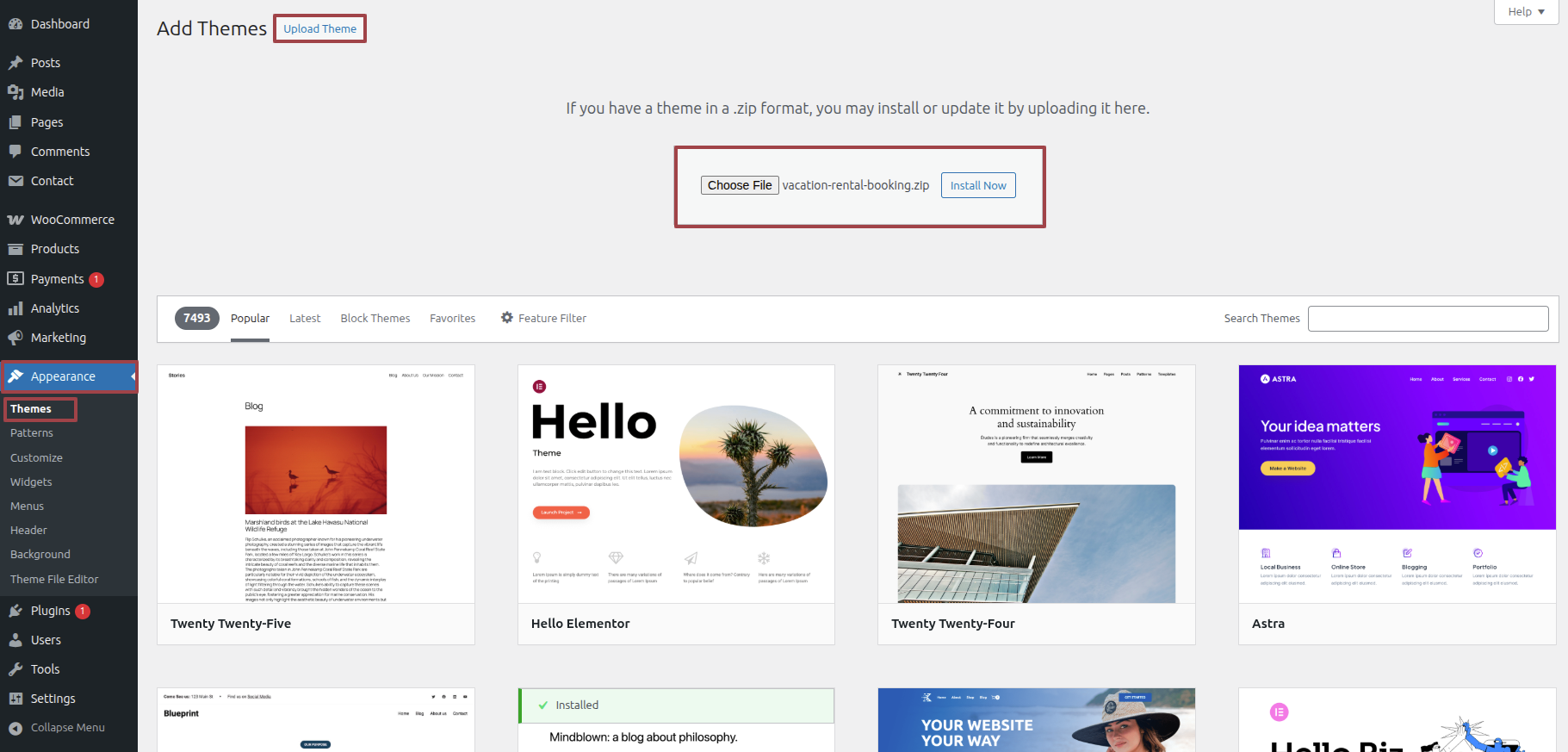
Congratulations! Your theme has been installed successfully.
The second installation option is to FTP-transcribe the theme. For the second option, first log into leveraging your own website FTP and navigate to the themes folder at wp-content. The theme you downloaded should be unzipped before being uploaded with to the server you use.
Afterwards logging in, Start the Appearance --->Themes and activate Total on your WordPress website.
Import sample content As just one click to set up your theme. You can follow the instructions in this article to build your website.
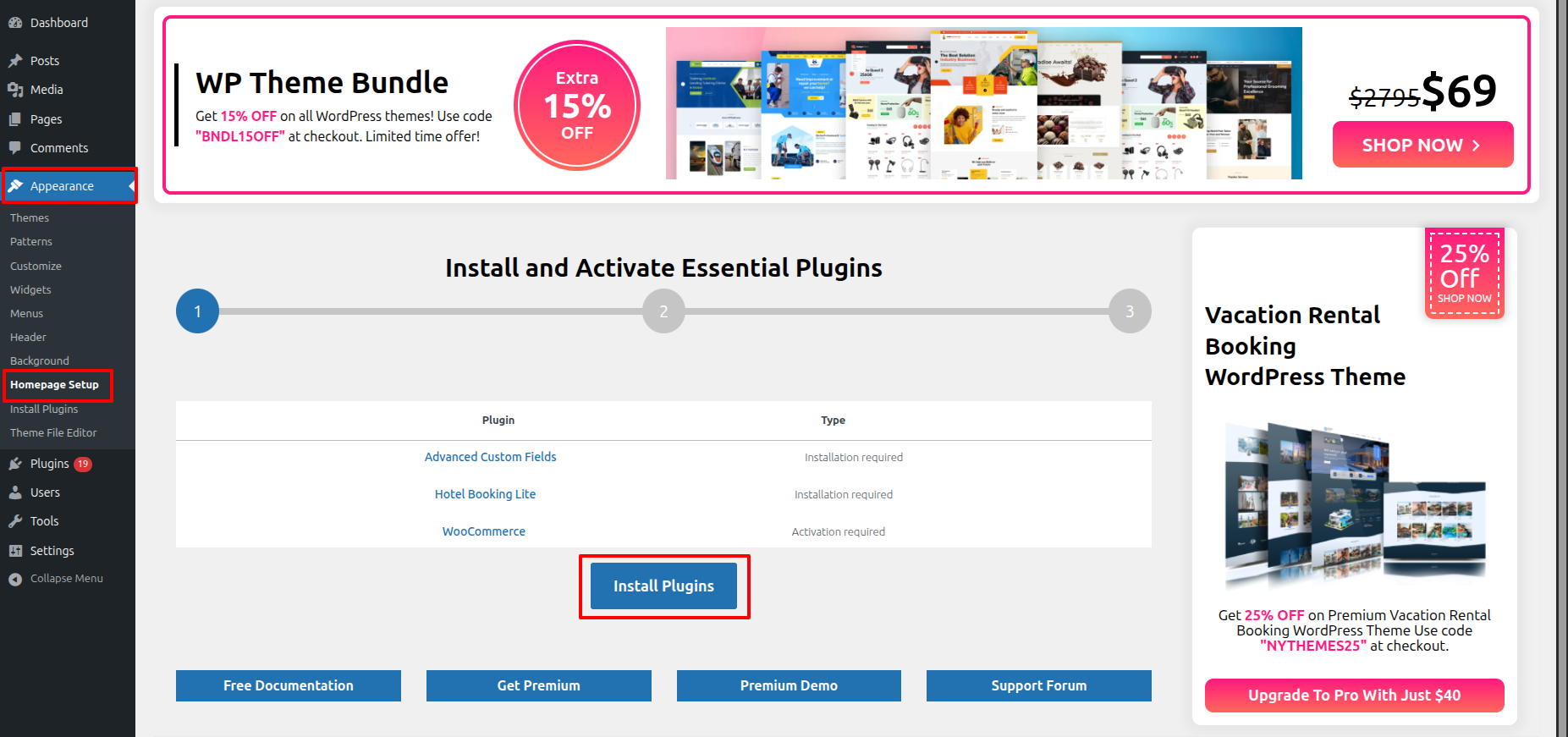
Access the Homepage Setup by Start the Dashbord---> Appearance -->Homepage Setup---> an click on Install Plugins.
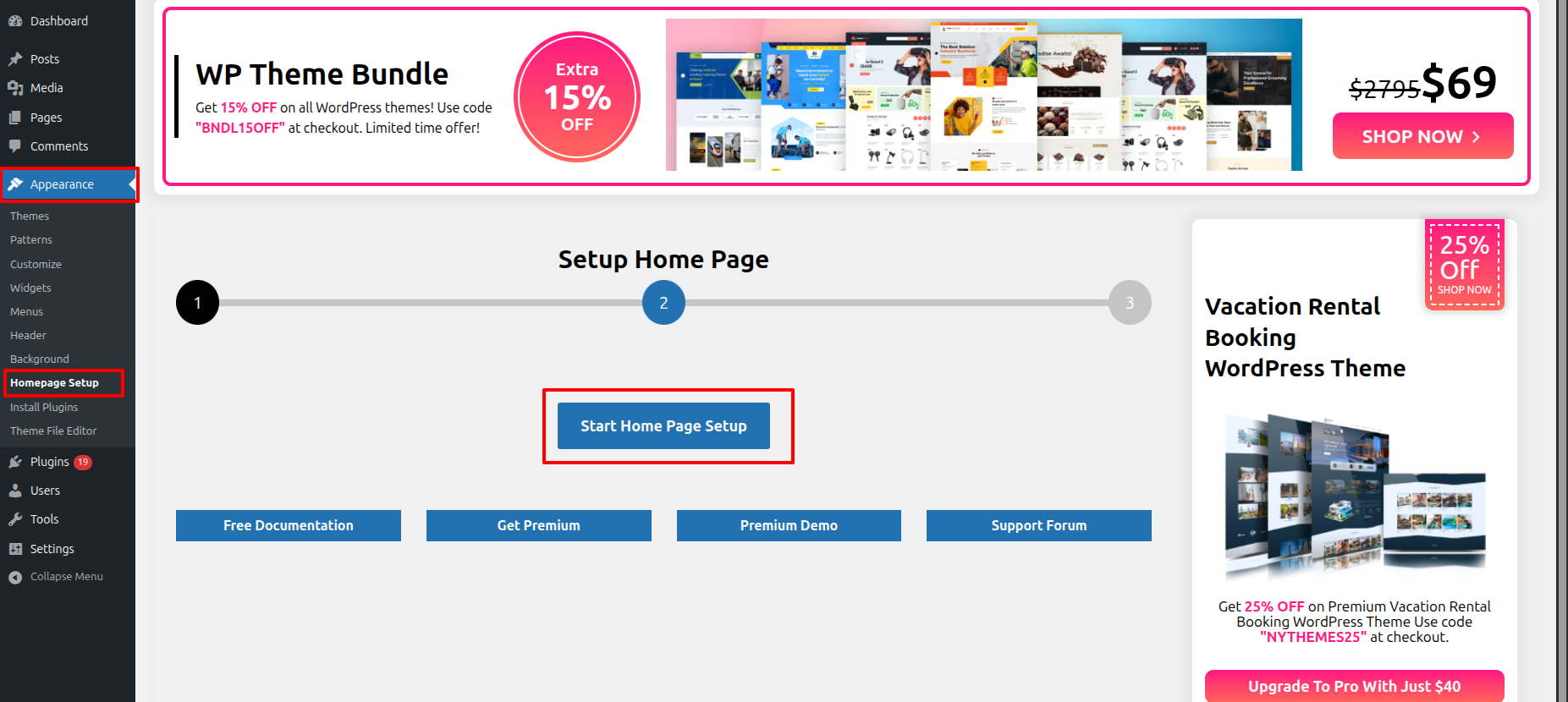
Access the Homepage Setup by Start the Dashbord---> Appearance -->Homepage Setup---> an click on Start Home Page Setup.
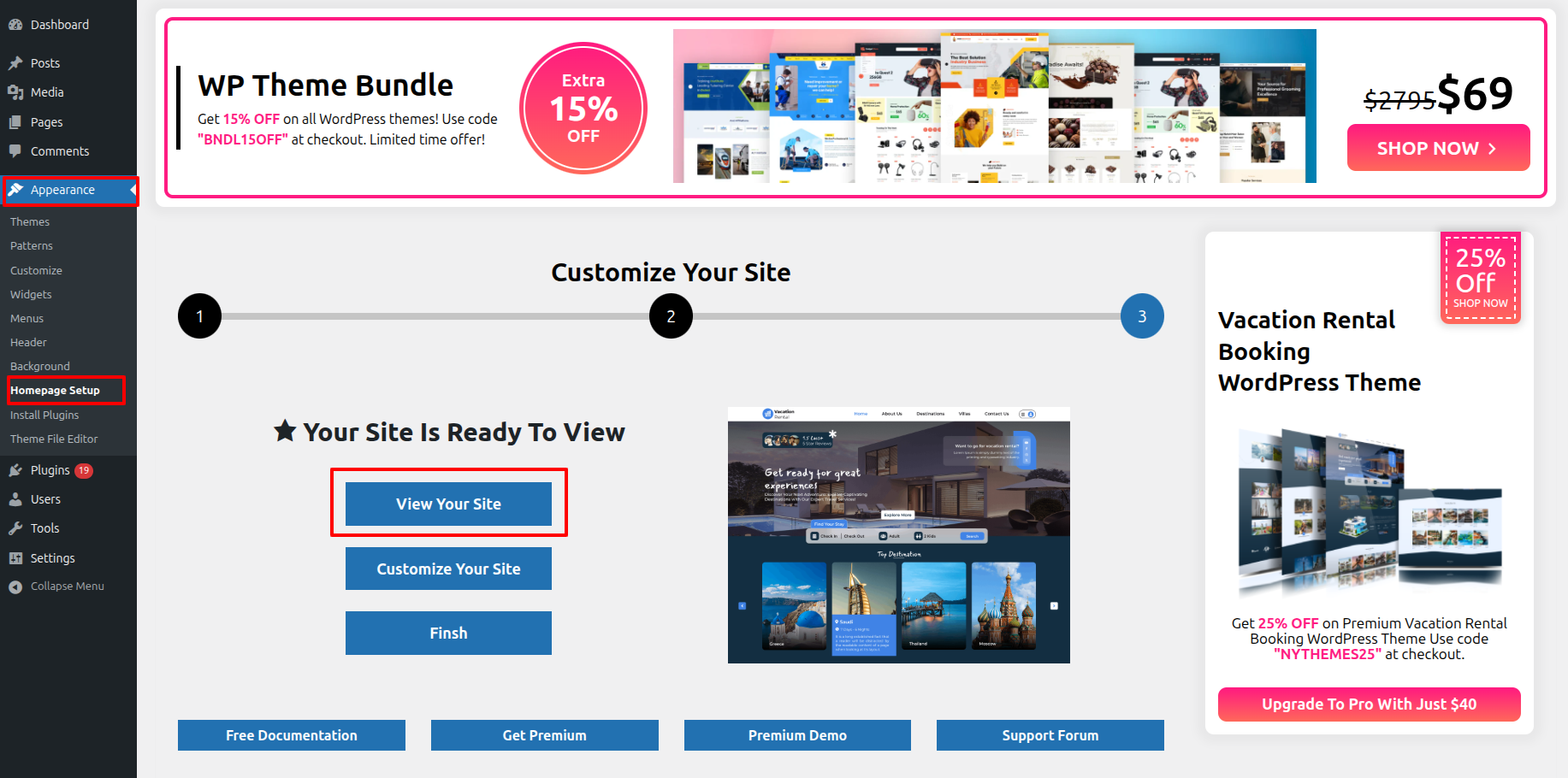
Access the Homepage Setup by Start the Dashbord---> Appearance -->Homepage Setup---> an click on View Your Site.
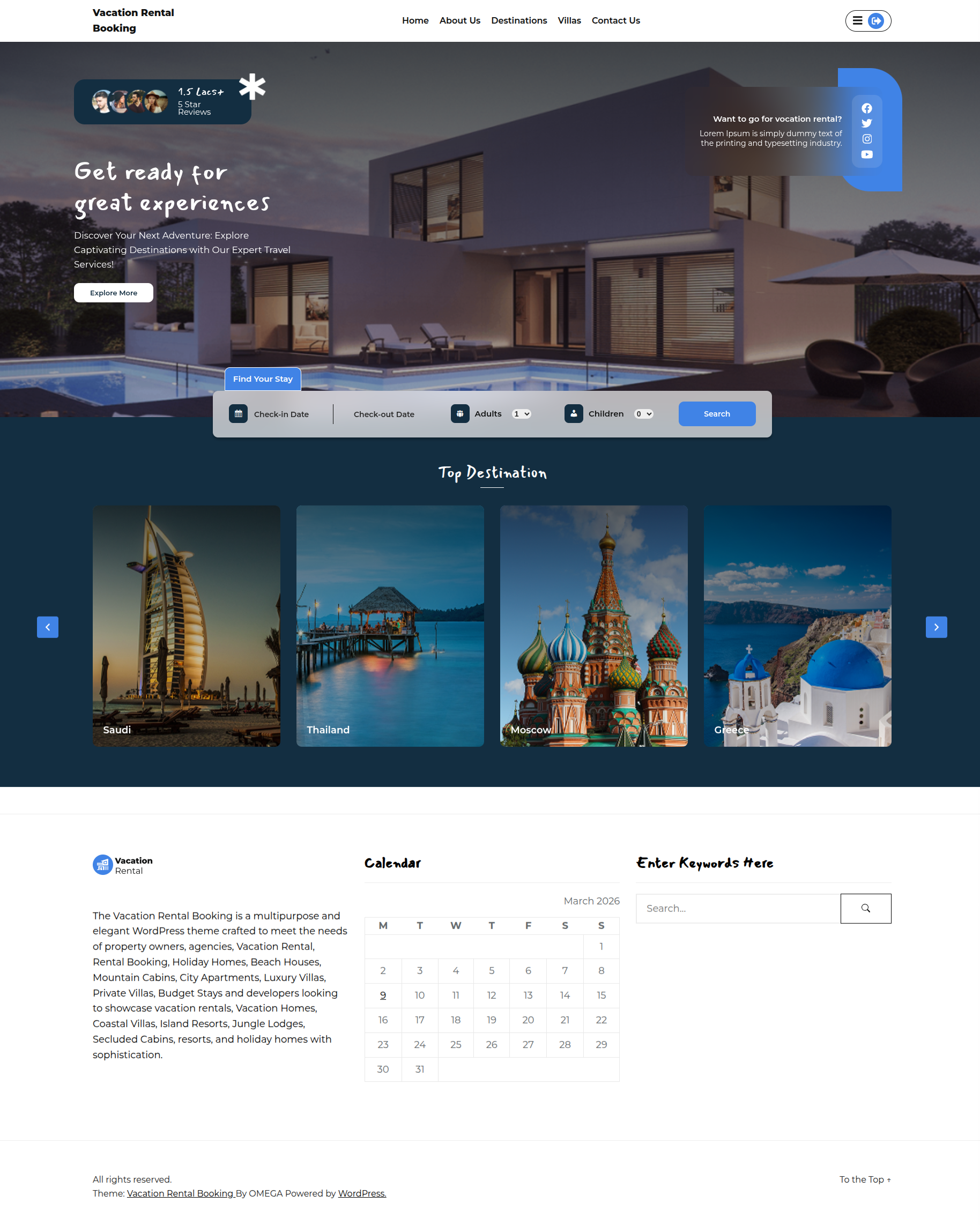
This is exactly how it will initially seem.
Observe the guidelines.How to insert the required plugins
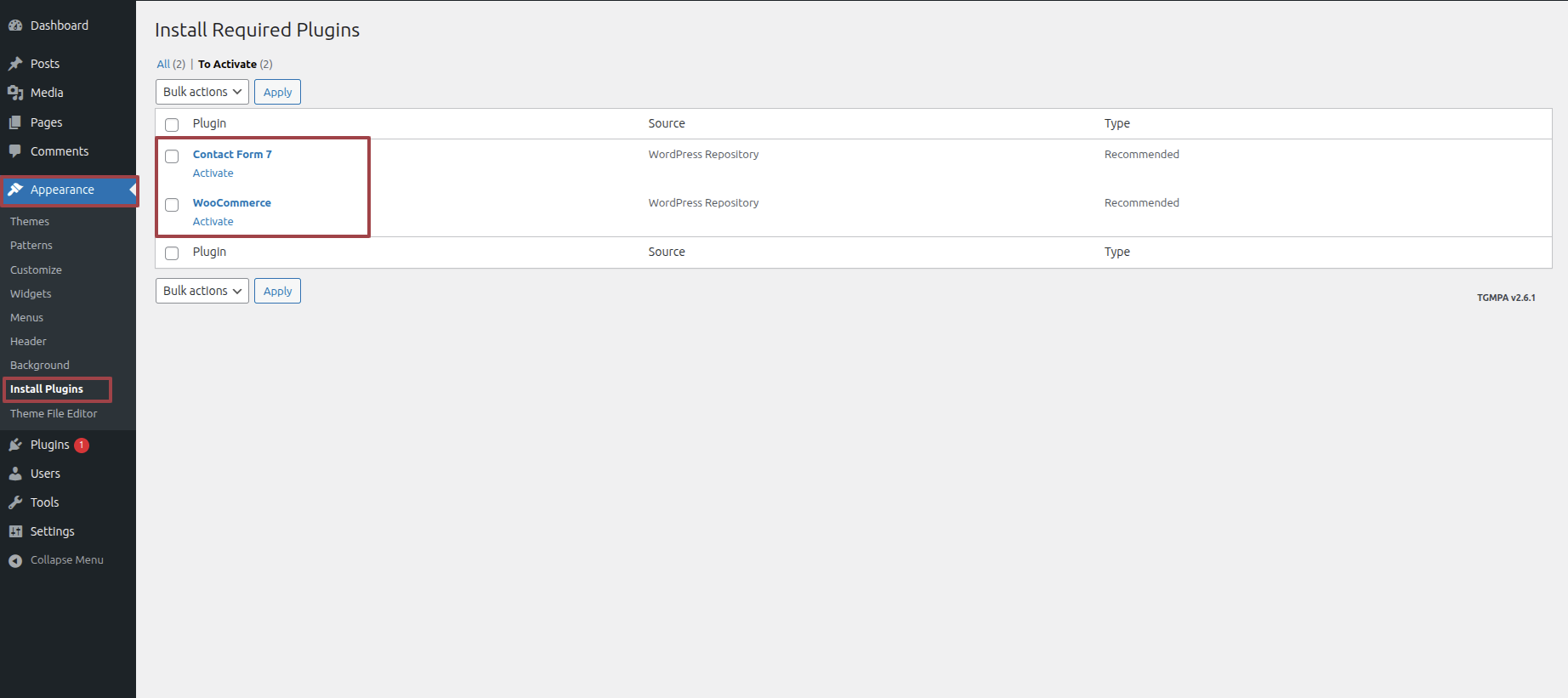
You can look at the screenshots To have a deeper knowledge..
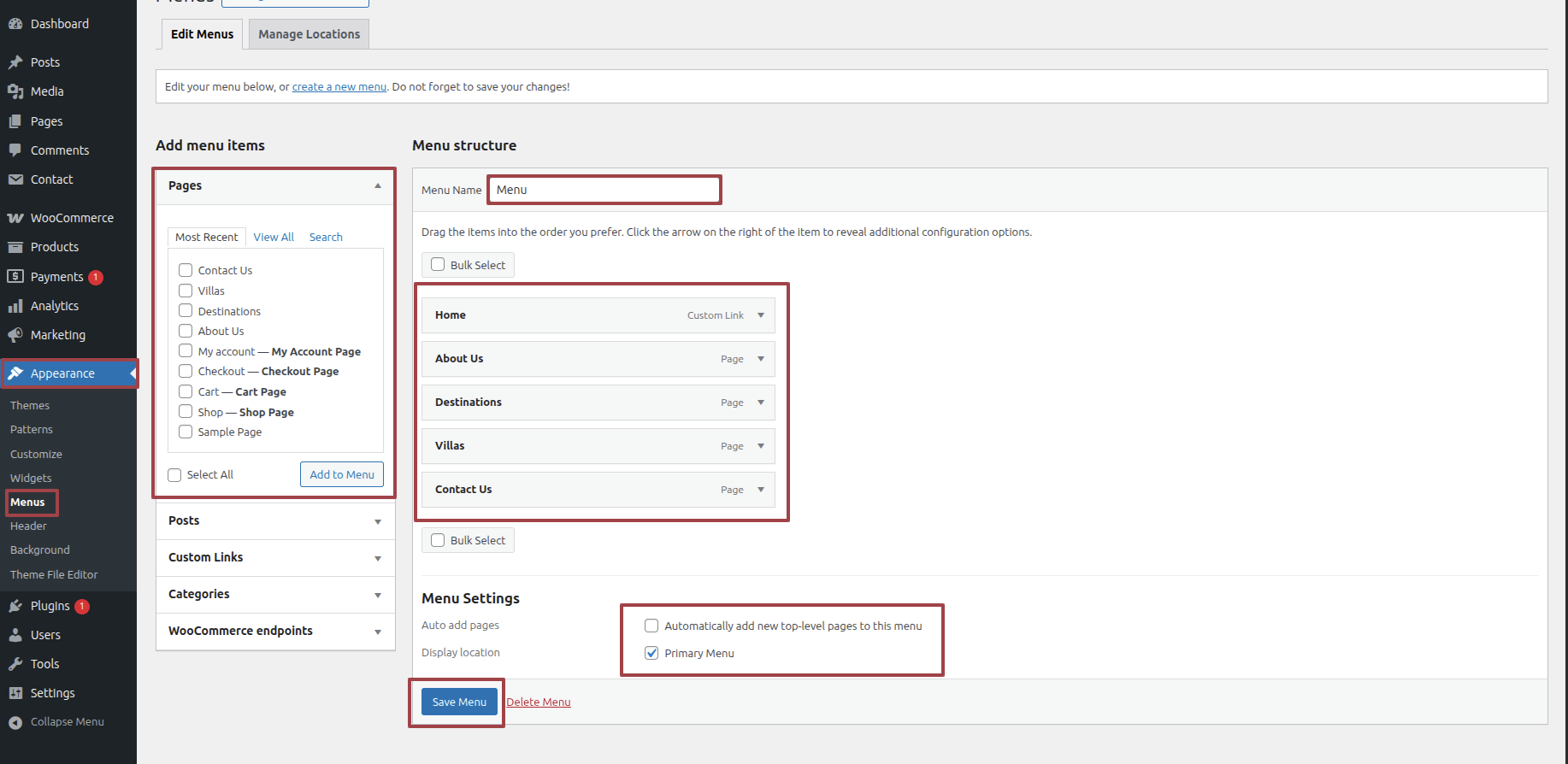
With emphasis on Sites titles,
Select Appearance---> Customize -->General Settings--> Site Identity.
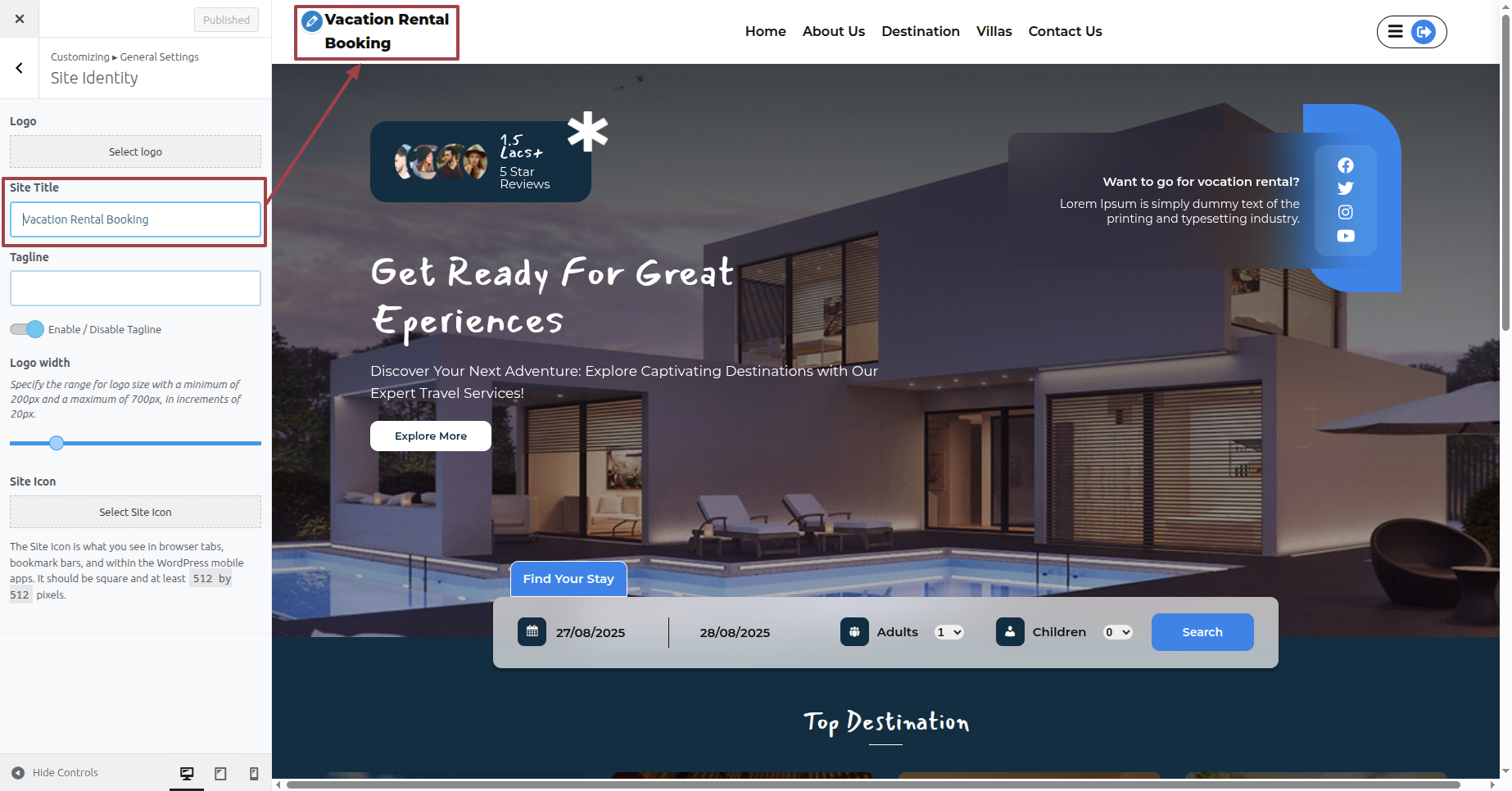
Such is Exactly what will happen initially seem.

With emphasis on Social Media,
Select Appearance---> Customize -->Theme Options--> Social Media Settings.
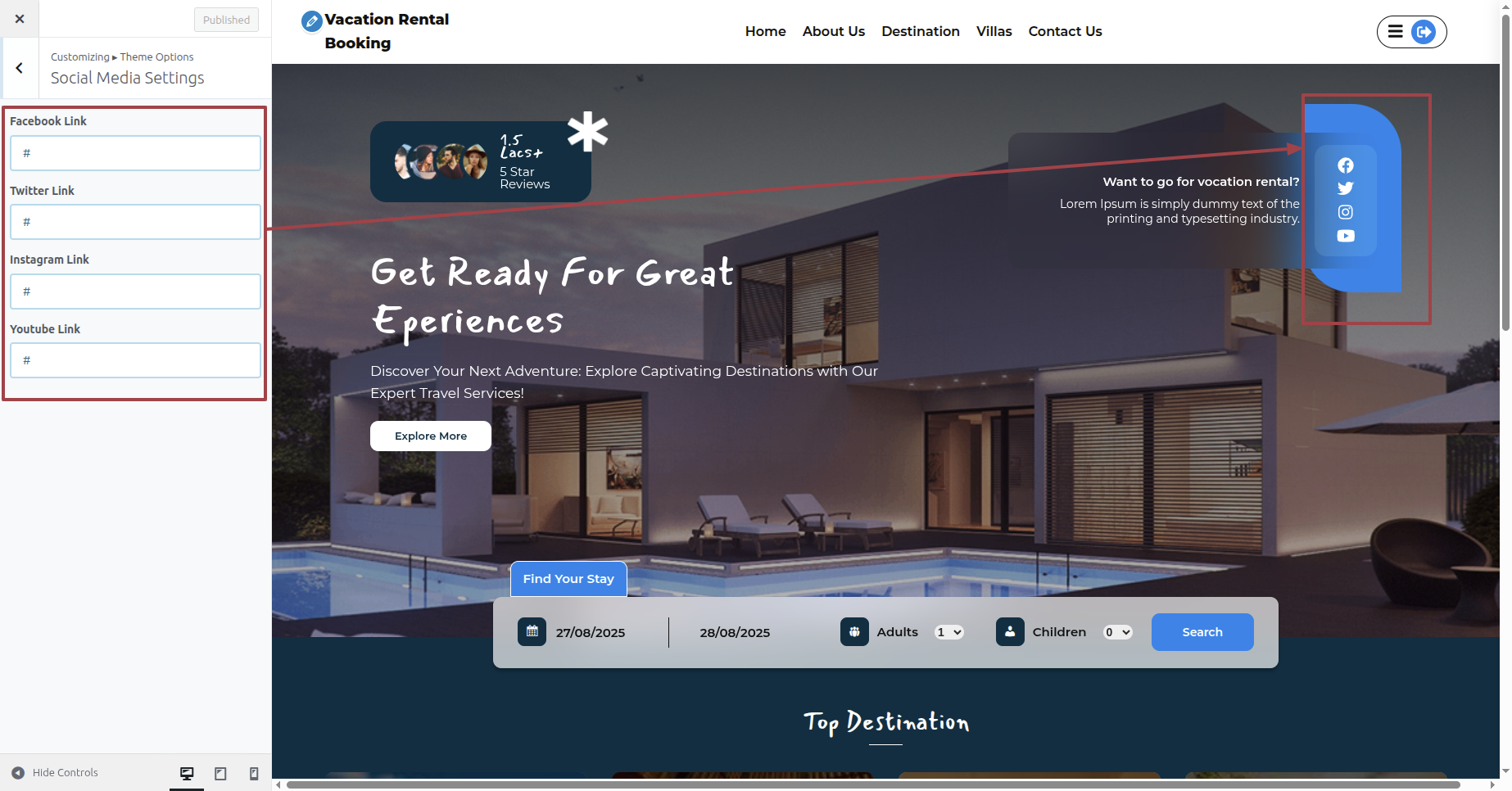
Such is Exactly what will happen initially seem.
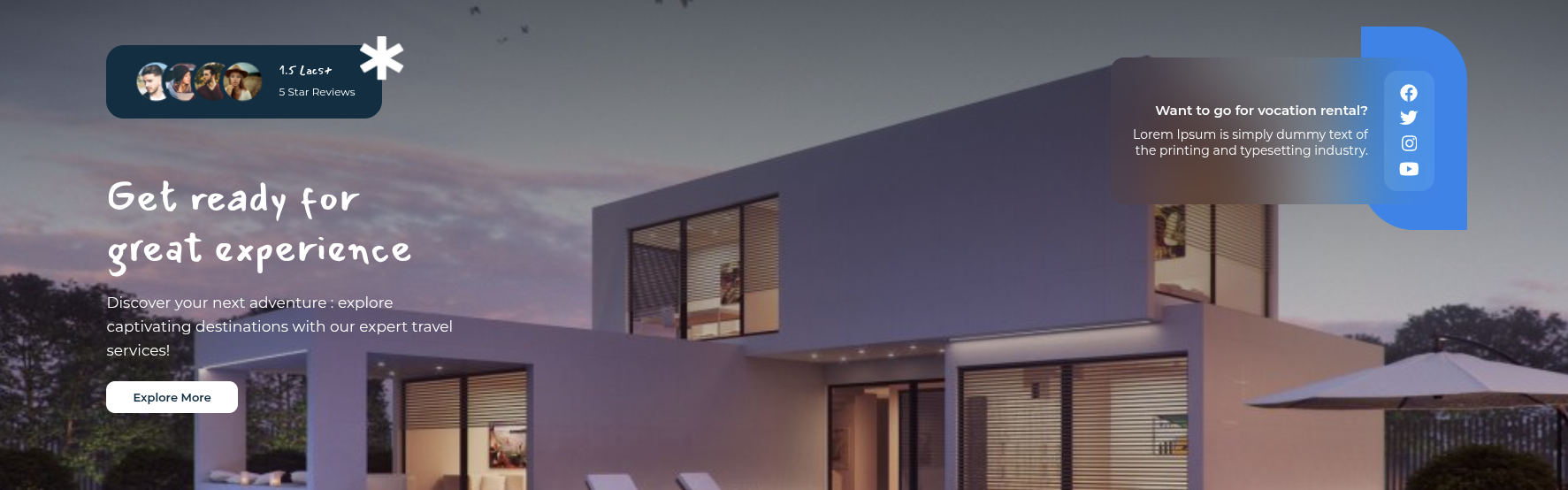
Starting with the Slider Section
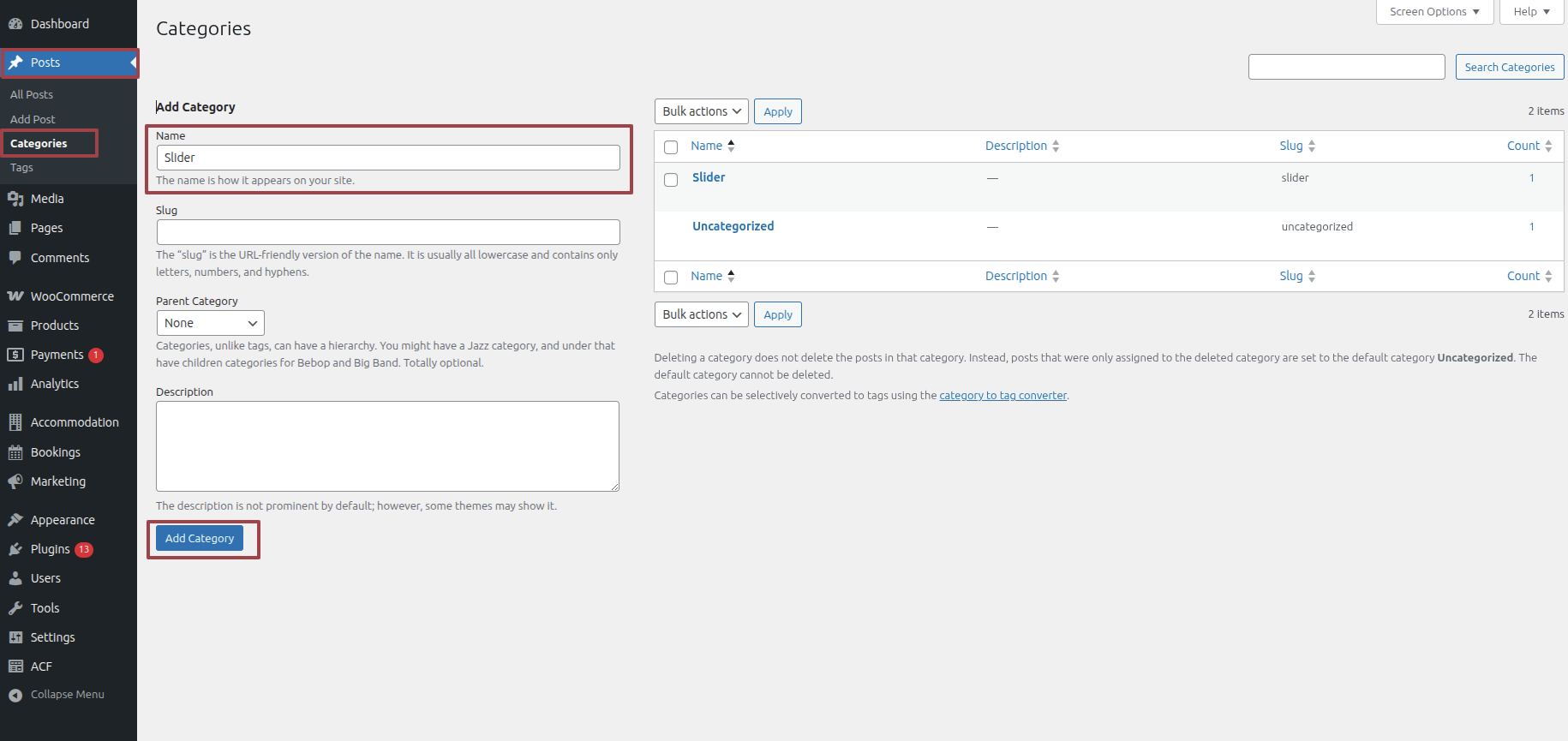
Access the following menus: Dashboard---> Posts -->Categories.
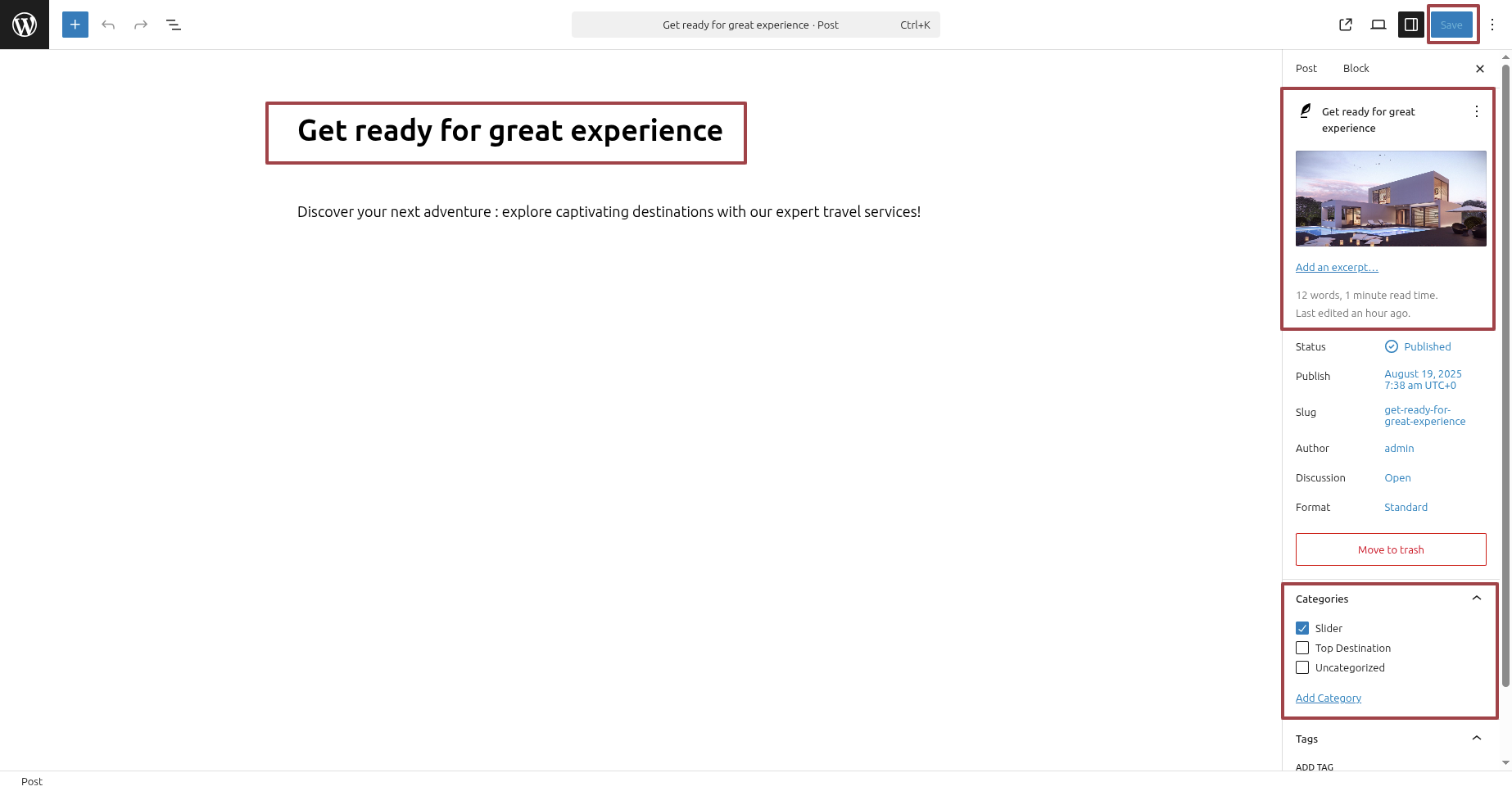
Access the following menus: Dashboard---> Posts -->Add New Posts.
Access the following menus: Appearance---> Customize -->Frontpage Settings--> Slider Settings.
First Enable Slider Then
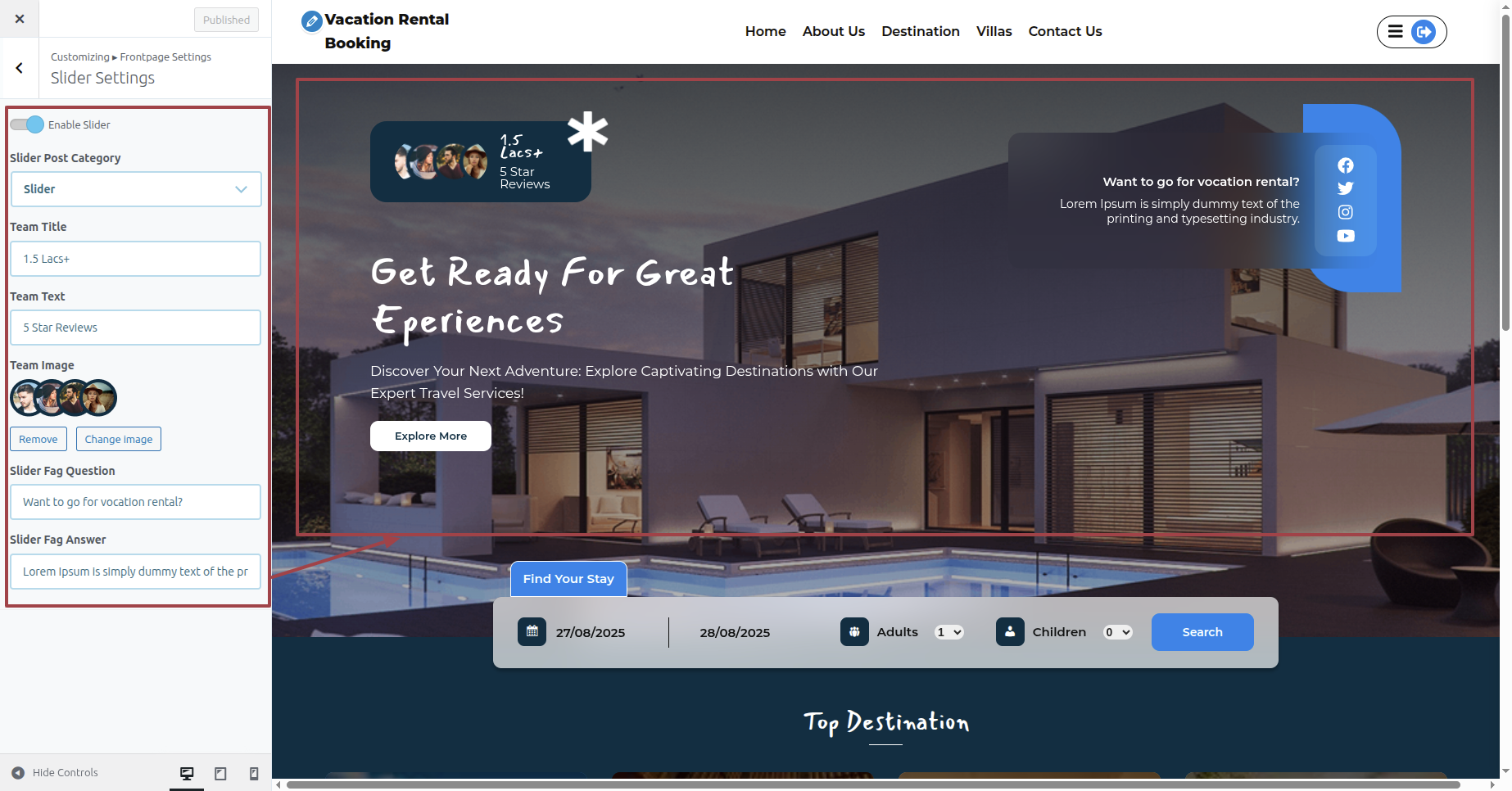
Such is Exactly what will happen initially seem.
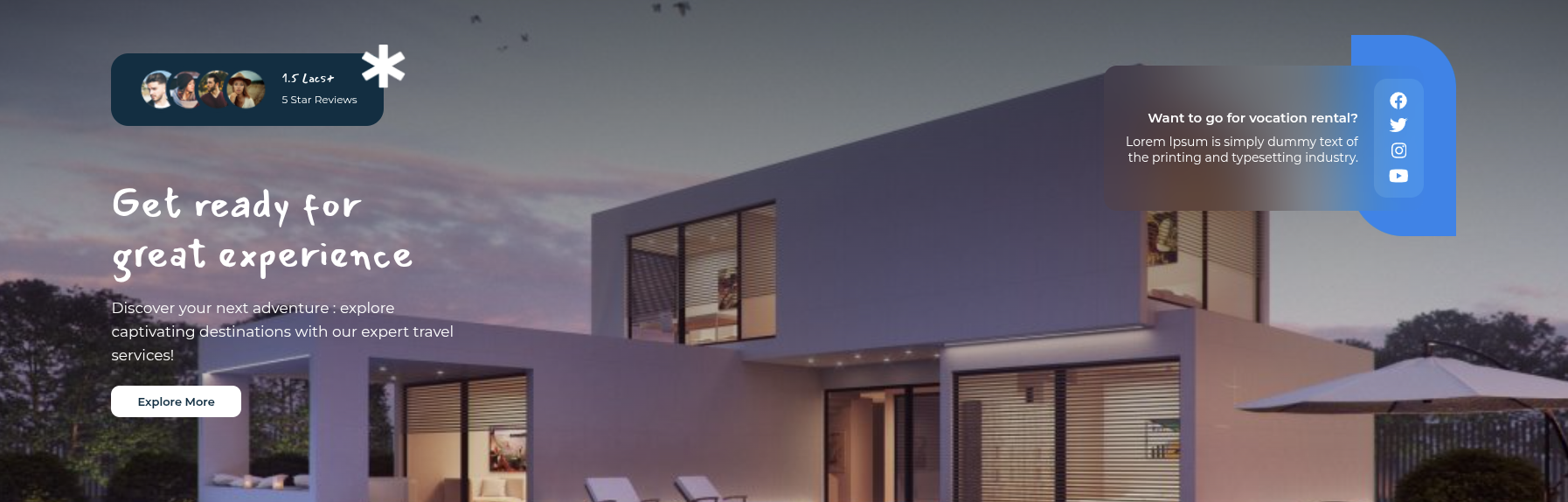
Beginning with Search Section
If you can see the notification, click the "Install Pages" button — this will create all the pages for your hotel booking. When you search, they will appear in the search pages, so you need to install the pages.
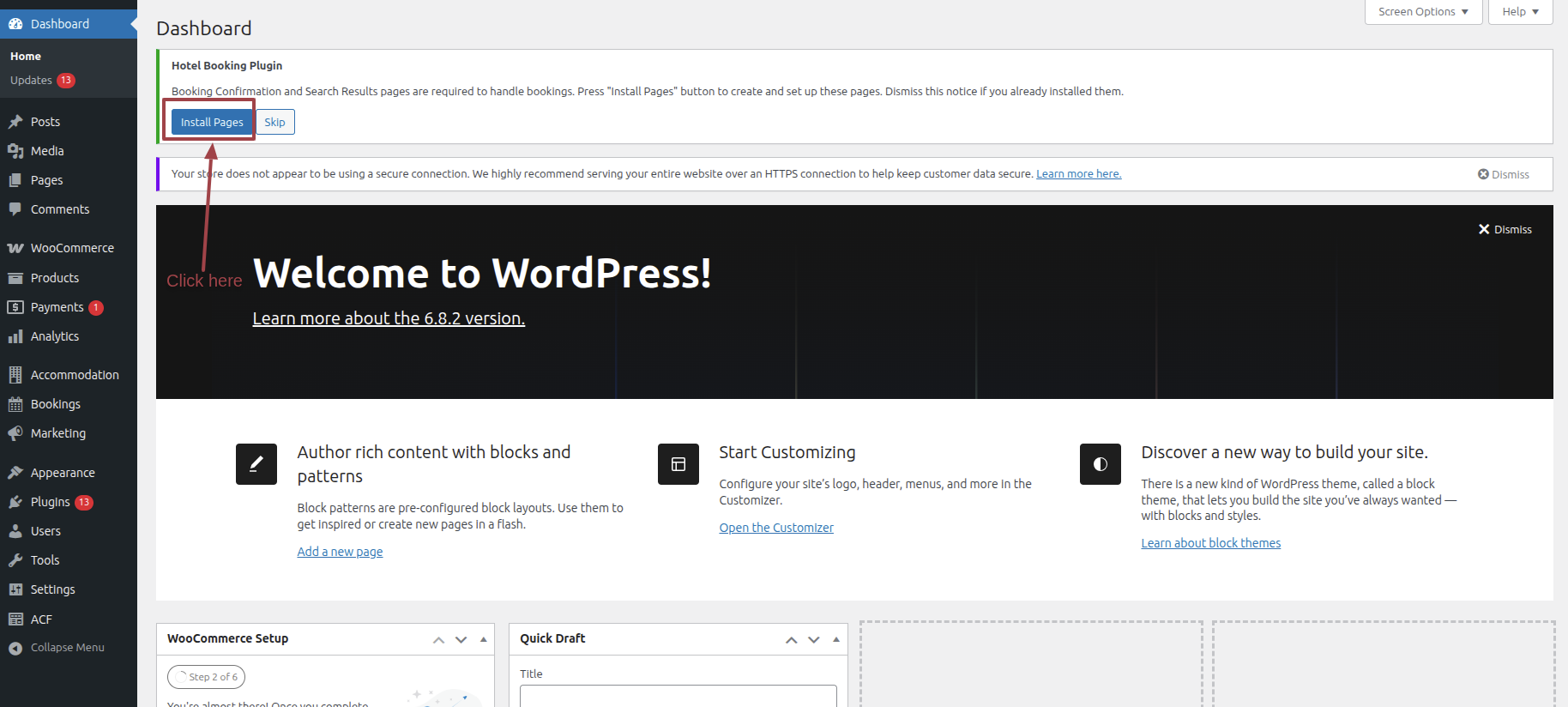
First, set up the Hotel booking by navigating to
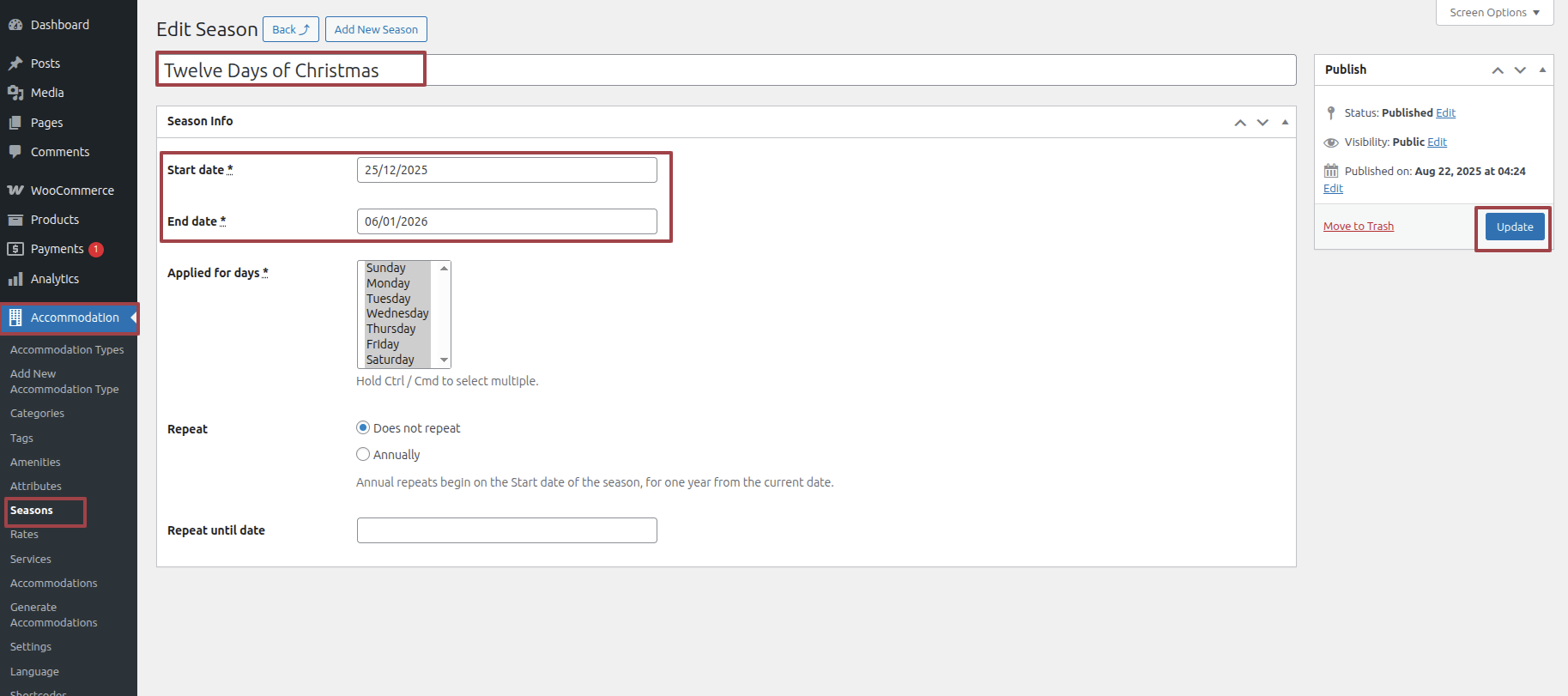
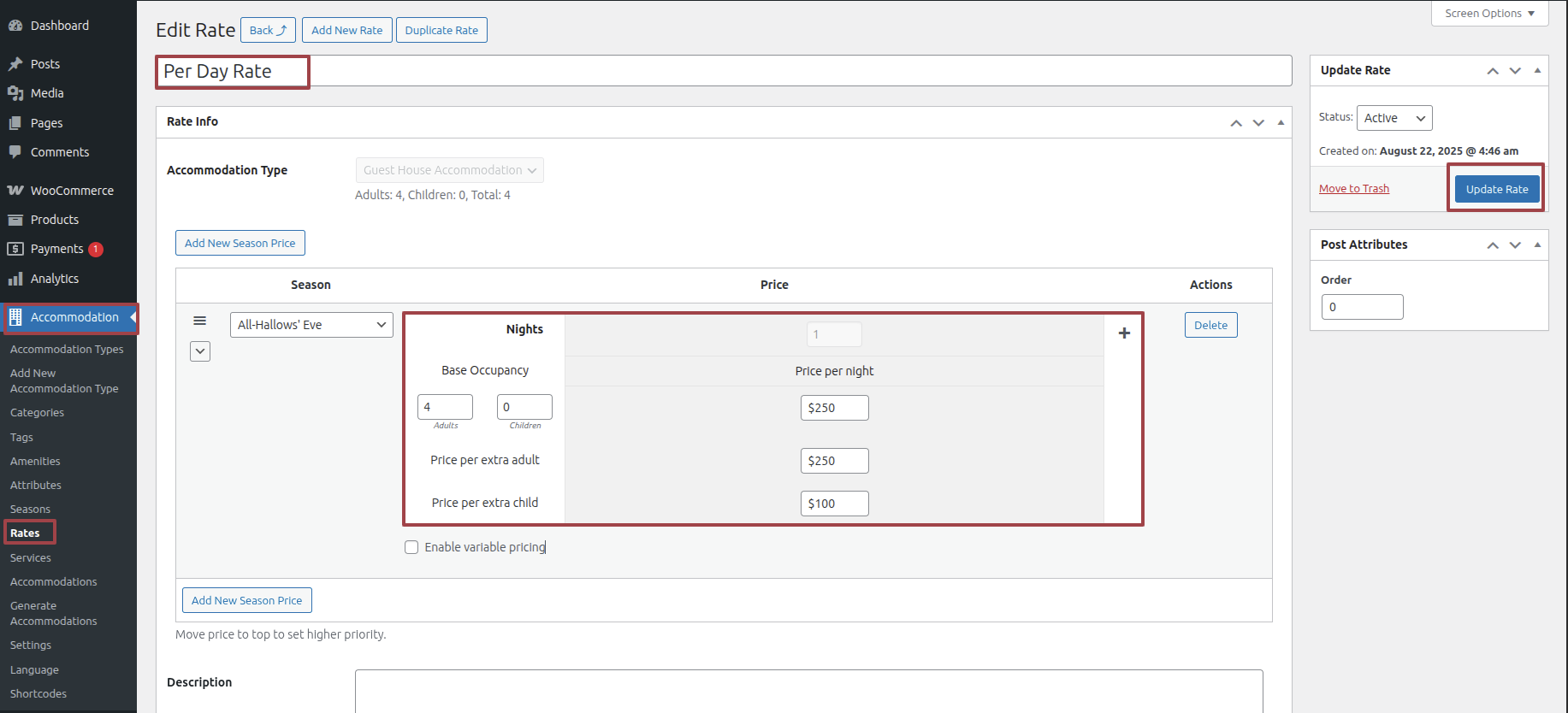
you can generate Seasons, Services, Rates and Generate Accommodation — or if you create the pages yourself, when you go to search you will get options to select the date and you will have the function available
Get started by Start the Dashboard--->Accommodation -->Seasons--->Add New Seasons .
Get started by Start the Dashboard--->Accommodation -->Rates--->Add New Rates .
Get started by Start the Dashboard--->Accommodation -->Services--->Add New Services .
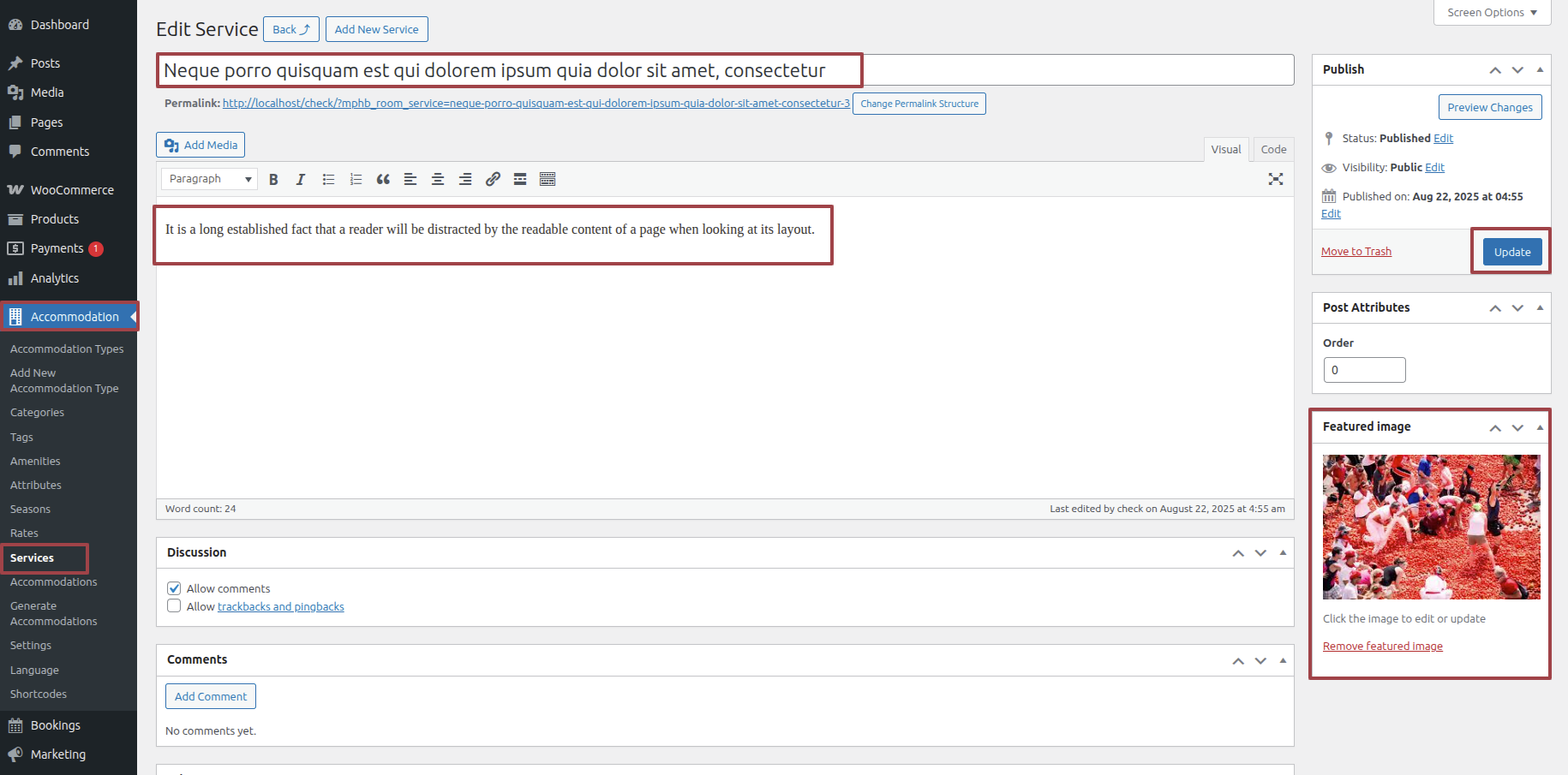
Get started by Start the Dashboard--->Accommodation -->Generate Accommodation --->Generate .
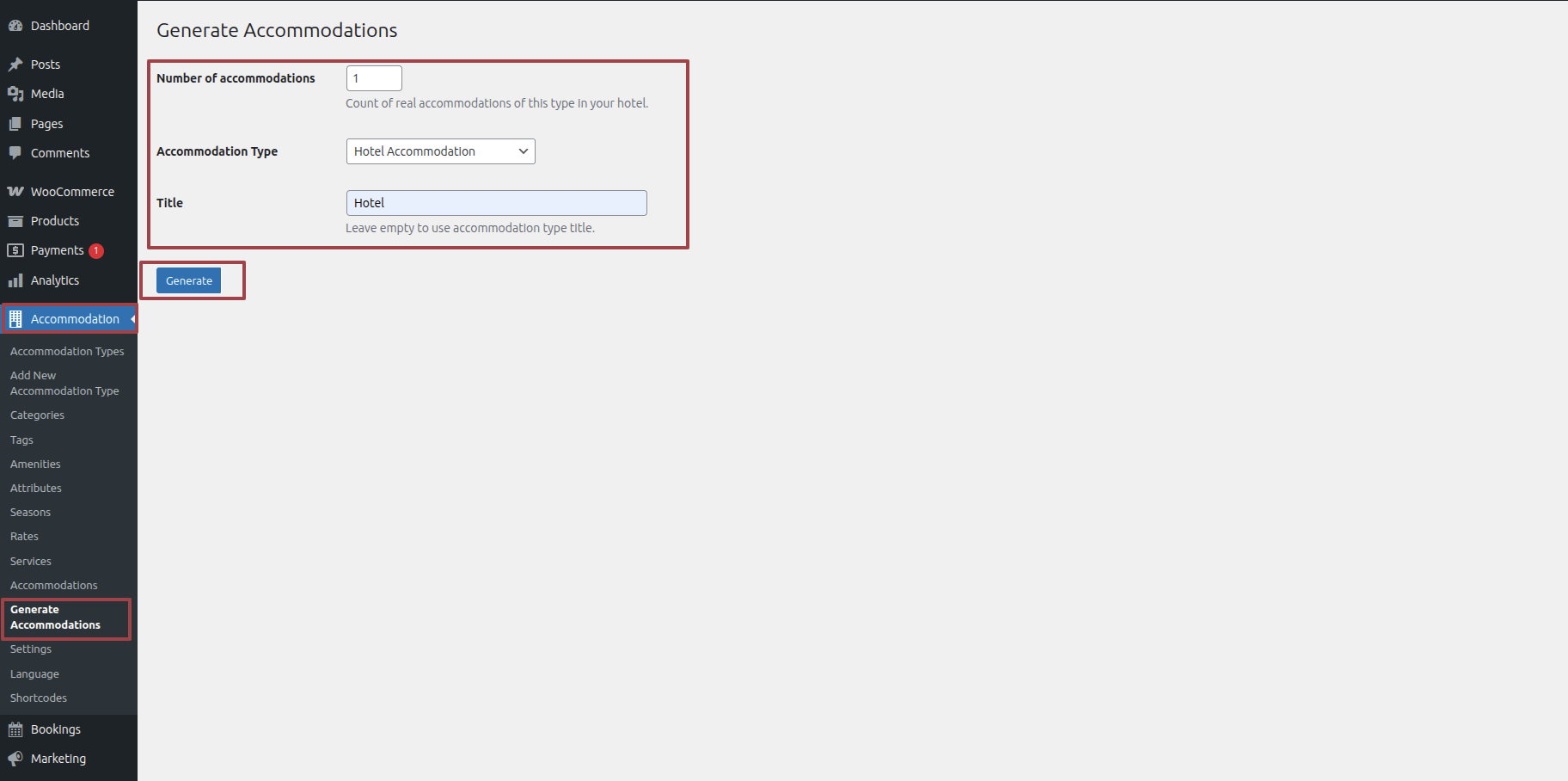
Get started by Start the Dashboard--->Accommodation -->Shortcodes--->Availability Search Form .
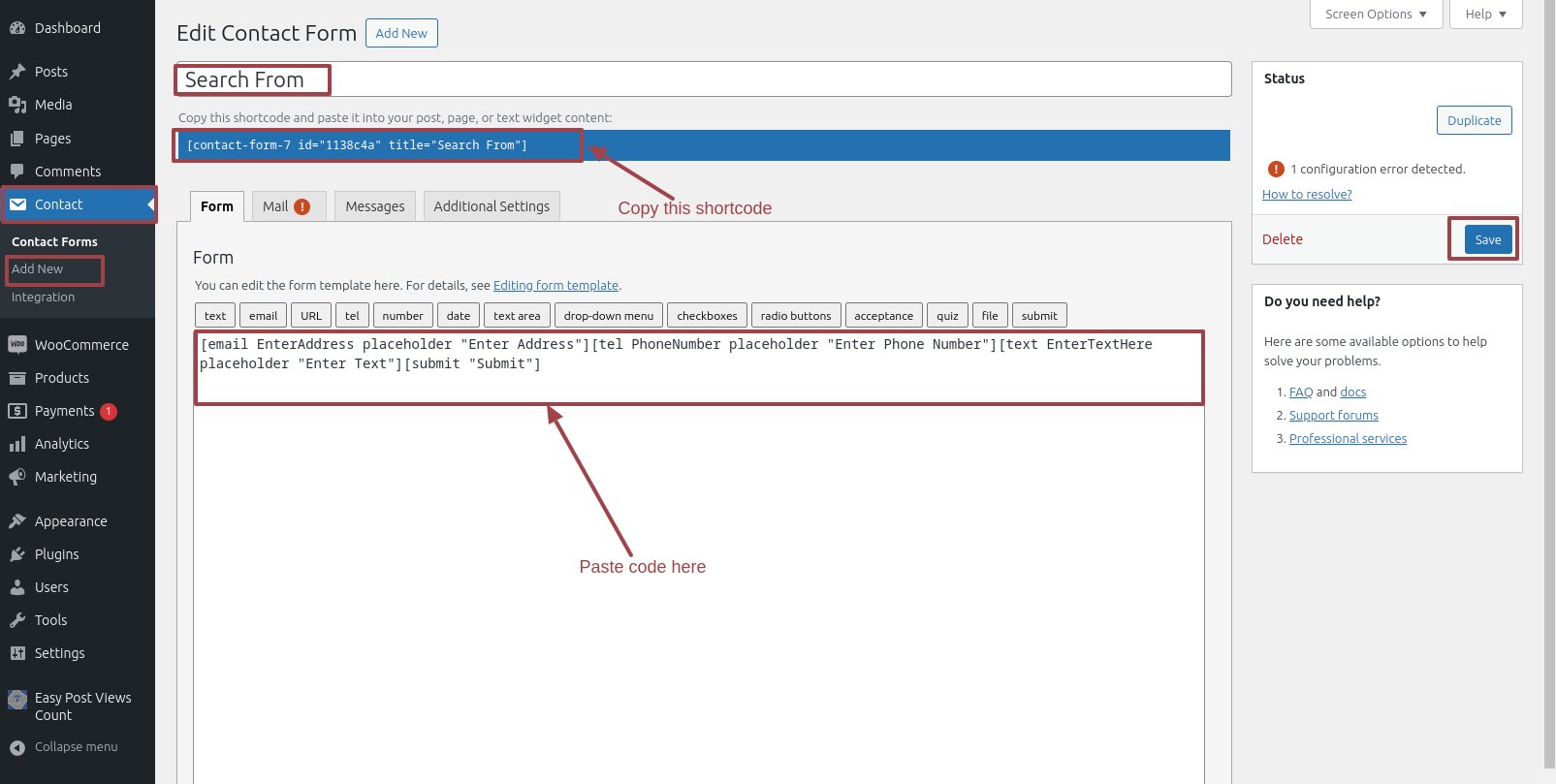
Get started by Start the Appearance--->Customize --> Frontpage Settings--->Search Settings .
First Enable Search
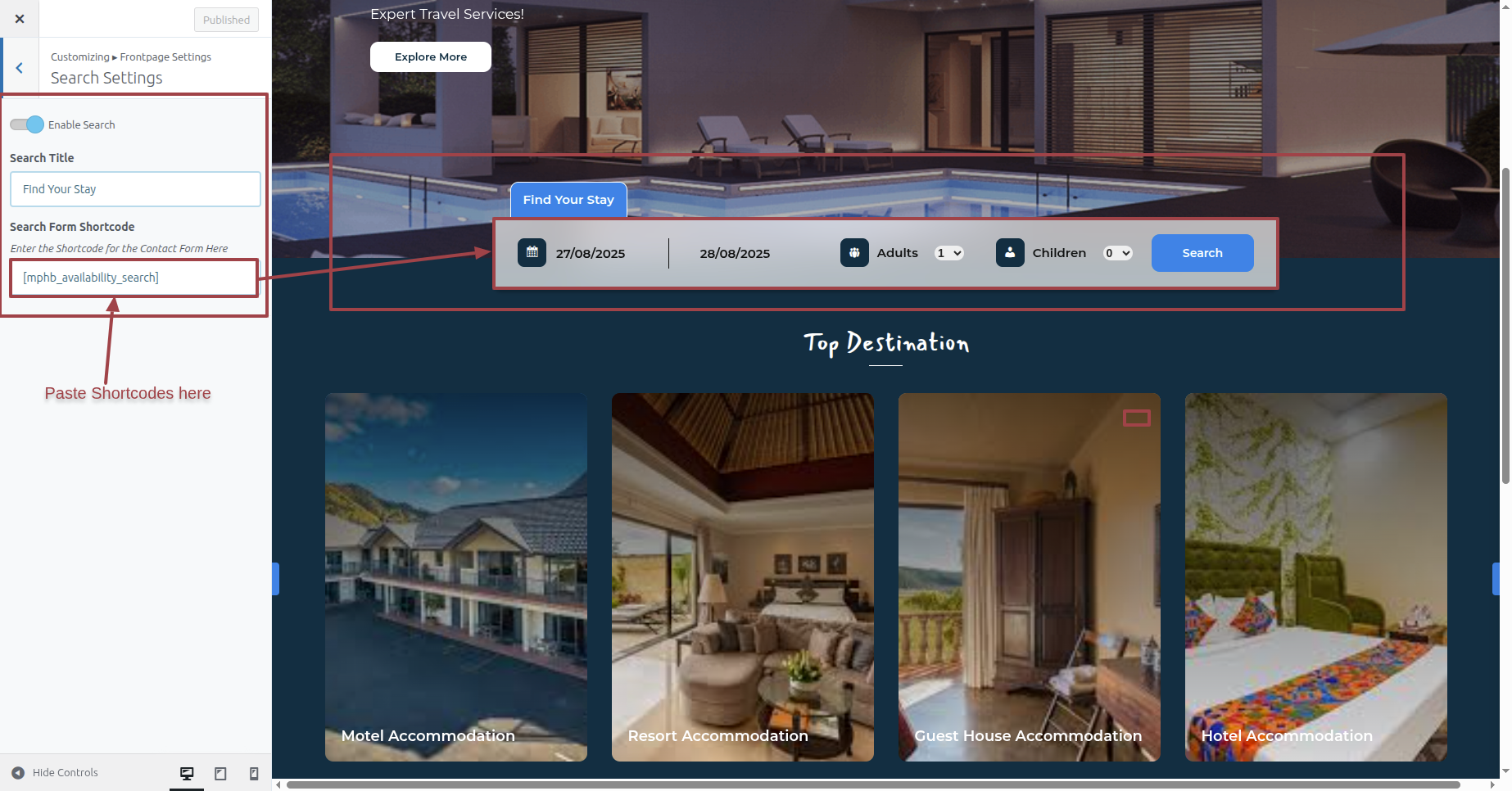
Such is Exactly what will happen initially seem.

Beginning with Top Destination Section
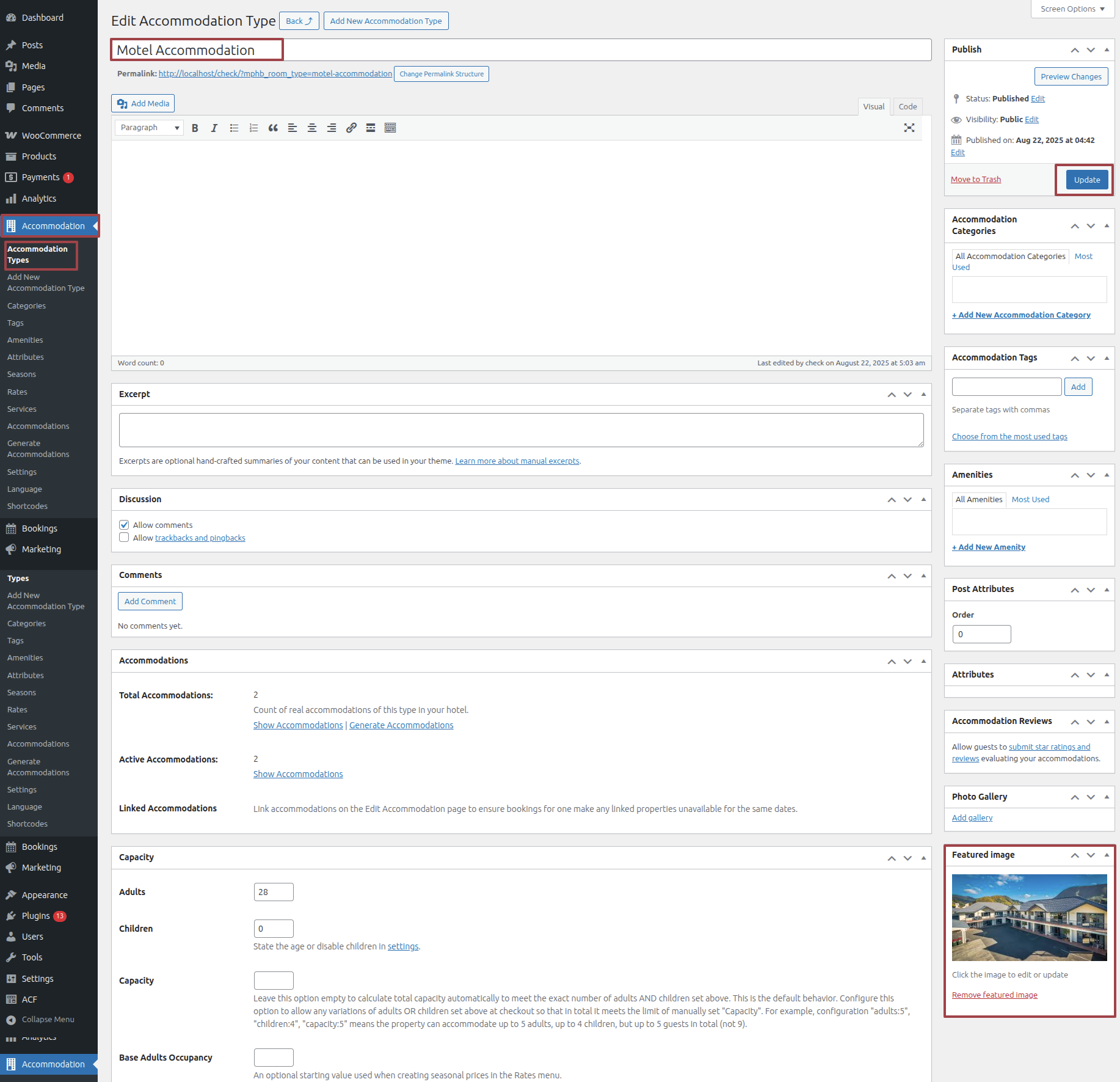
Access the following menus: Dashboard---> Accommodation Types -->Add New Accommodation Types.
Get started by Start the Appearance--->Customize --> Frontpage Settings--->Top Destination Settings .
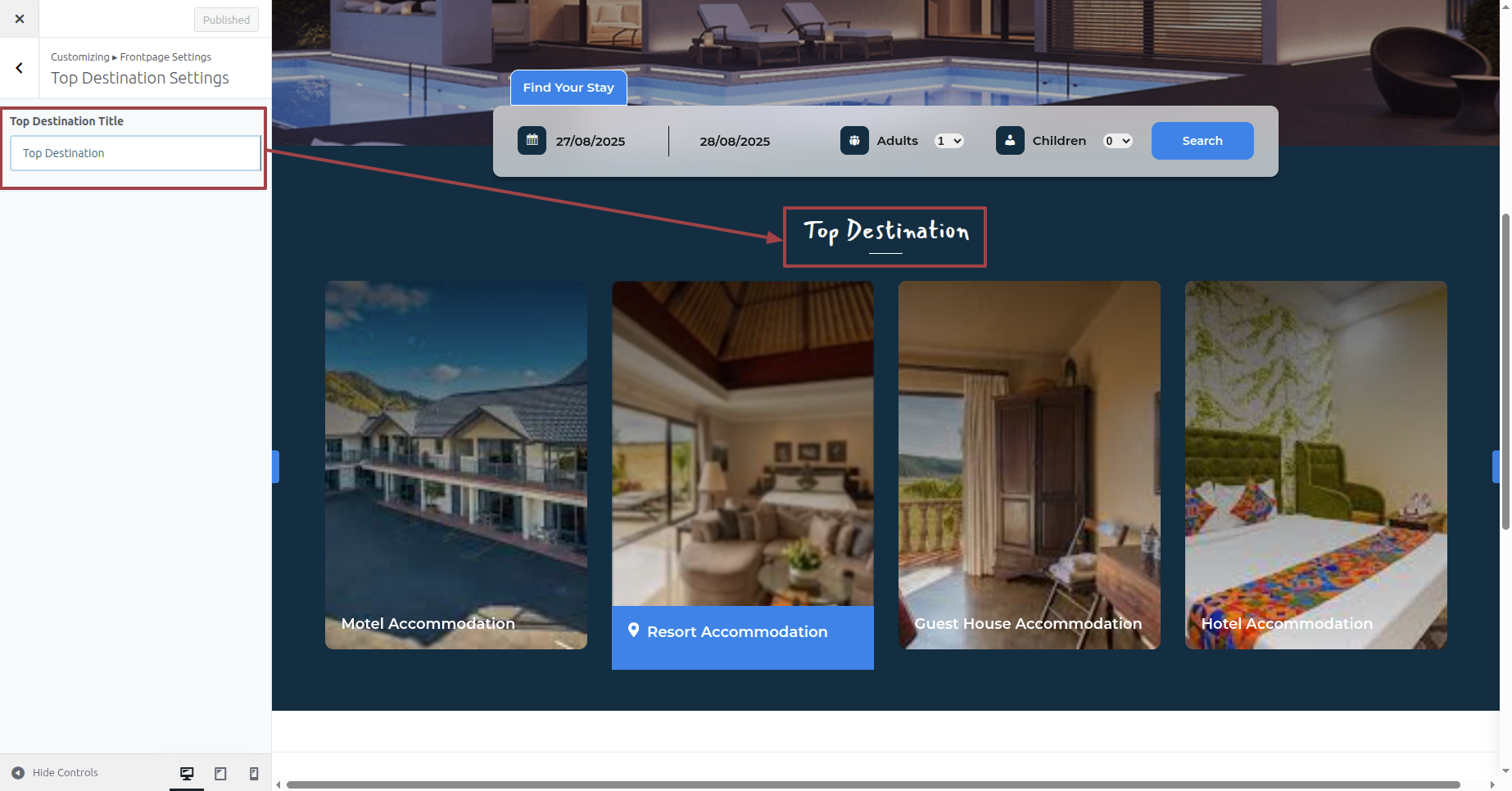
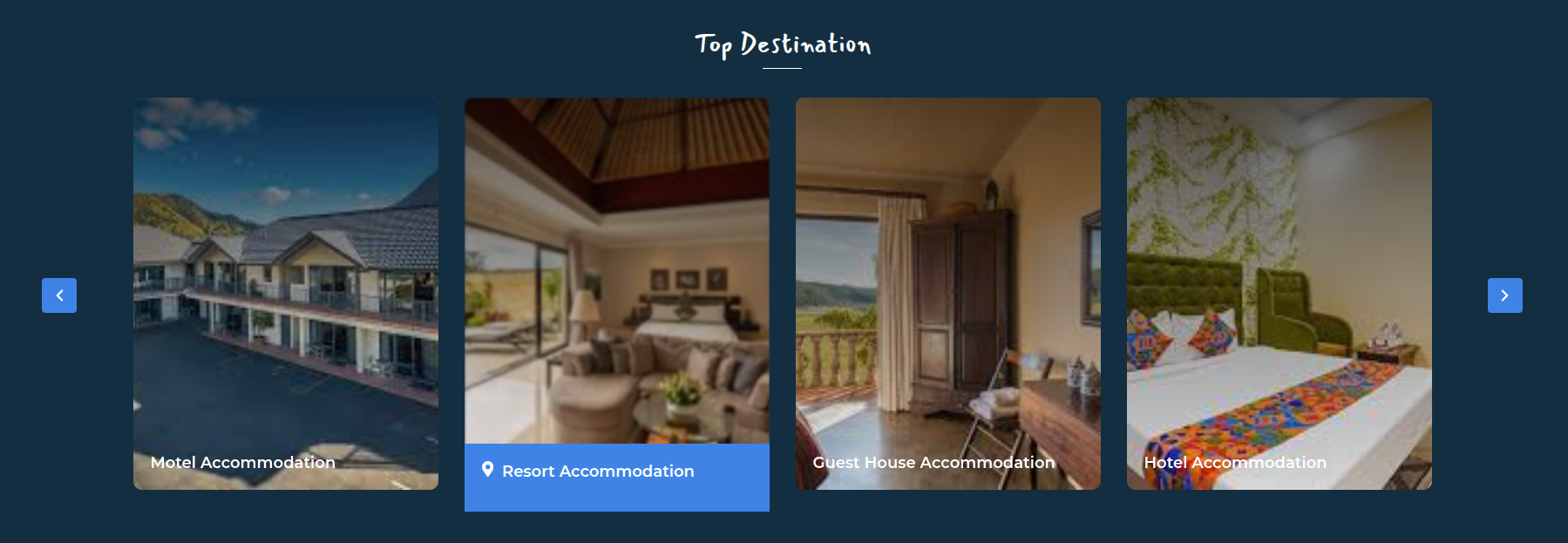
Such is Exactly what will happen initially seem.
Starting with the Footer
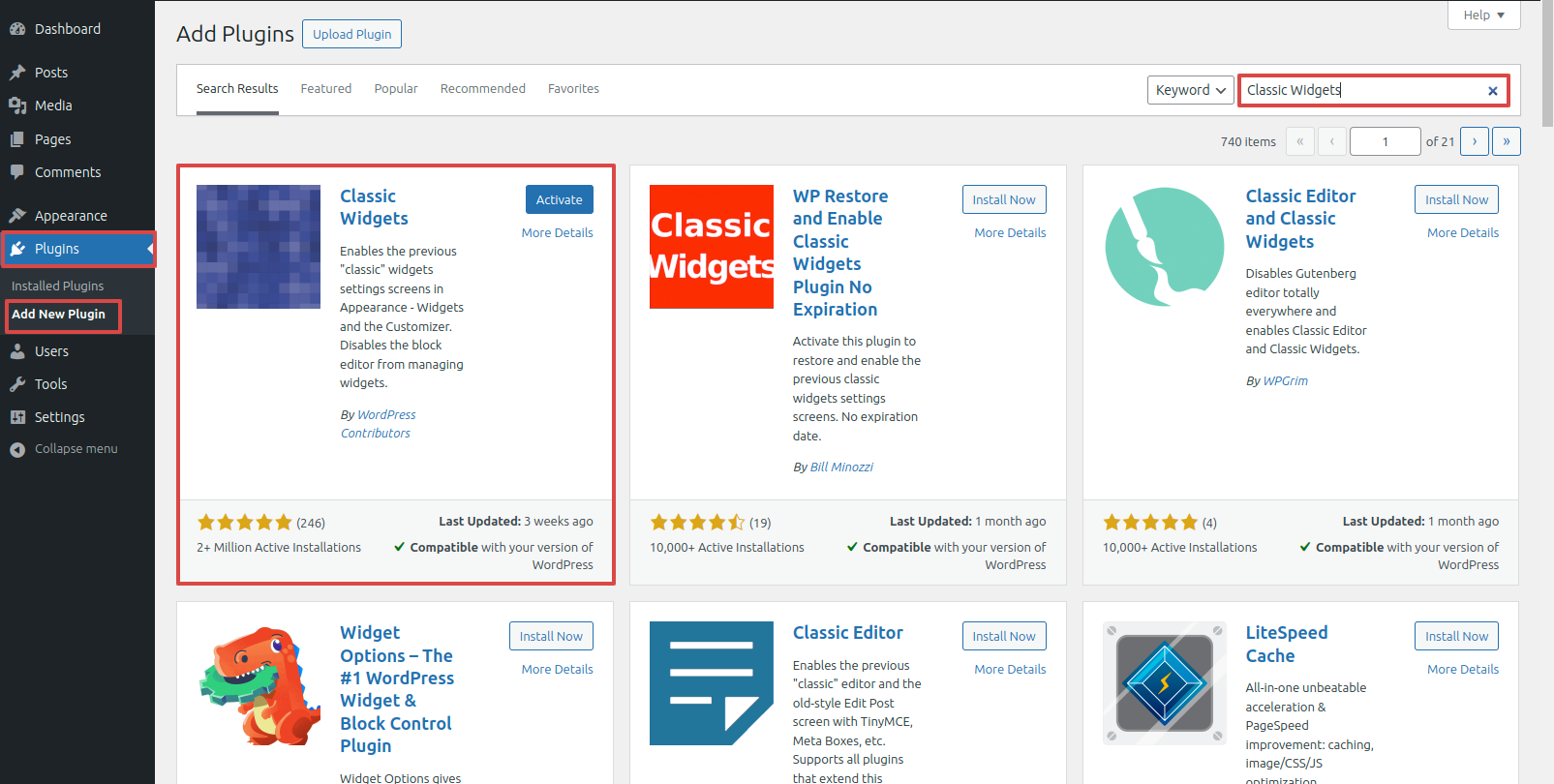
For the footer area, use Plugin for Classic Widgets..
Set up on 1: Navigate to the Dashboard---> Plugin ---> Add New.
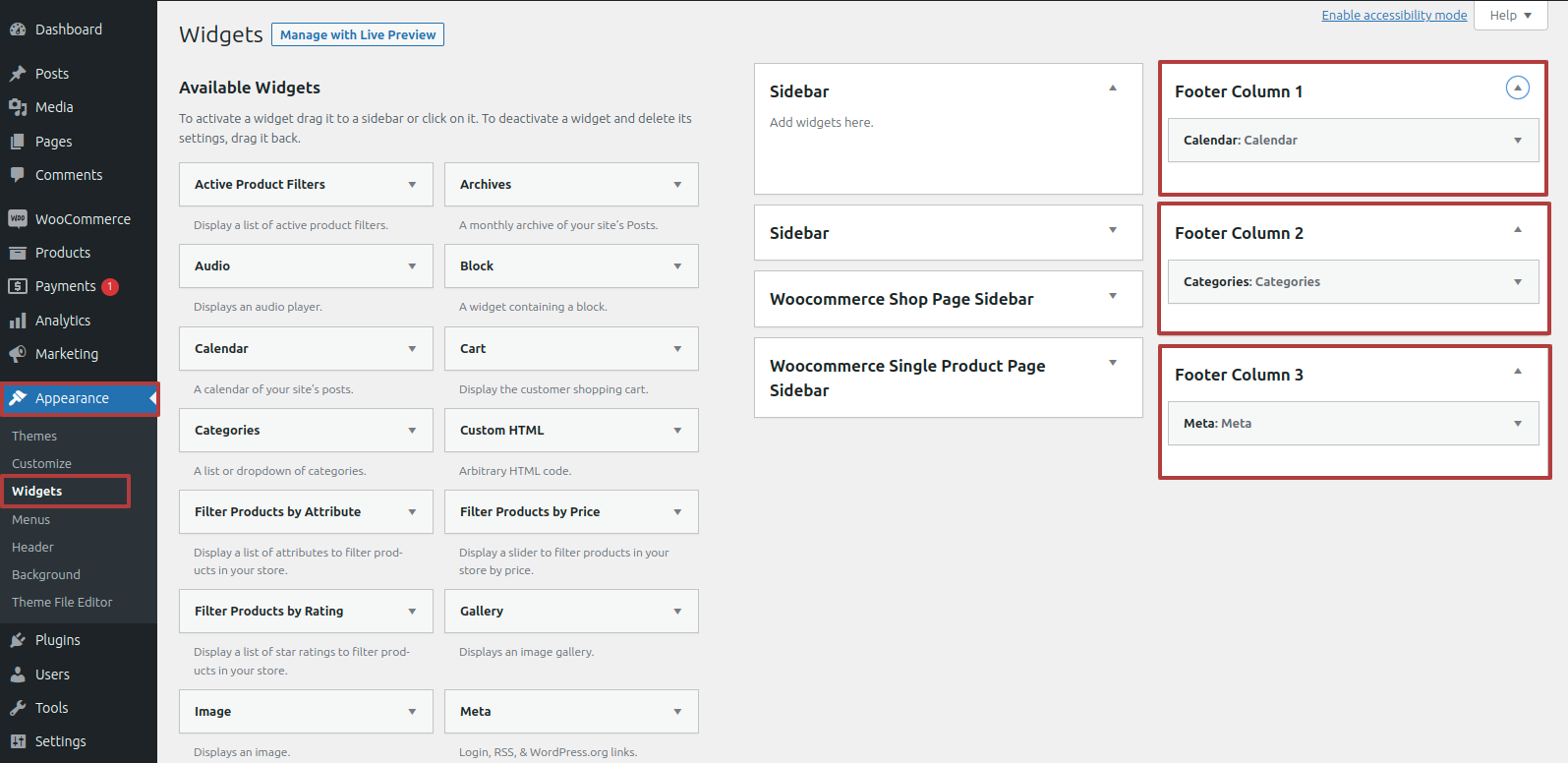
Set up on 2: Navigate to the Dashboard---> Appearance ---> Widgets.
Start To construct this area, select the four columns footer for the Posts Categories, calendar, Meta, and images, Search, from the appearance section's widgets..
The widgets part is seen in the figure below.
Navigate to Dashboard --->Appearance---> Widgets.
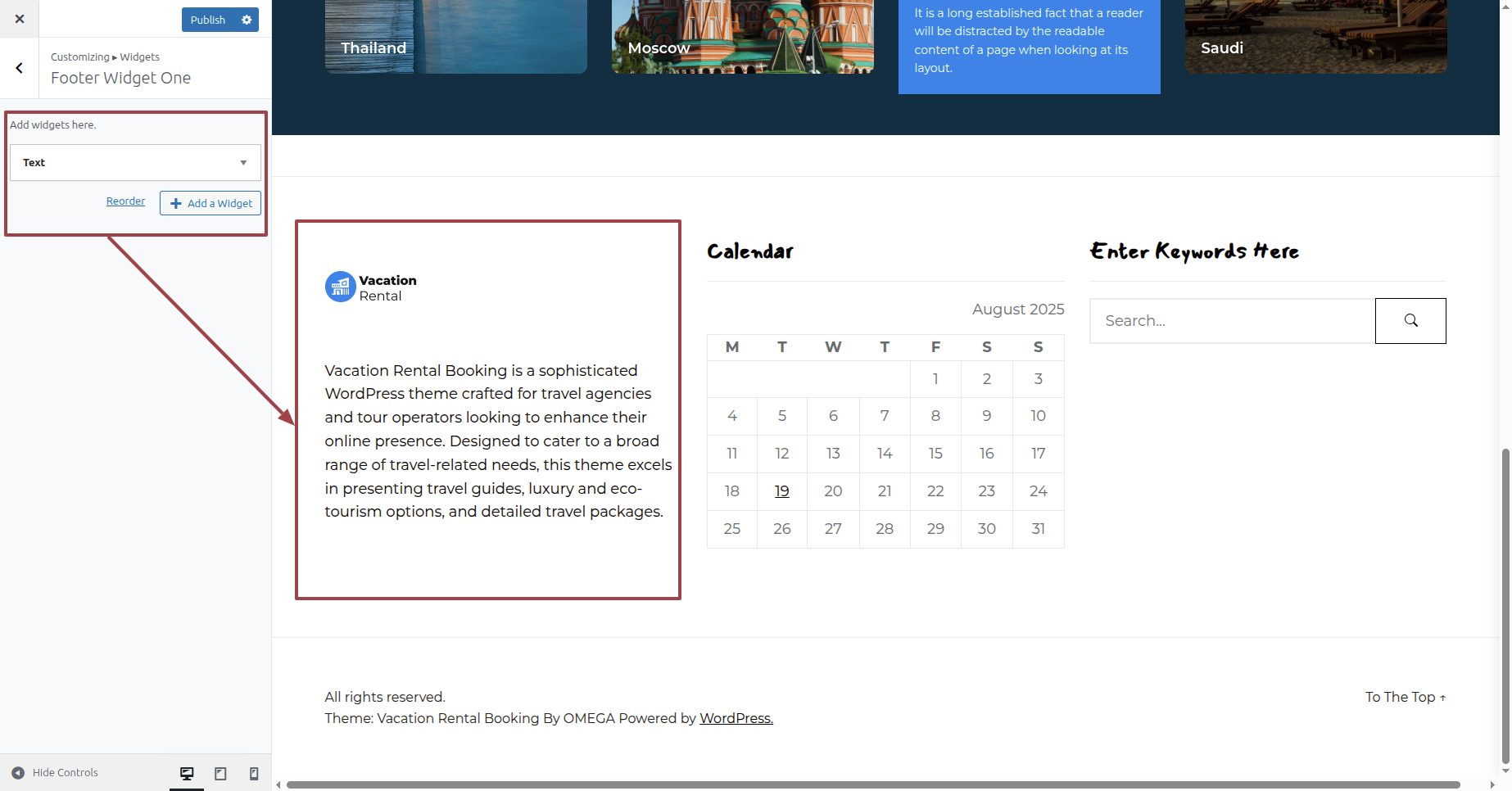
To access footer widgets, Start the Appearance --->Customize --->Widgets-->Footer Widget One .
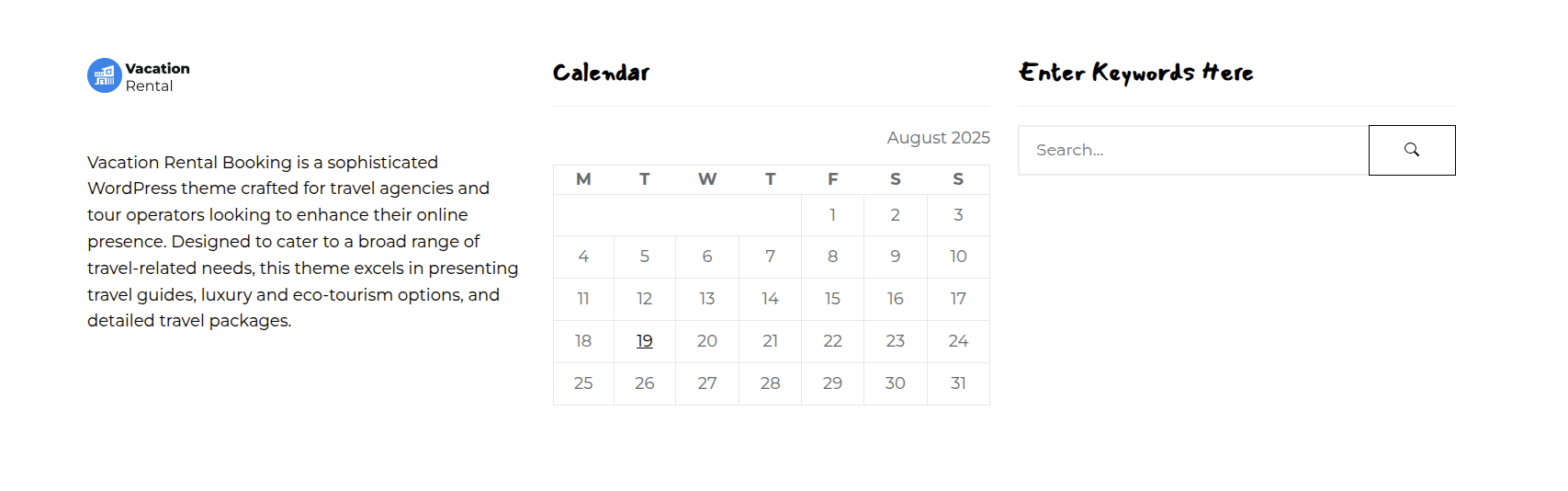
Such is Exactly what will happen initially seem.
Starting with the Footers A text section,
Navigate to Appearance--->Customize-->Theme Options--->Footer Settings.
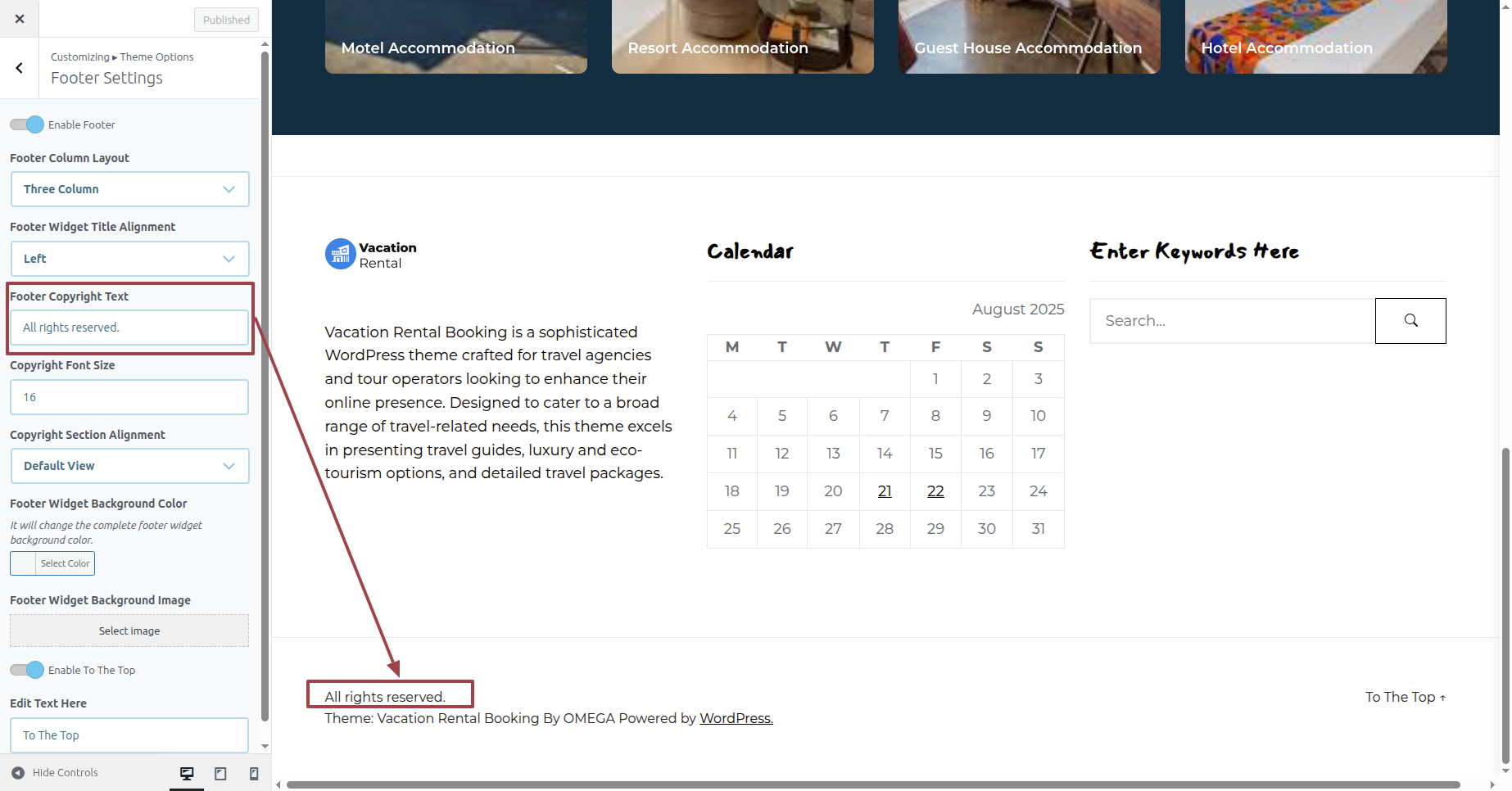
Such is Exactly what will happen initially seem.
