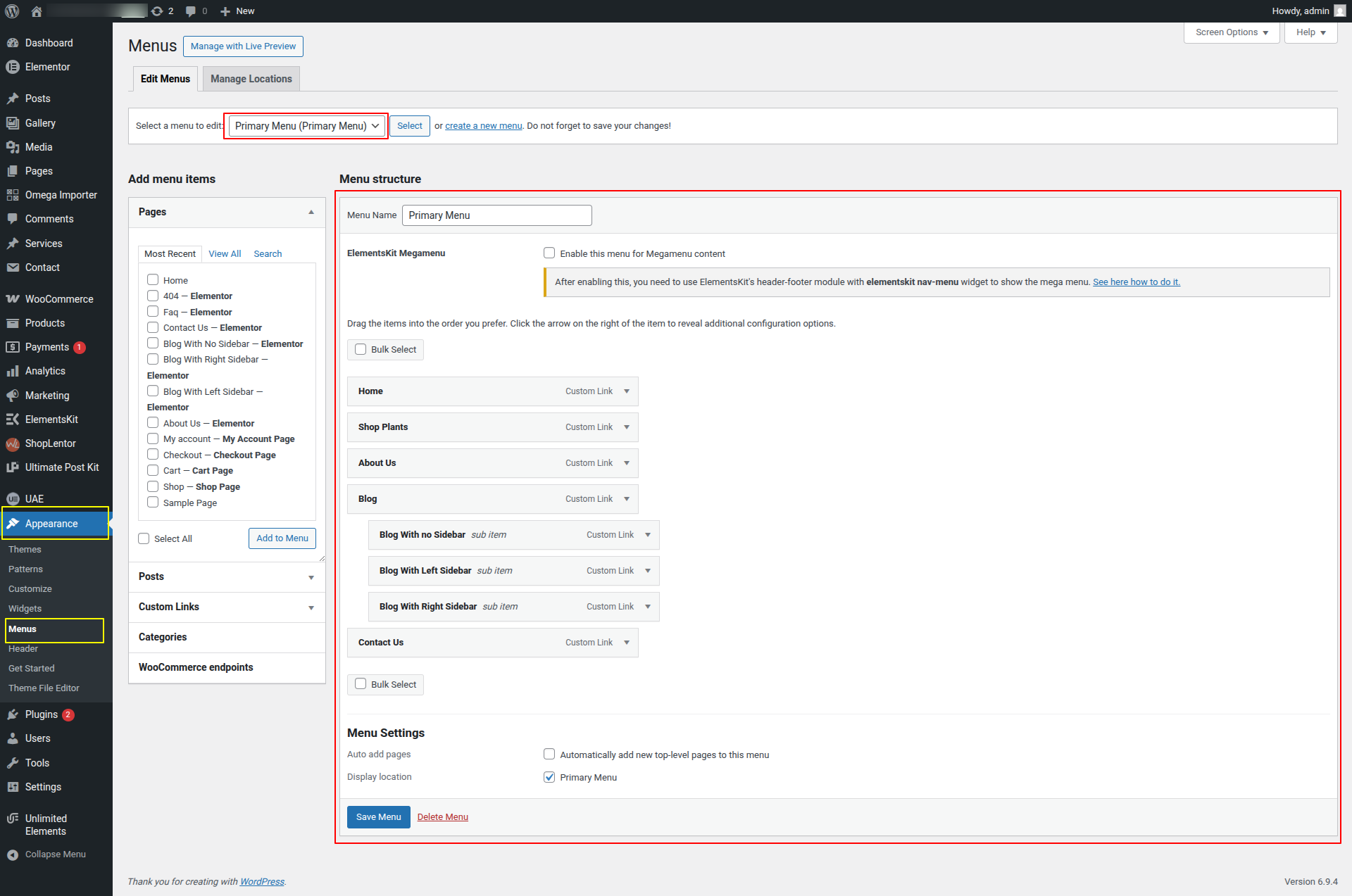





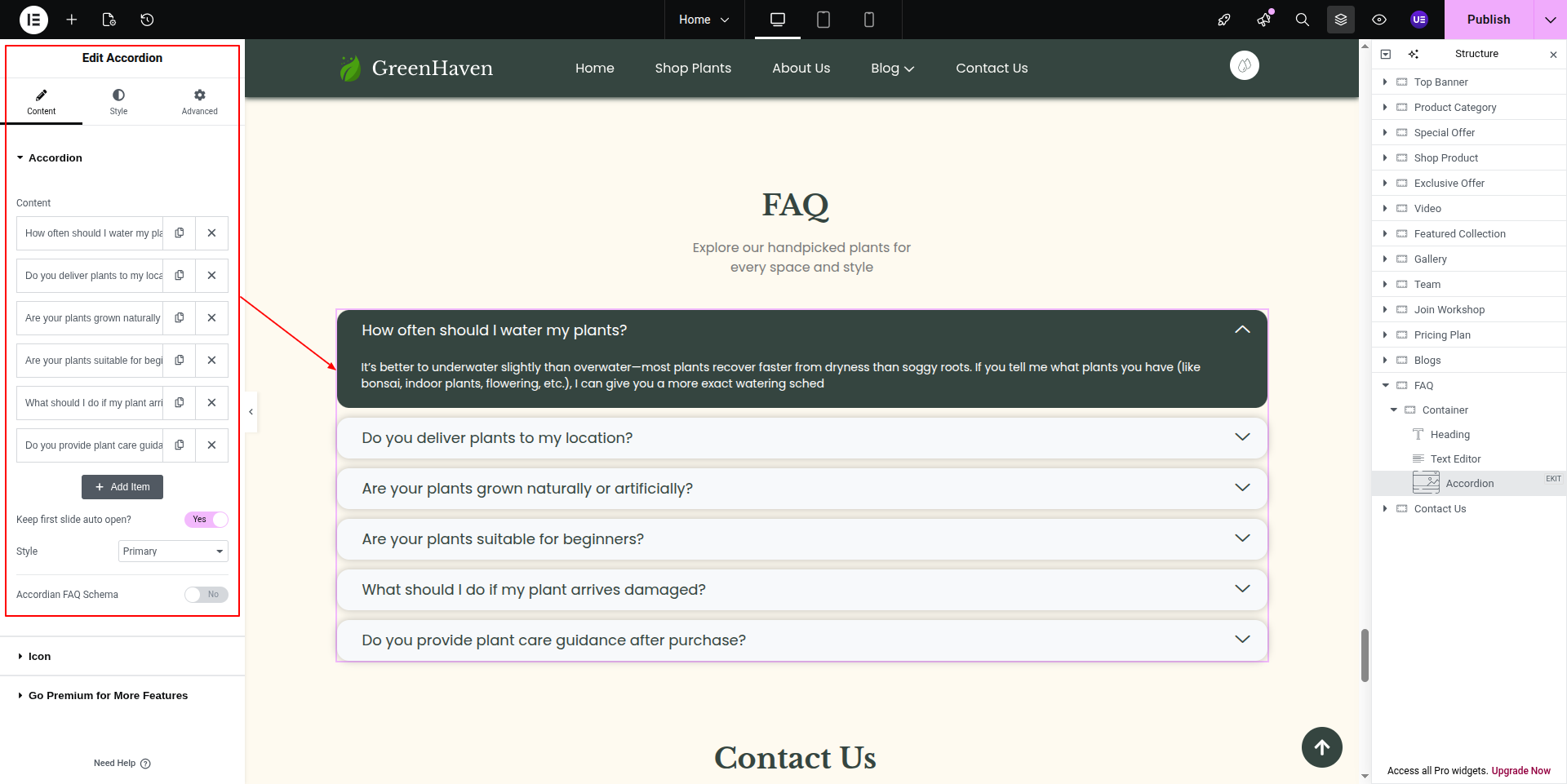
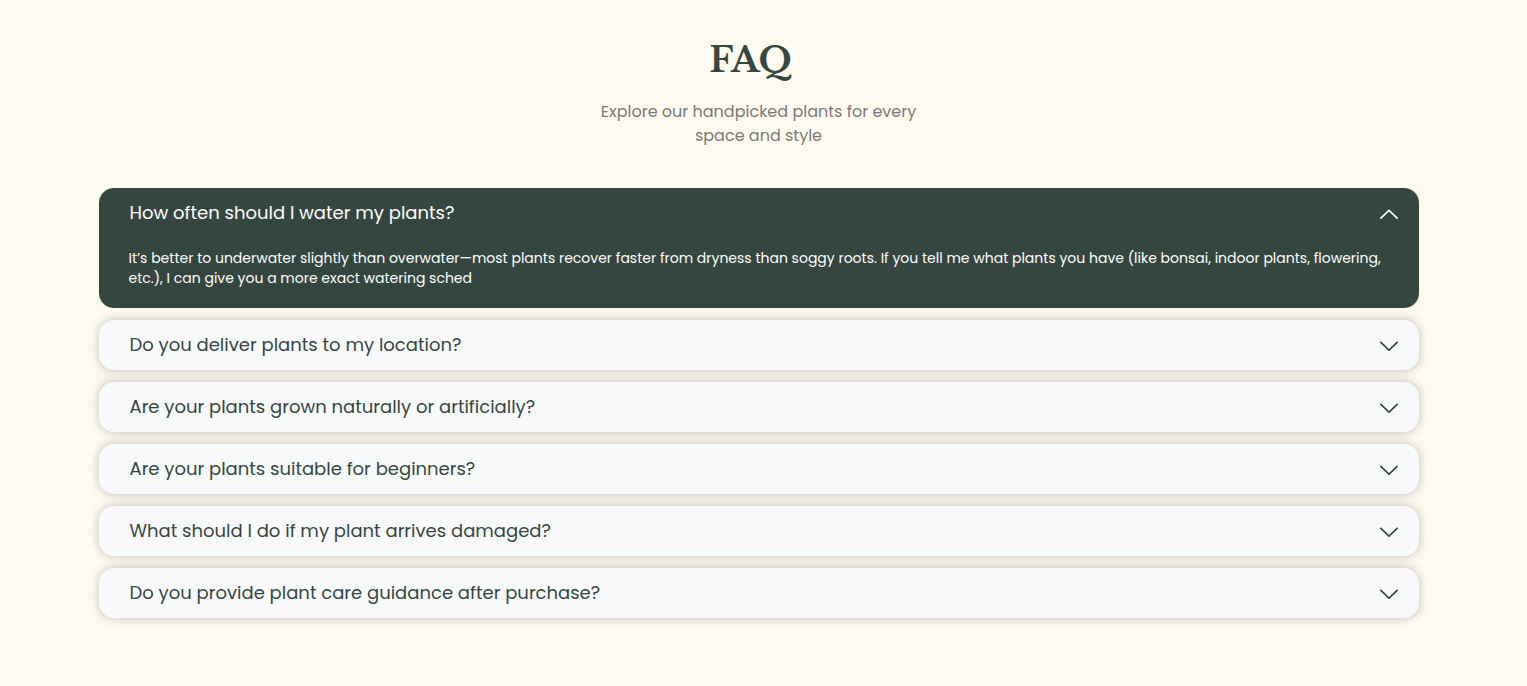
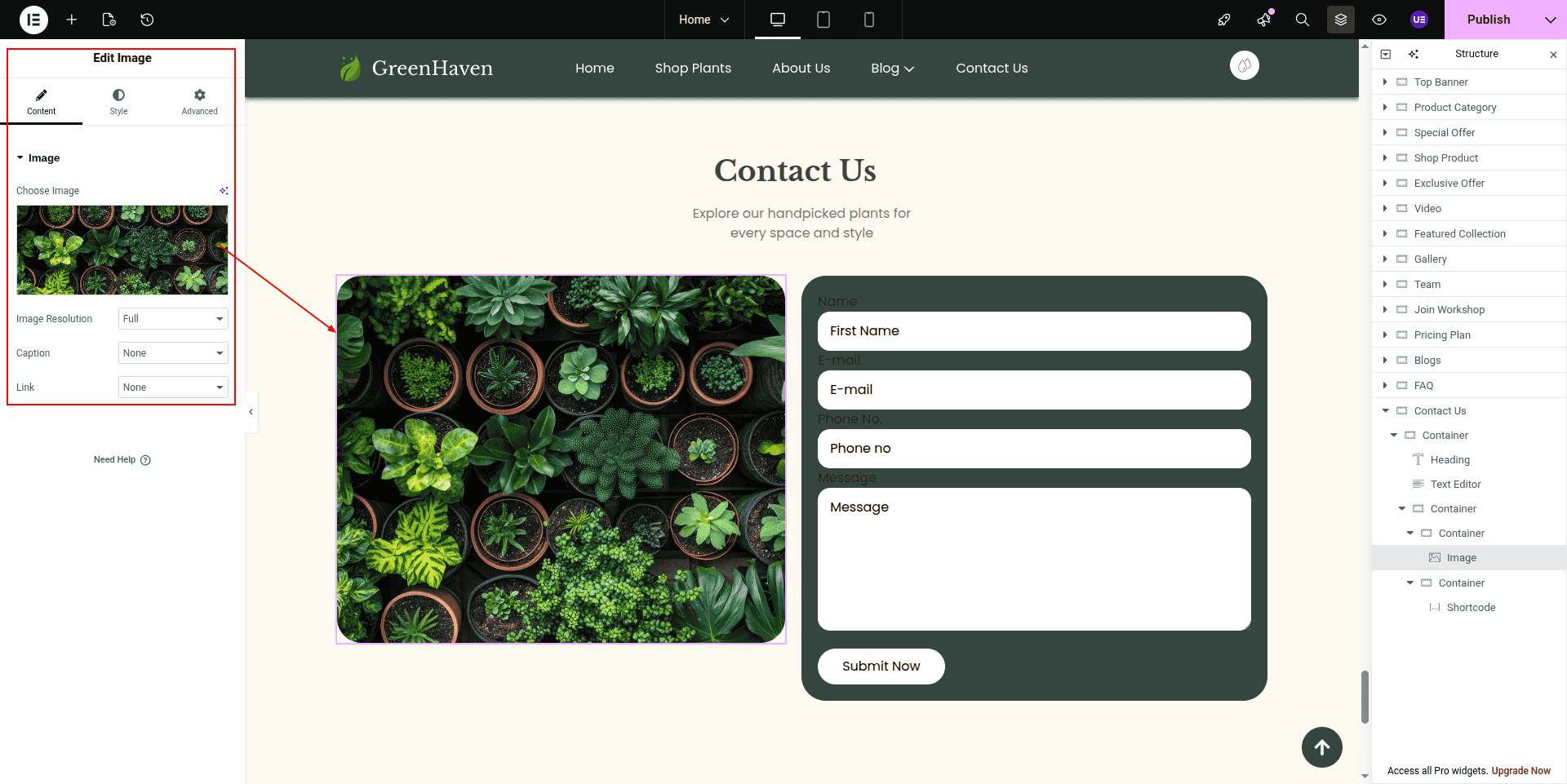
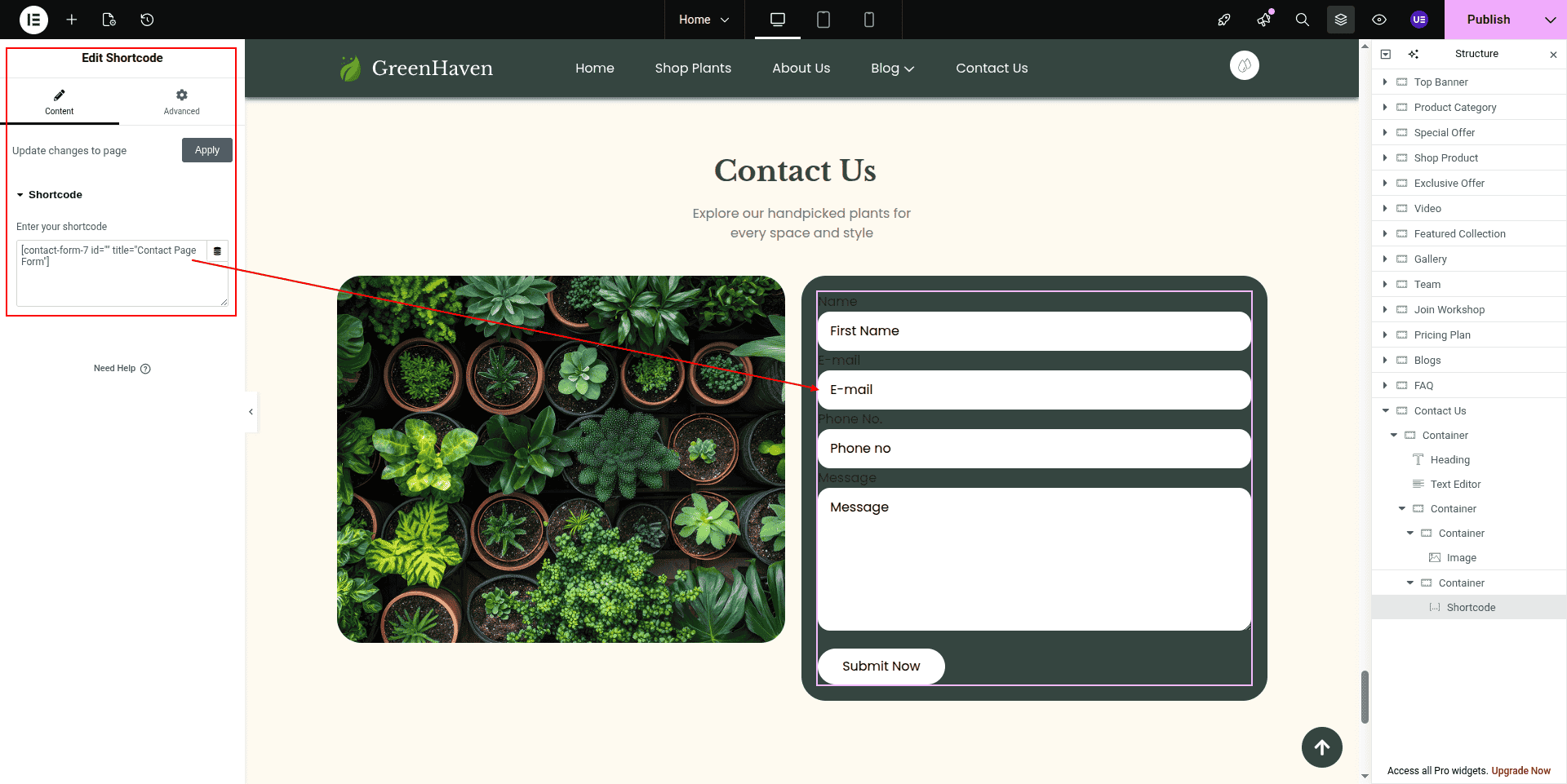
It's quite simple to set up a template. The installation procedure can be completed using either of the two methods available.
Entering into your admin panel of wordpress serves as the initial step., then
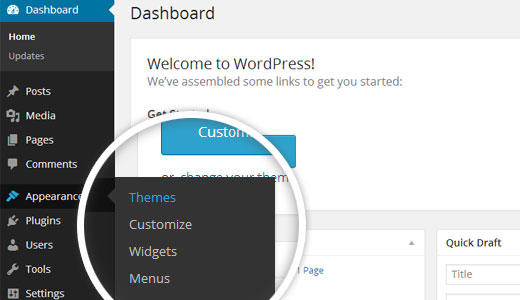
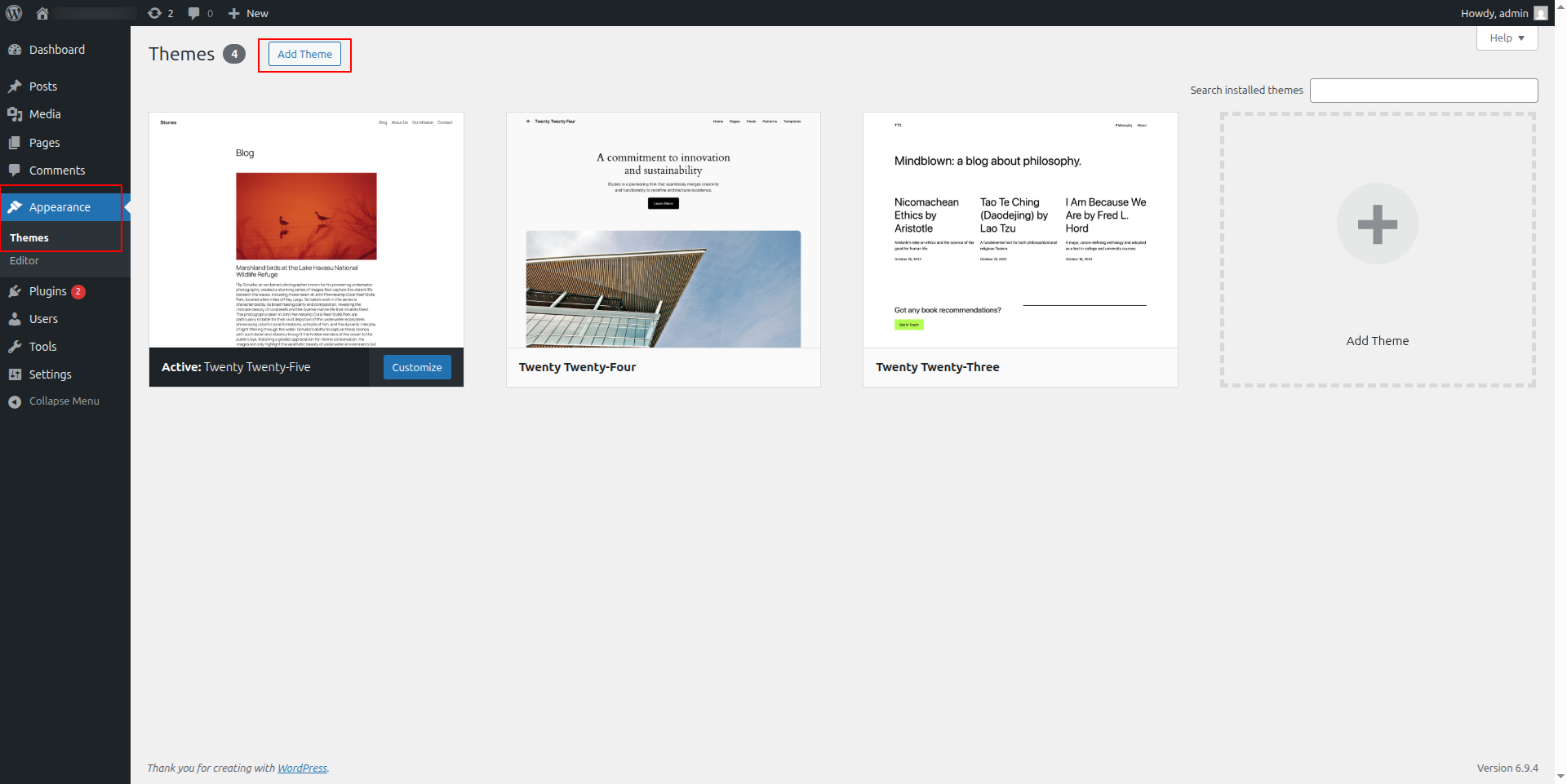
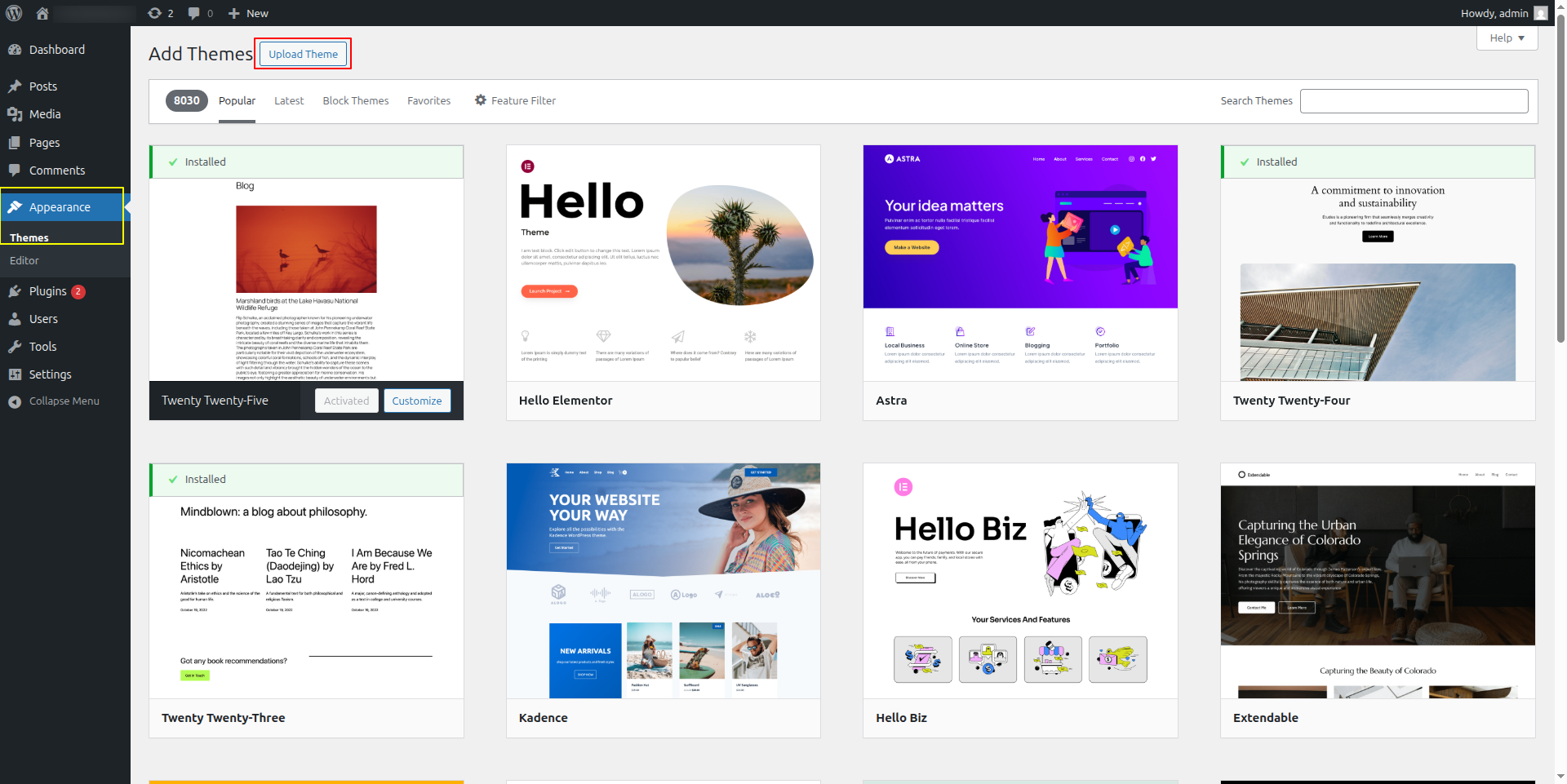
1. Select Appearance ---> Themes via the menu.
2. On the Themes section., select Add New by selecting the button, after you've arrived there.
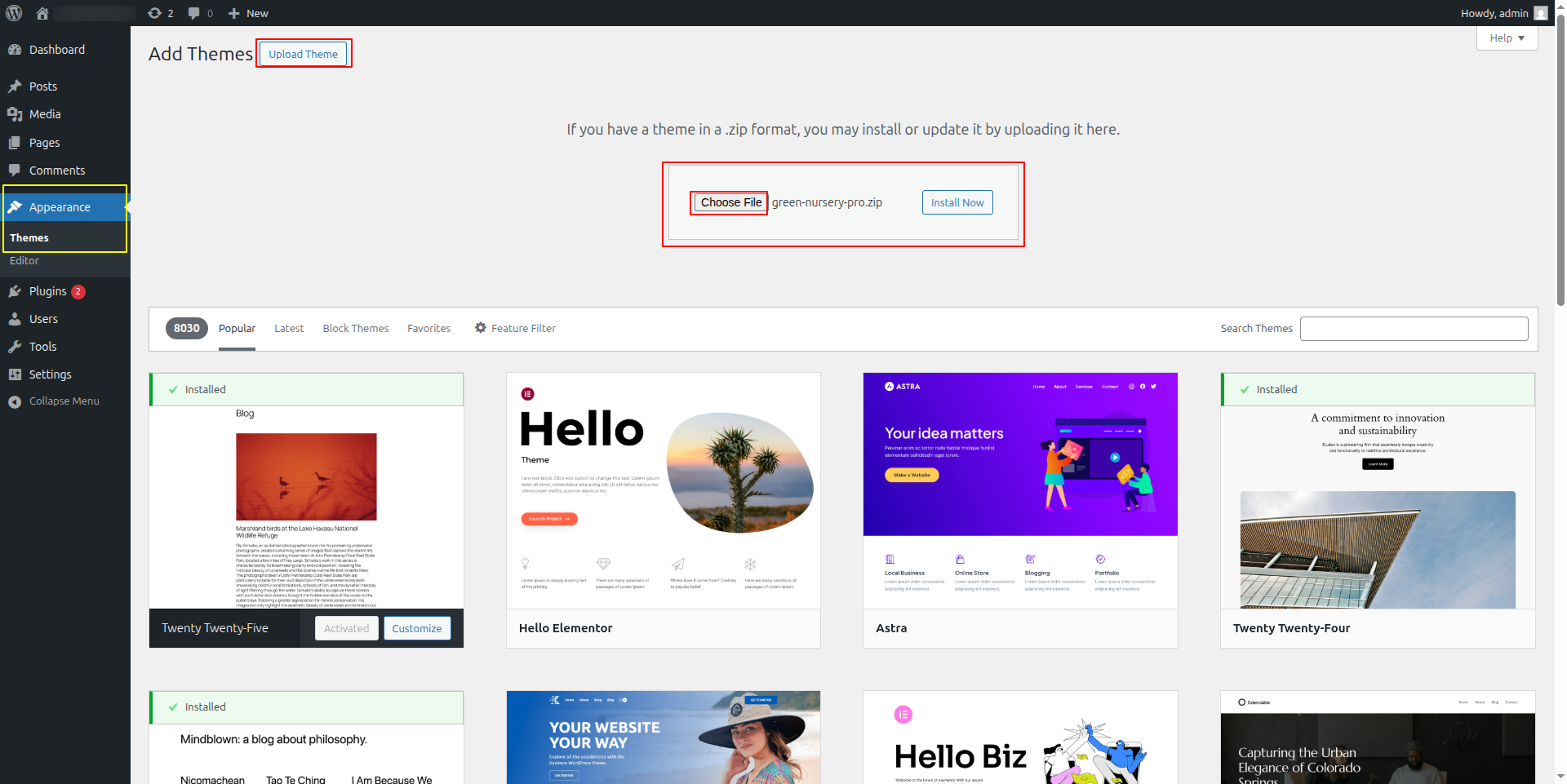
3. To upload a theme, click the button.
4. Select your green-nursery-pro theme by selecting the Browse button, thereafter Choose “Install Now.”
Well done! The installation of The theme has been gone well.
Alternatively, you can Use FTP Method for installation of theme. For the second option, first use FTP to visit your website., Then navigate to the wp-content/themes directory. The theme you downloaded should be unzipped before being uploaded to the server you use.
After logging in, go to navigate to appearance --->Themes and activate Total on your webpage on WordPress.
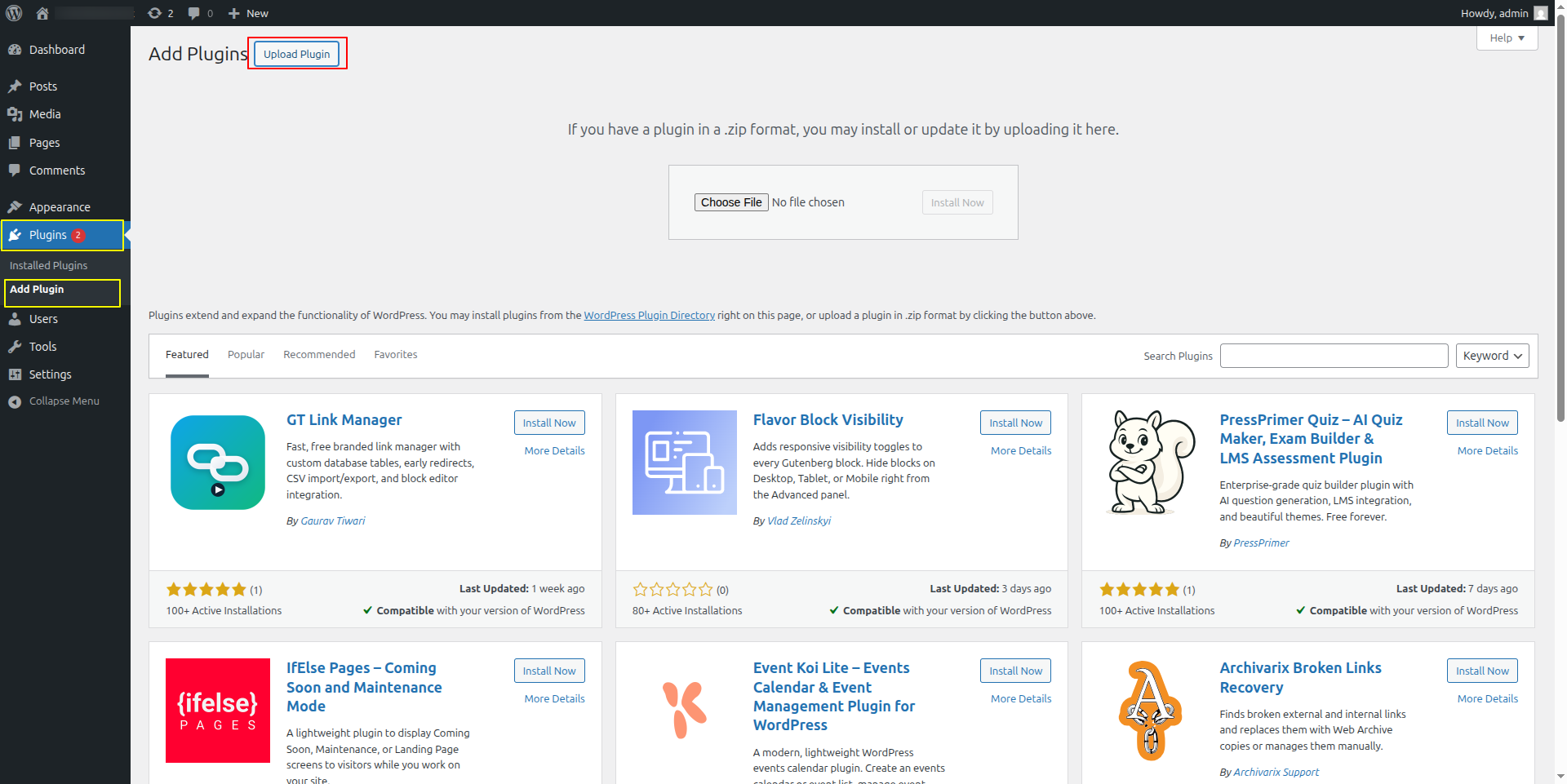
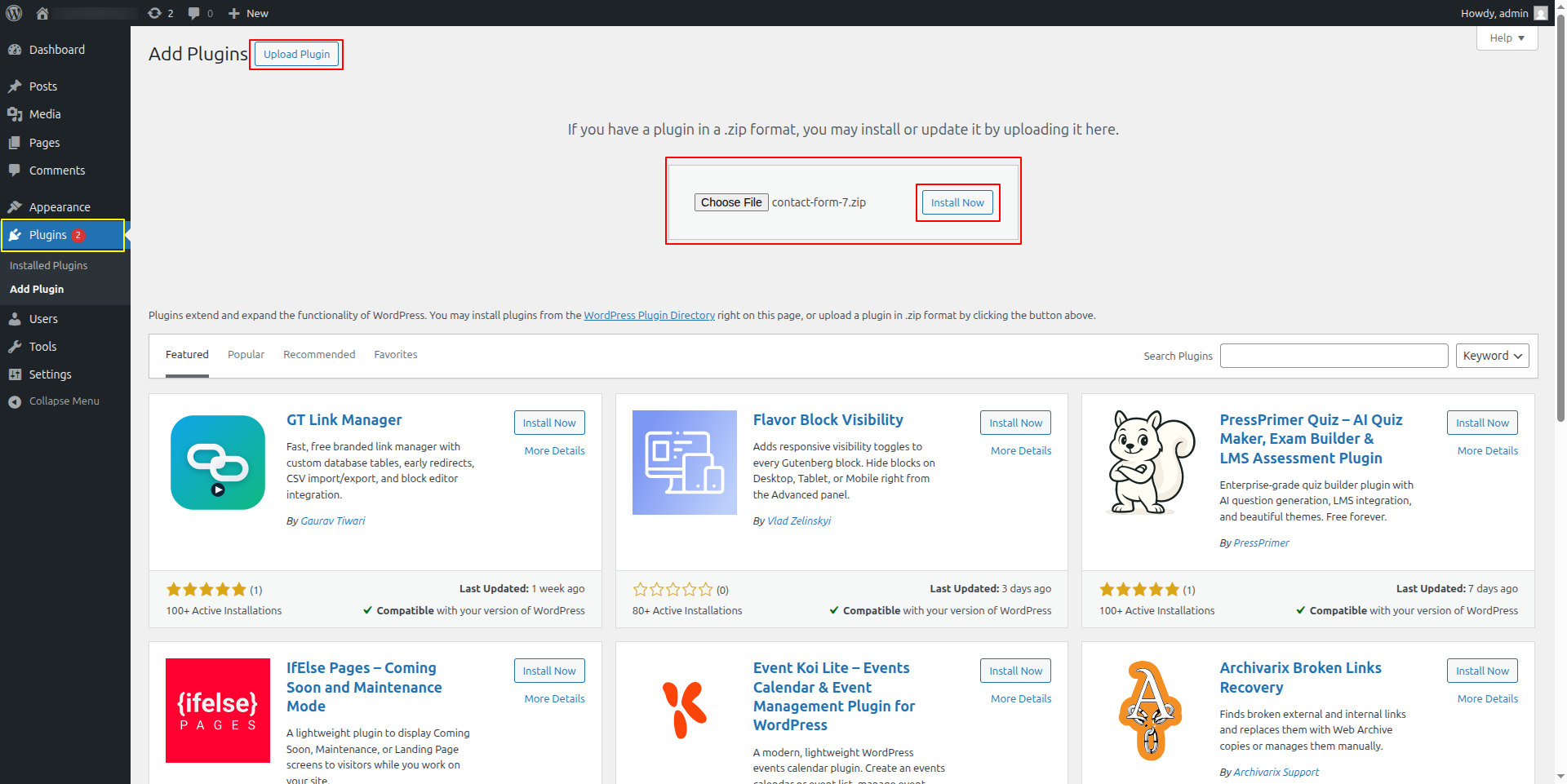
To Add a WordPress plugin. directly from a .zip file. archive, follow the steps indicated below: Upload plugin
activate the install button after clicking it.
Import sample content Using just one click to set up your theme. You can follow the instructions in this article to build your website.
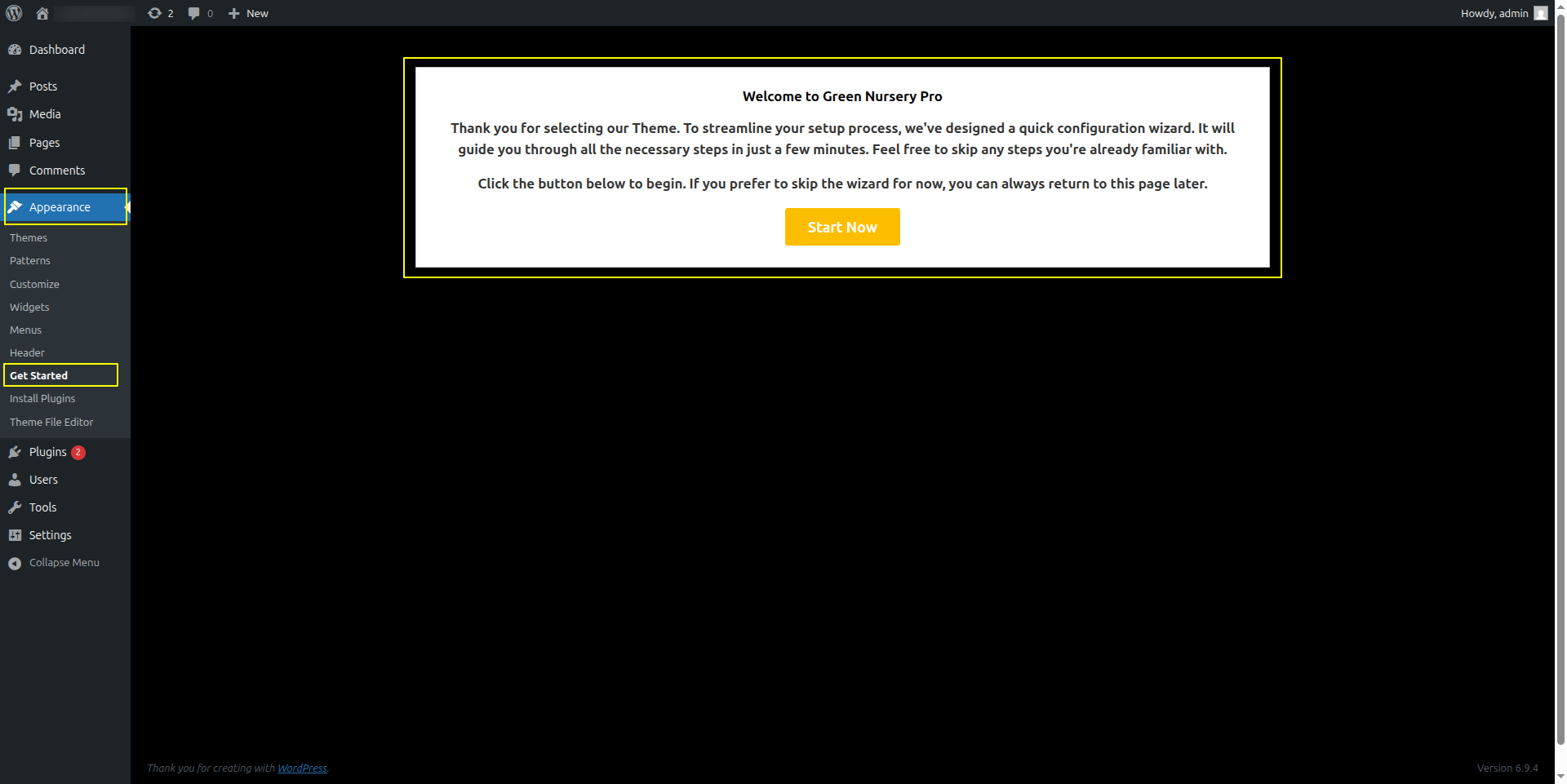
Select Dashboard --->AppearanceGet Started Start now .
Then select Run Importer
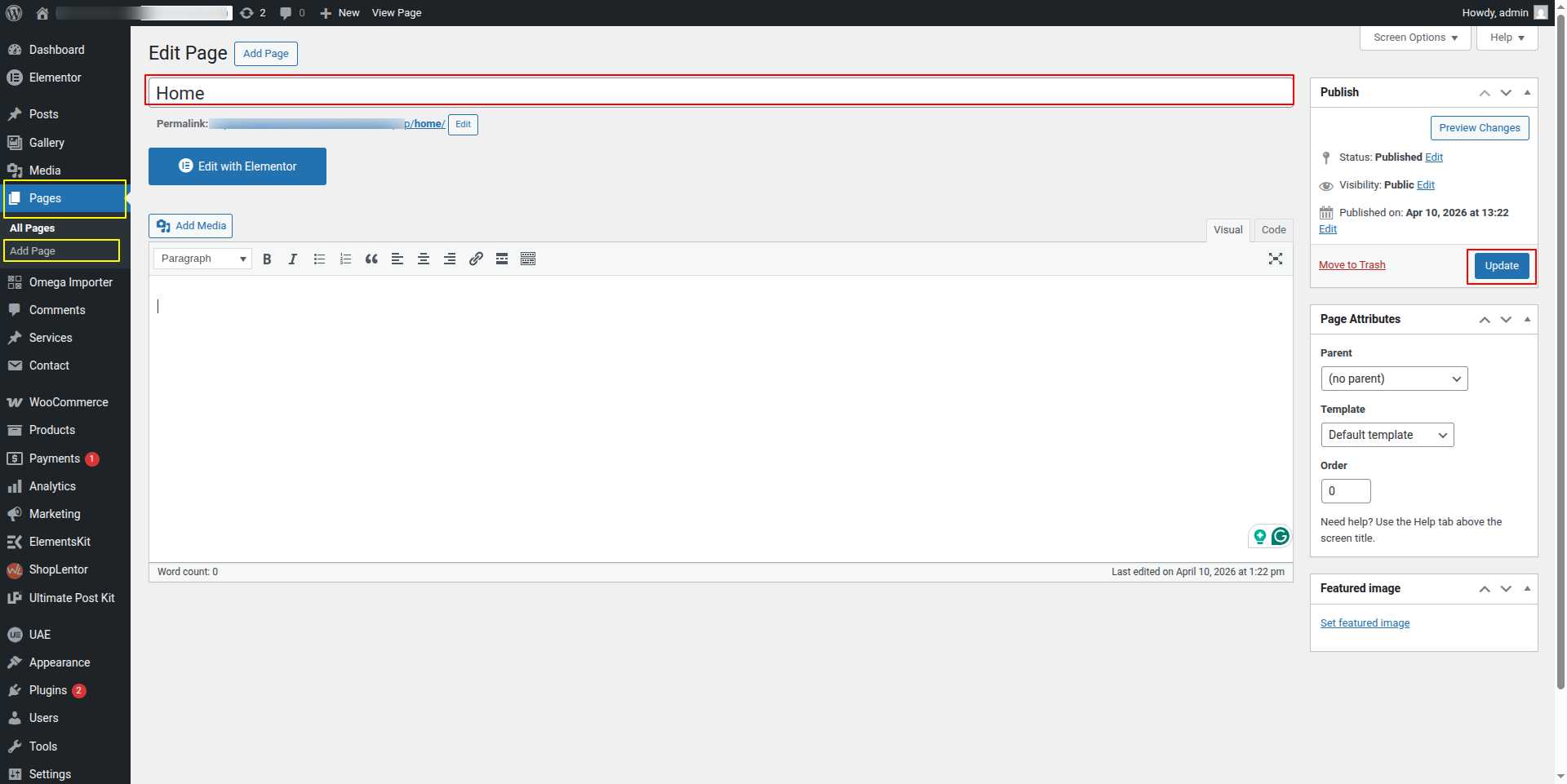
1) To configure a template, create a page--->Go to Pages in the Dashboard. New Page please.
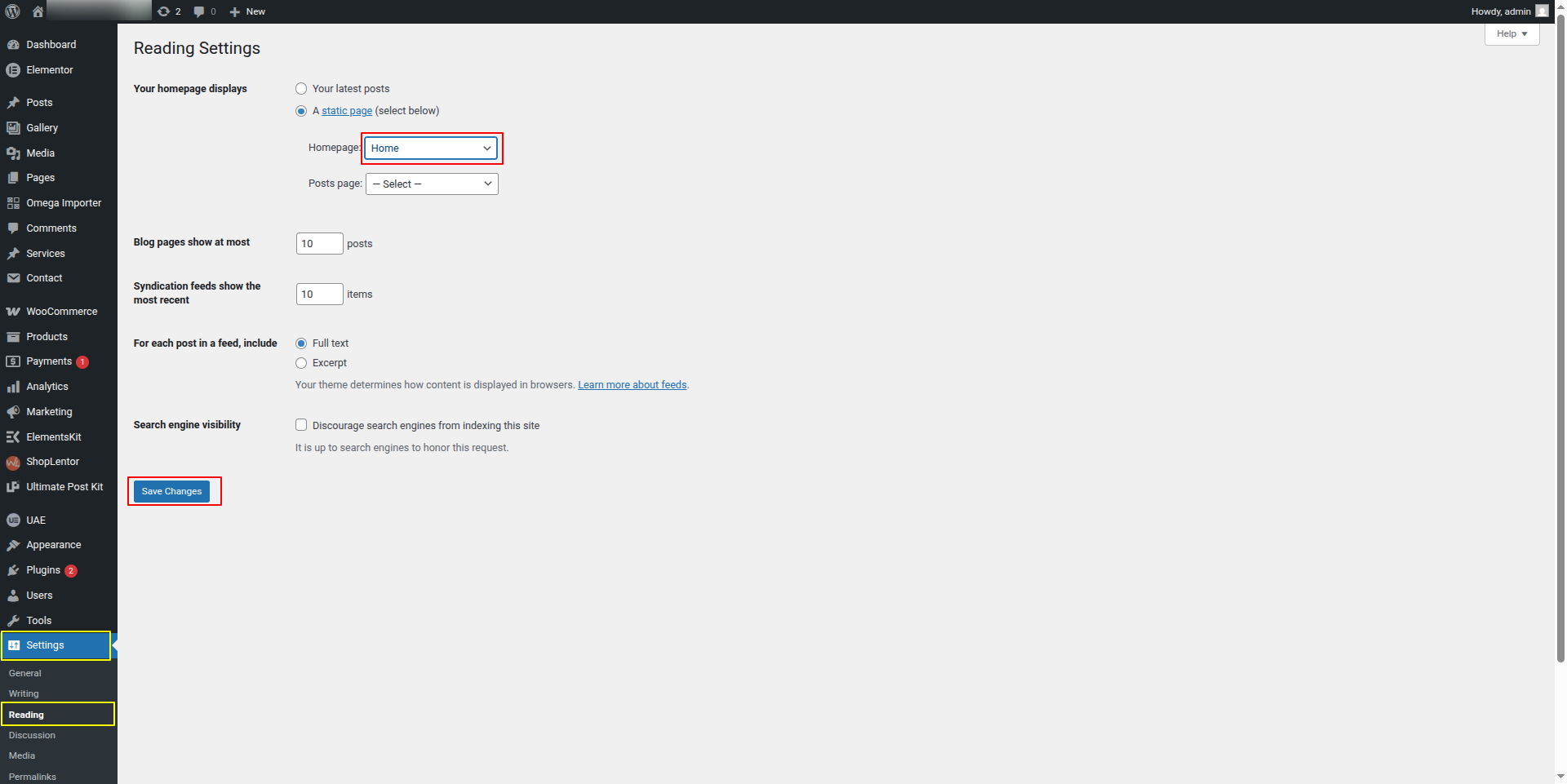
Label your home page either as the home page or with the name of your parent site. Then select Reading from the options menu, and change the static template to home page.
2)Configure the home page--->Visit Settings Reading. Configure the home page as the post set the homepage to a static page. .
Once completed, the top page will display the entire demo.
With respect to Site Identity,
Select Appearance---> Customize-->Site Identity.
With Content Header as the starting point,
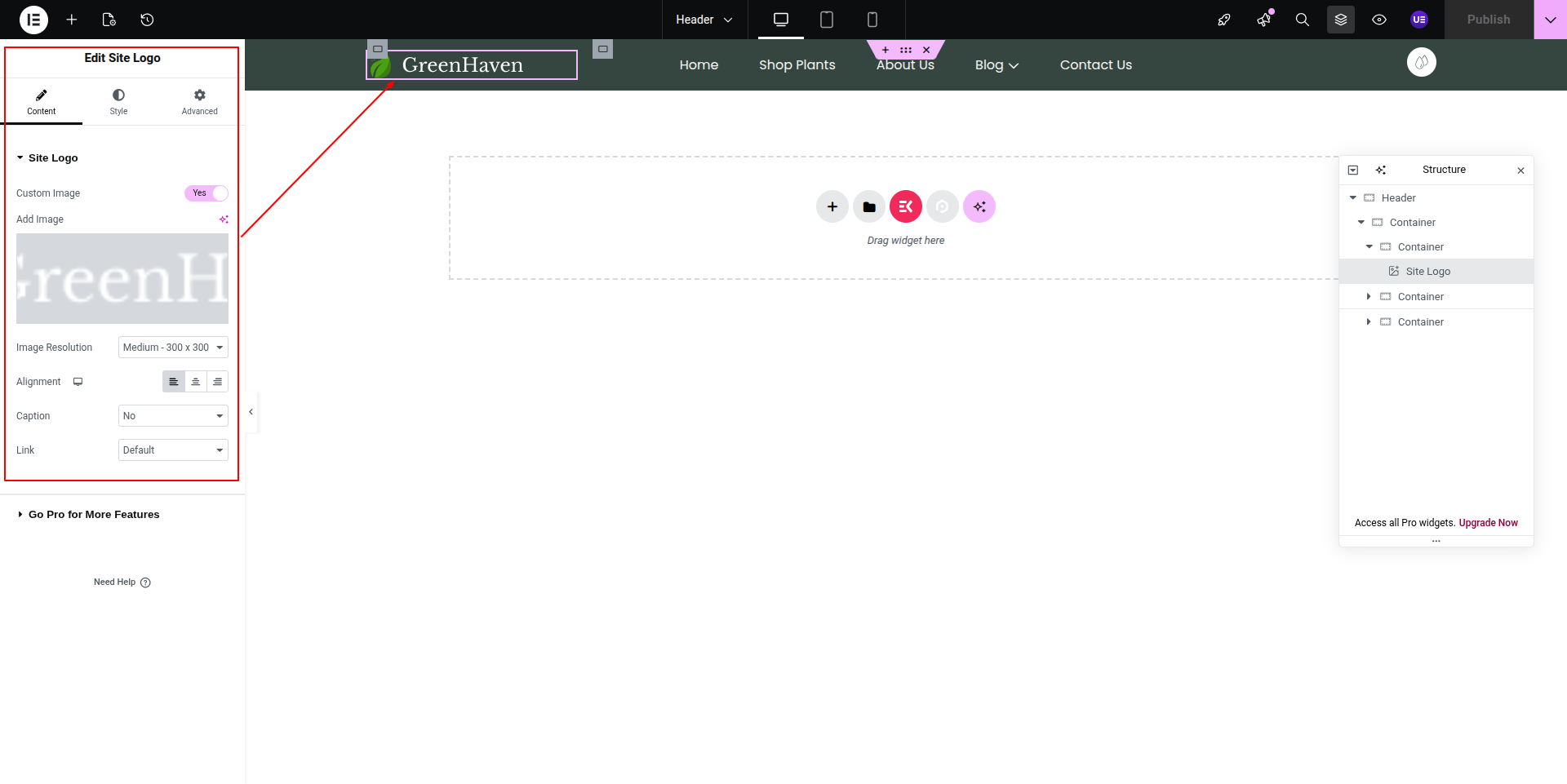
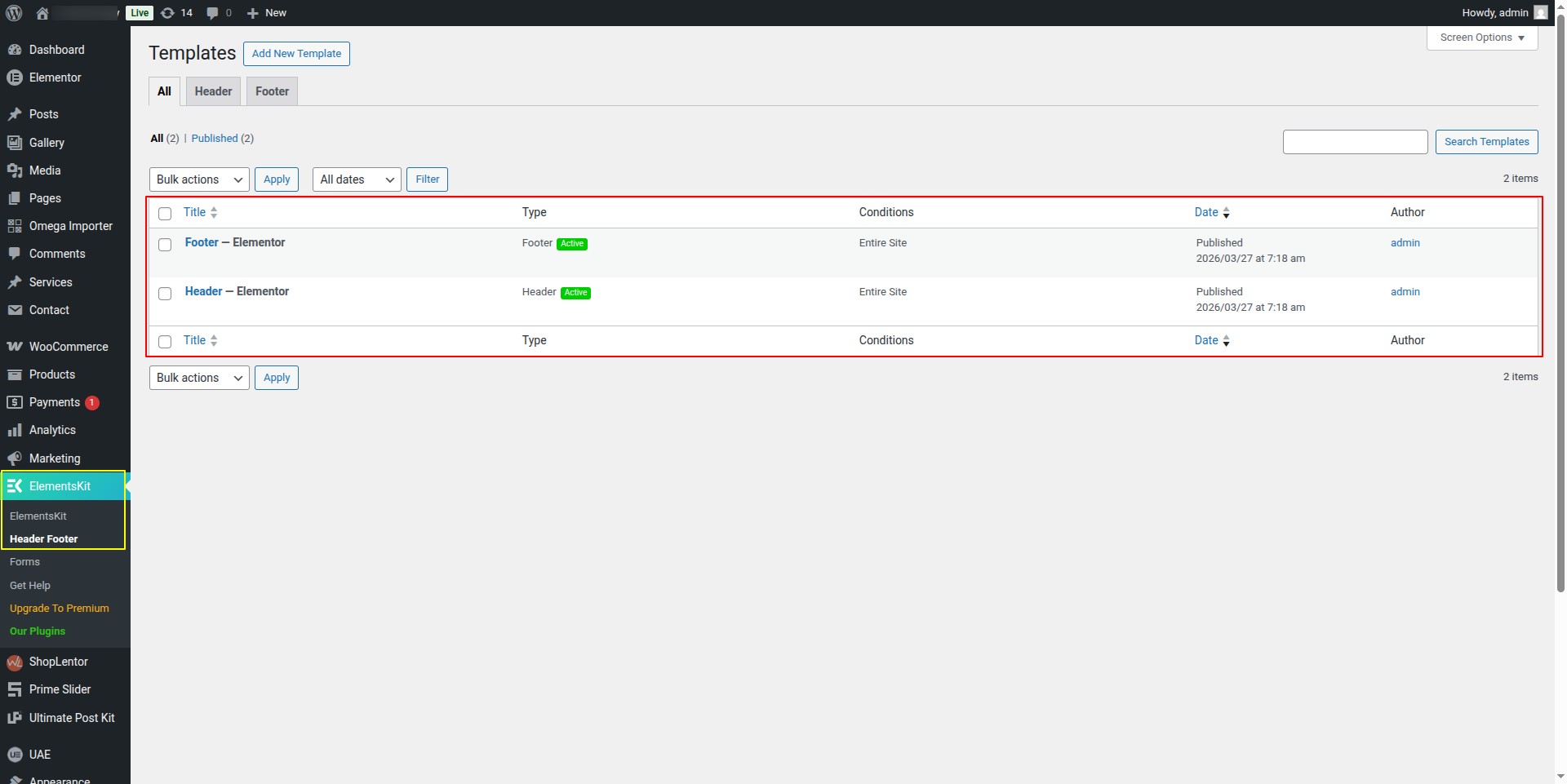
Access the Content Header option and Content Header settings by going to Elements Kit---> "Header & Footer"---> Add New Template--->Edit with Elementor.

It will look like this in the Content Header Section.

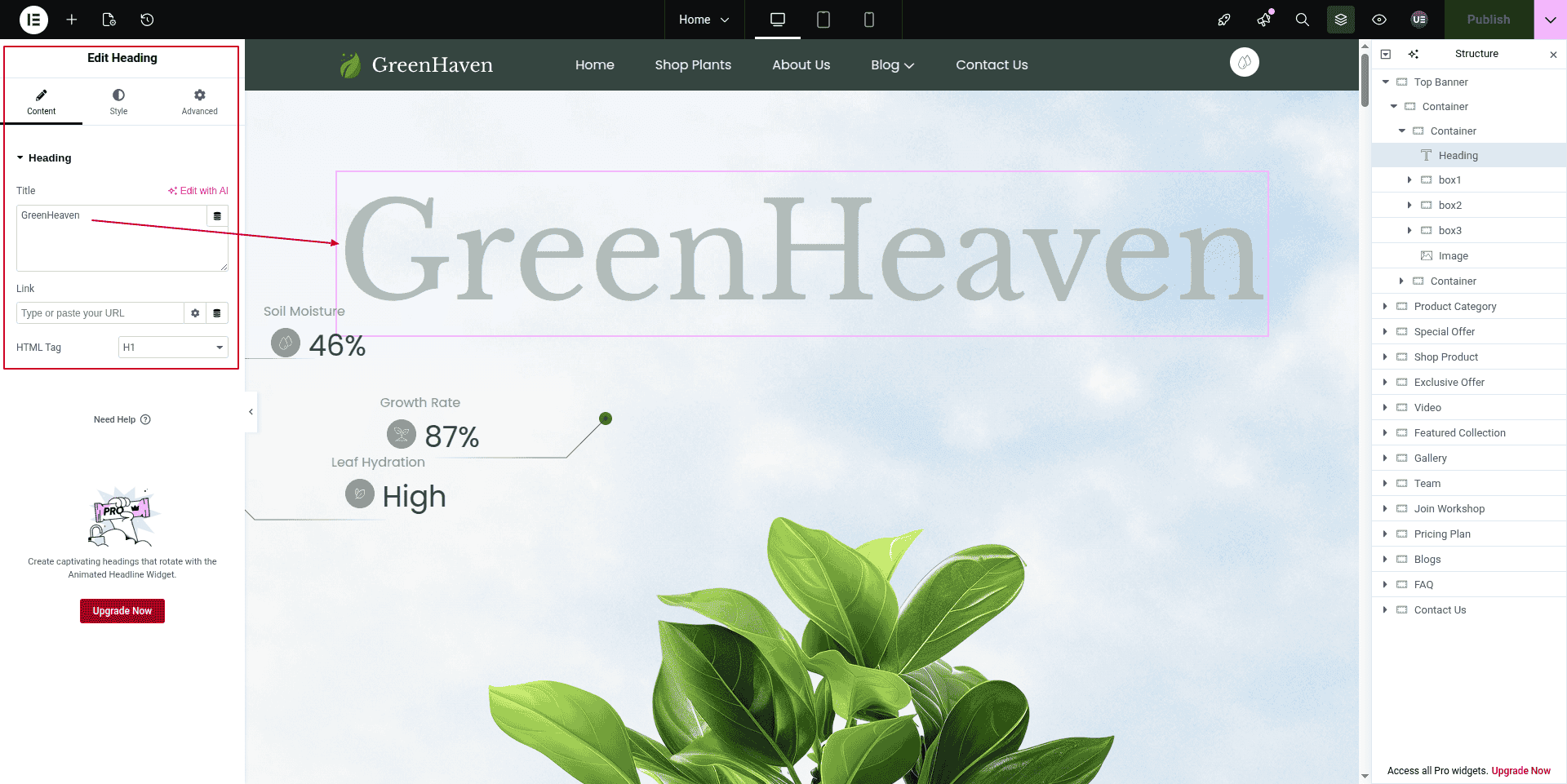
Access any page: Edit with Elementor---> Normal Heading Widget ---> Upload desired text.
Drag & Drop Text Editor widget
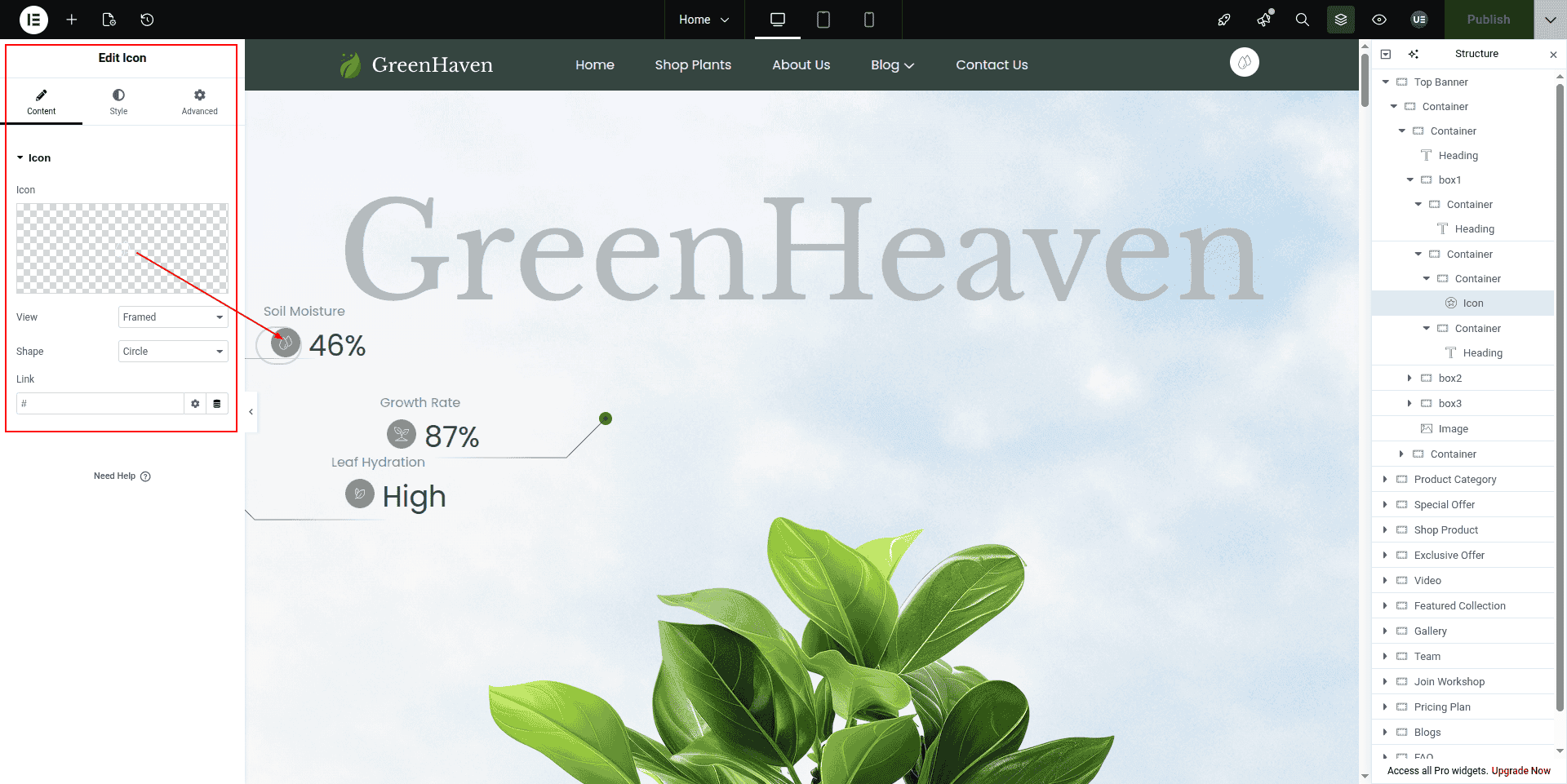
In here the first element is a normal icon.
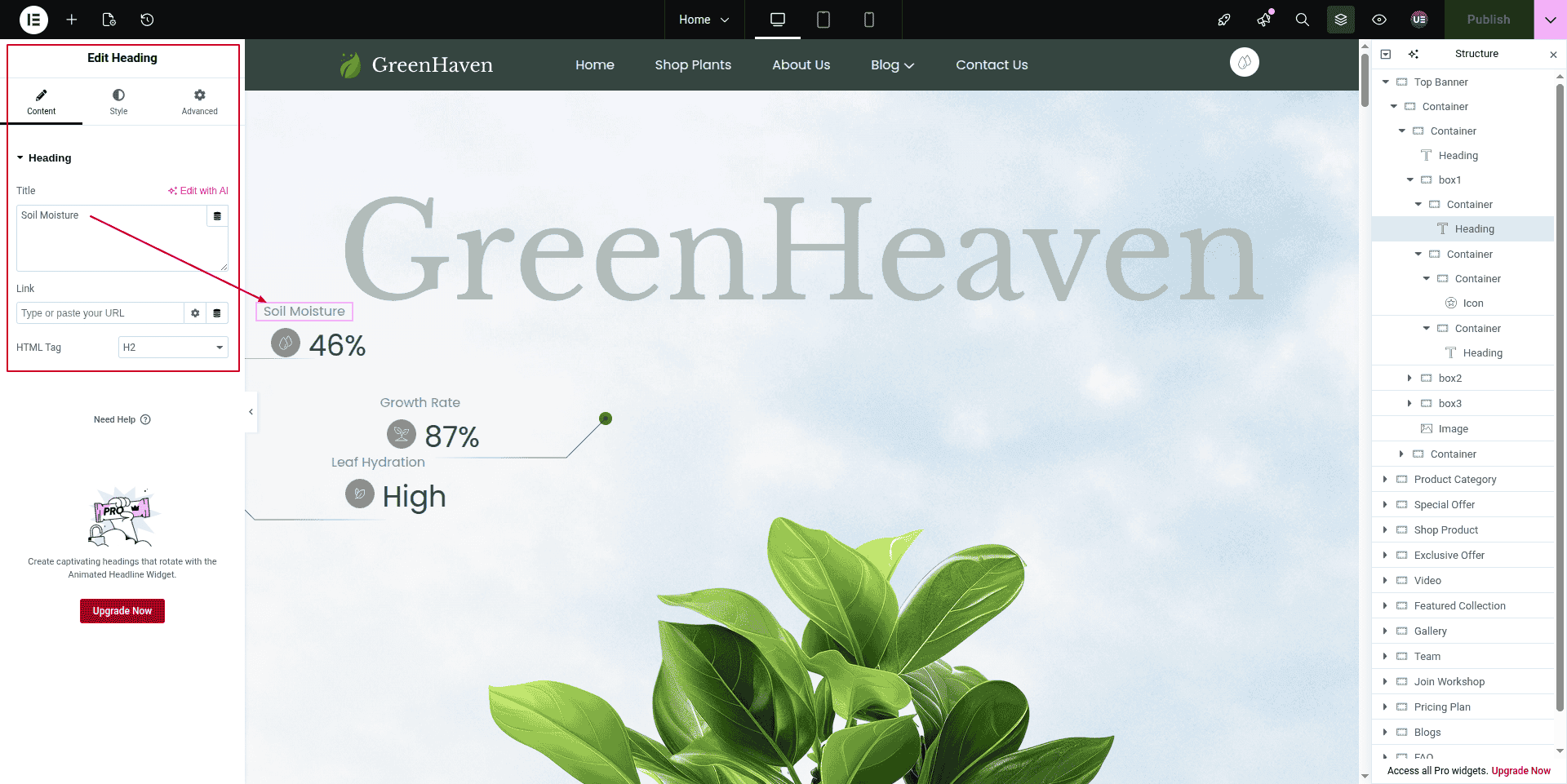
In here the first element is a normal text.
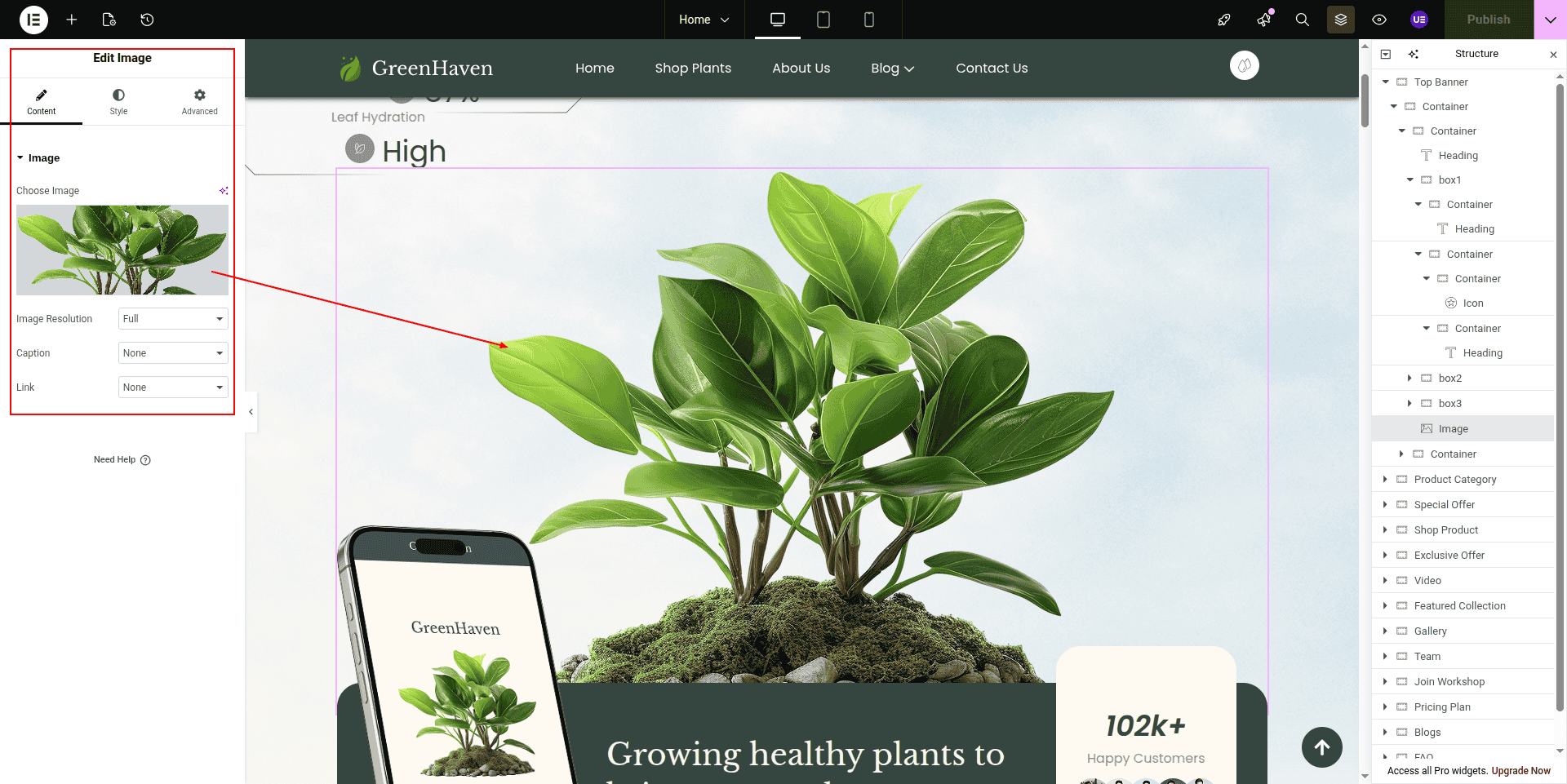
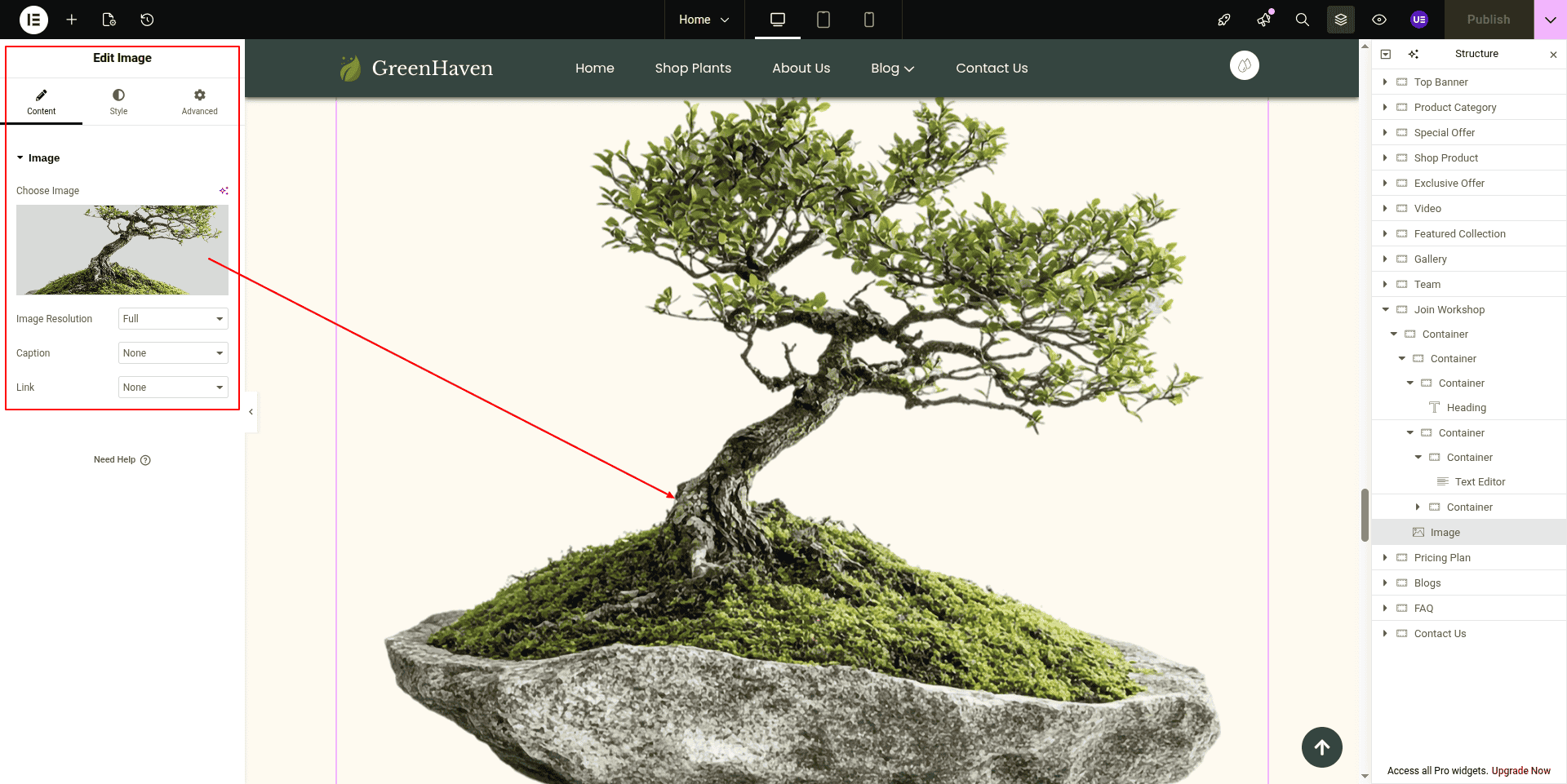
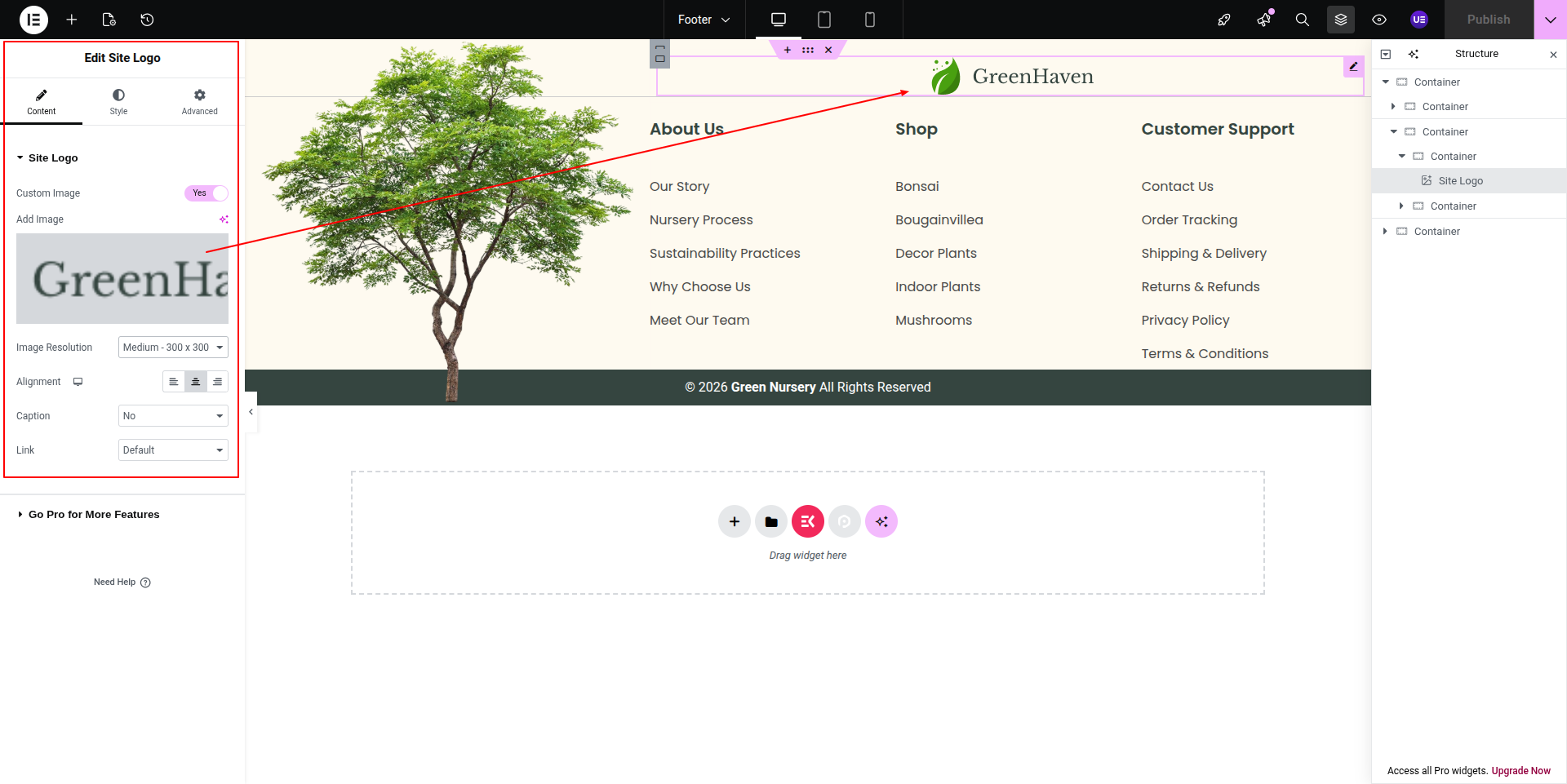
In here the first element is a normal image.
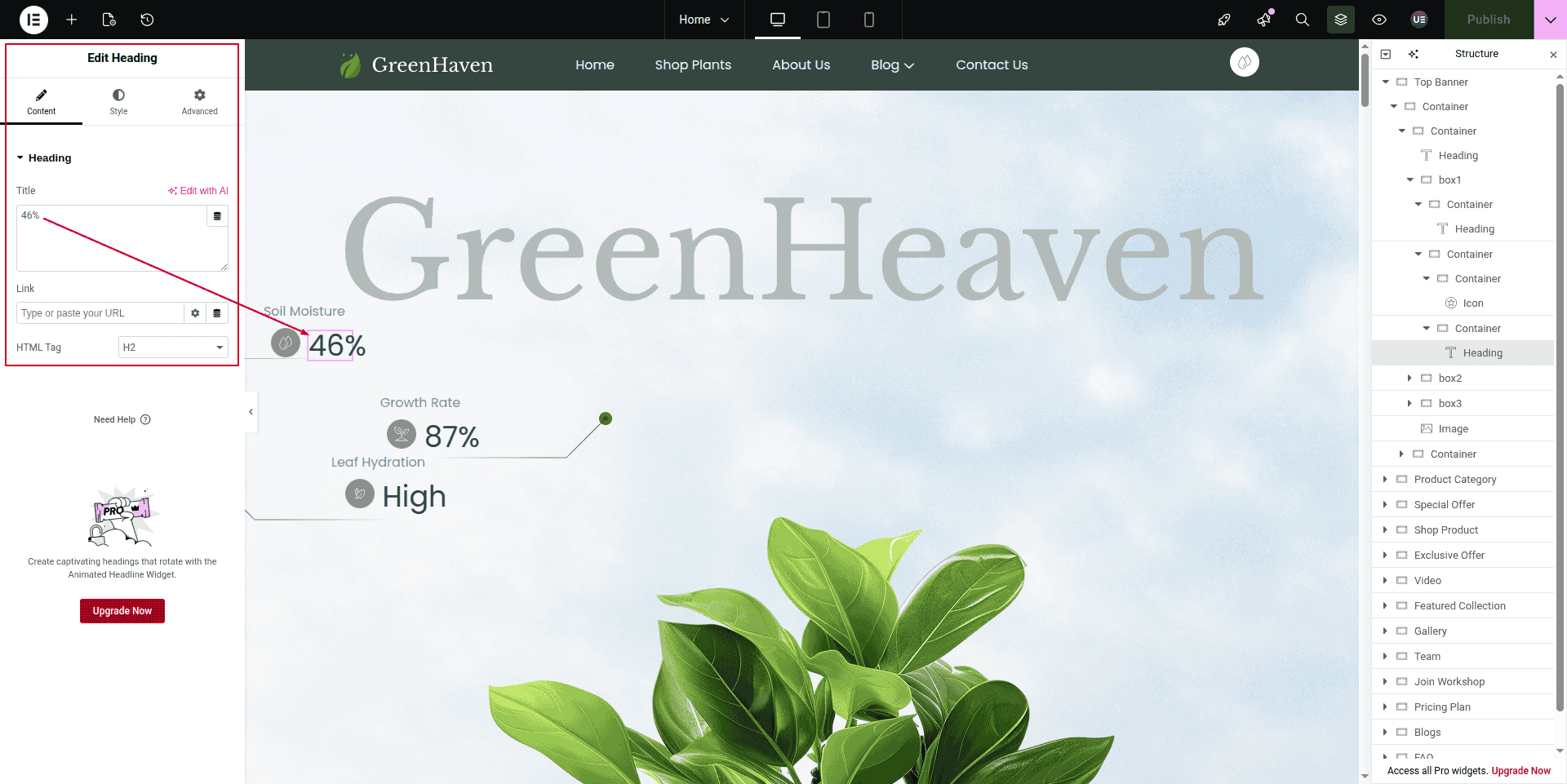
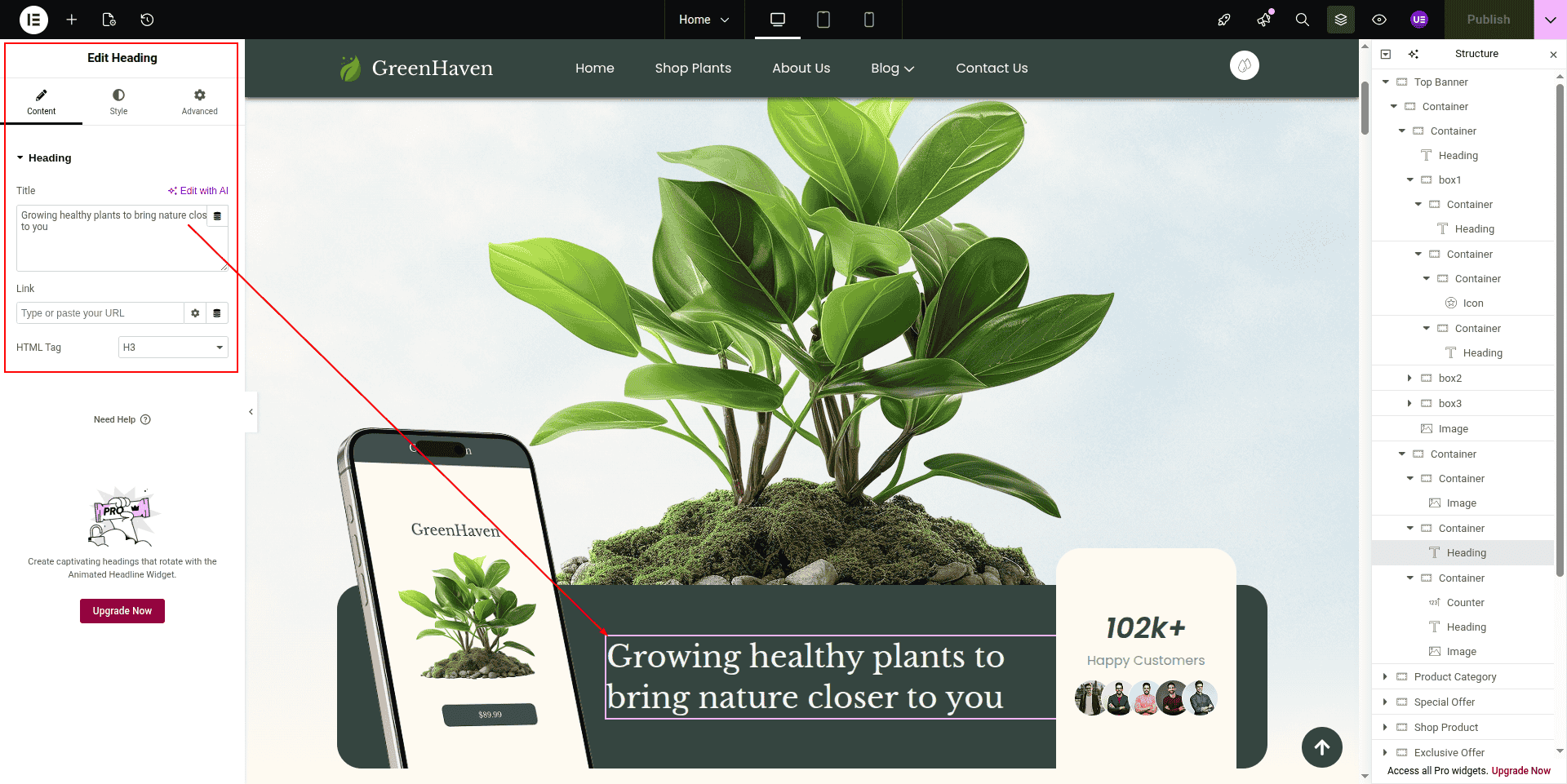
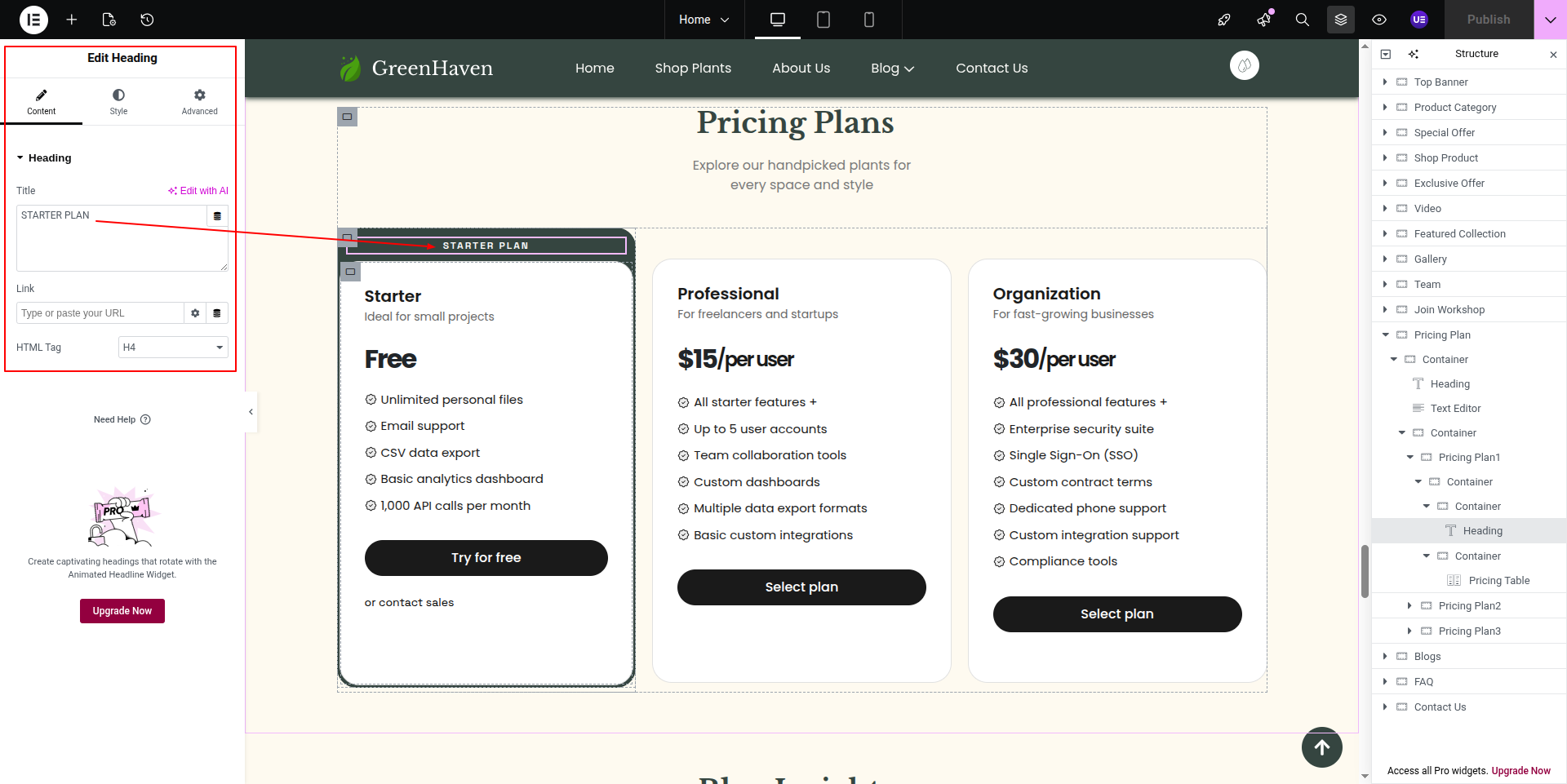
In here the first element is a normal heading text.
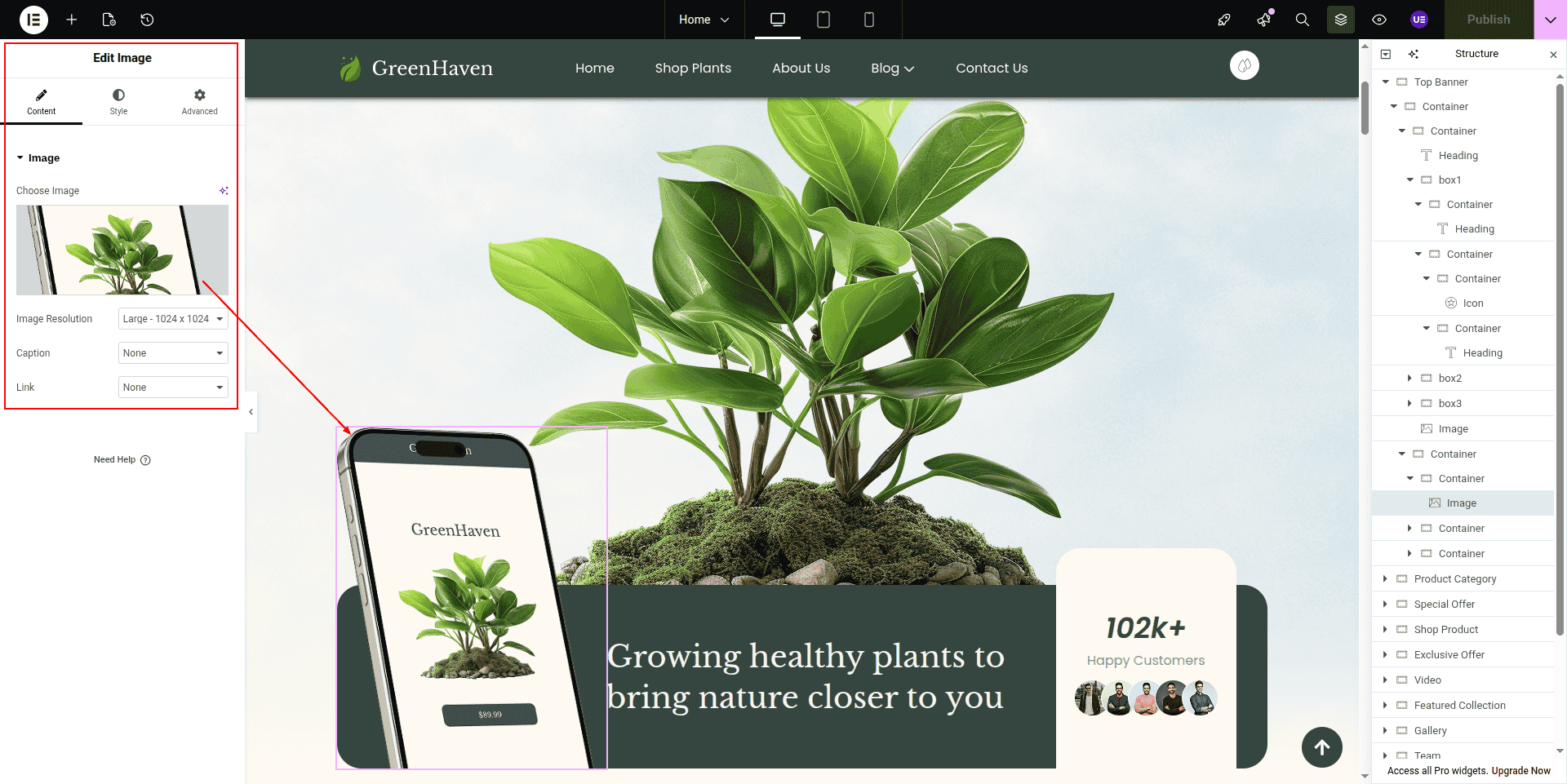
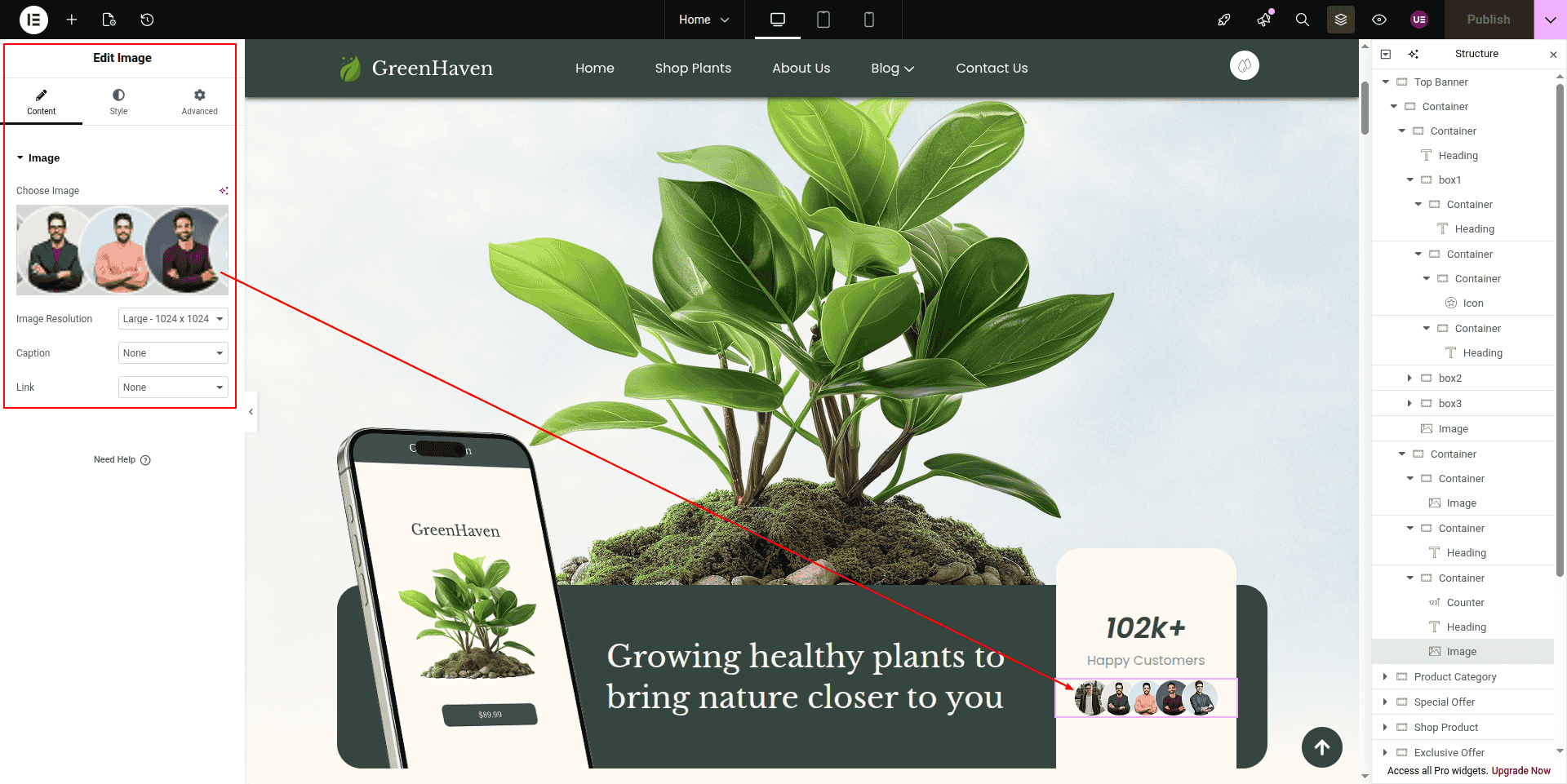
In here the first element is a normal image.
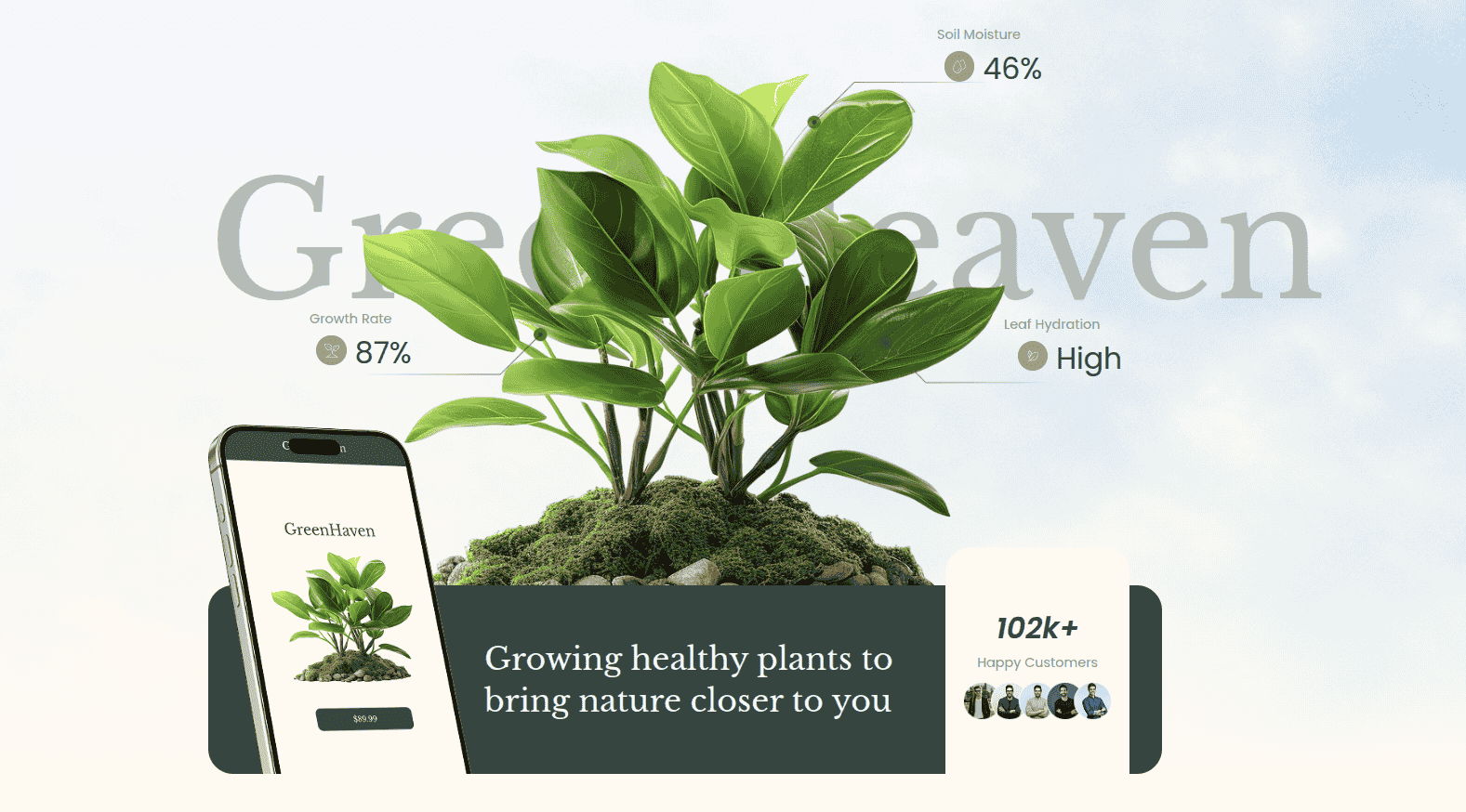
This is how it will initially seem.
Starting with the Product Category Section
Edit any page with Elementor.Add a container.
Now follow these steps
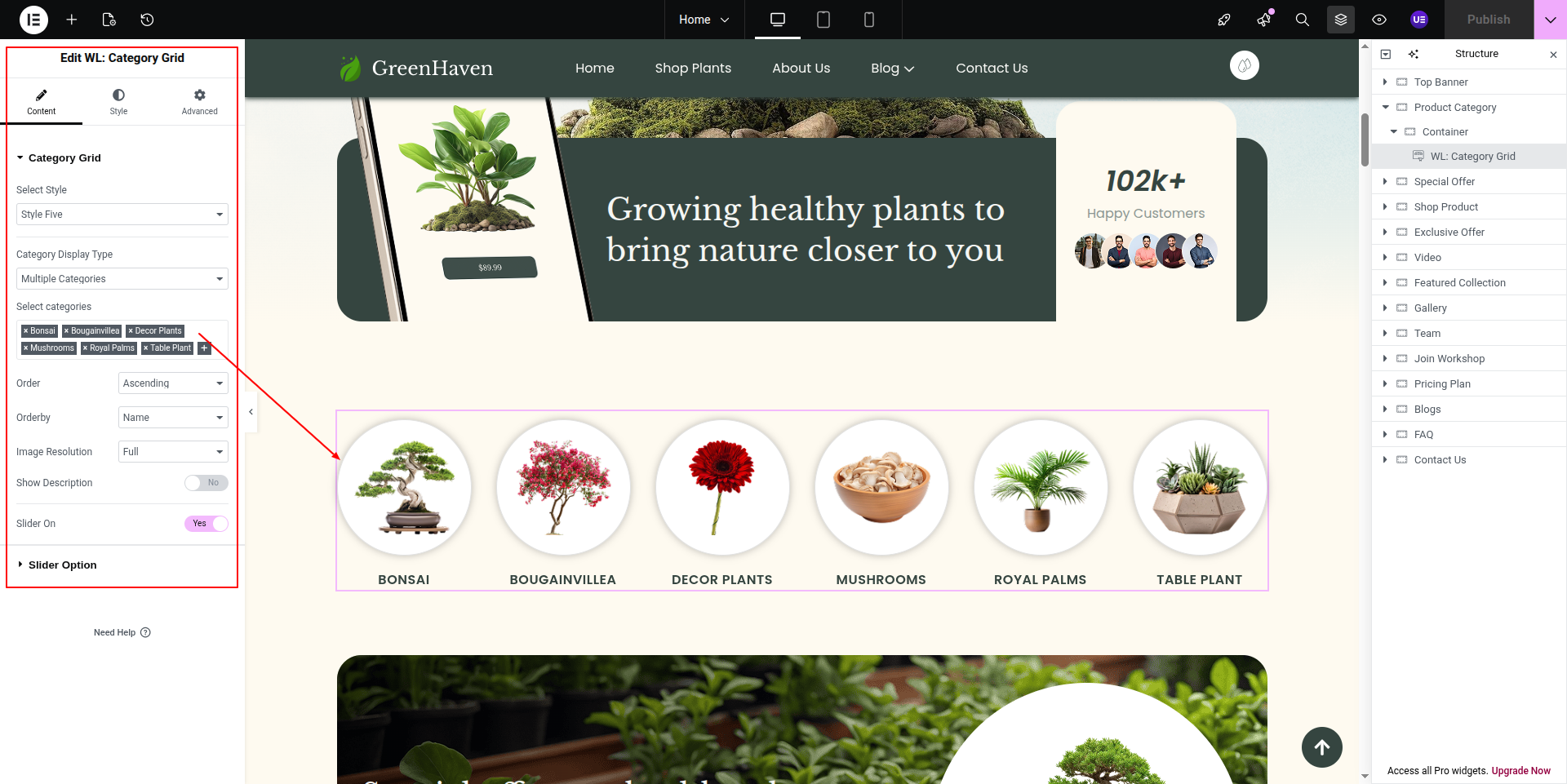
This is a Normal Product Category Widget>
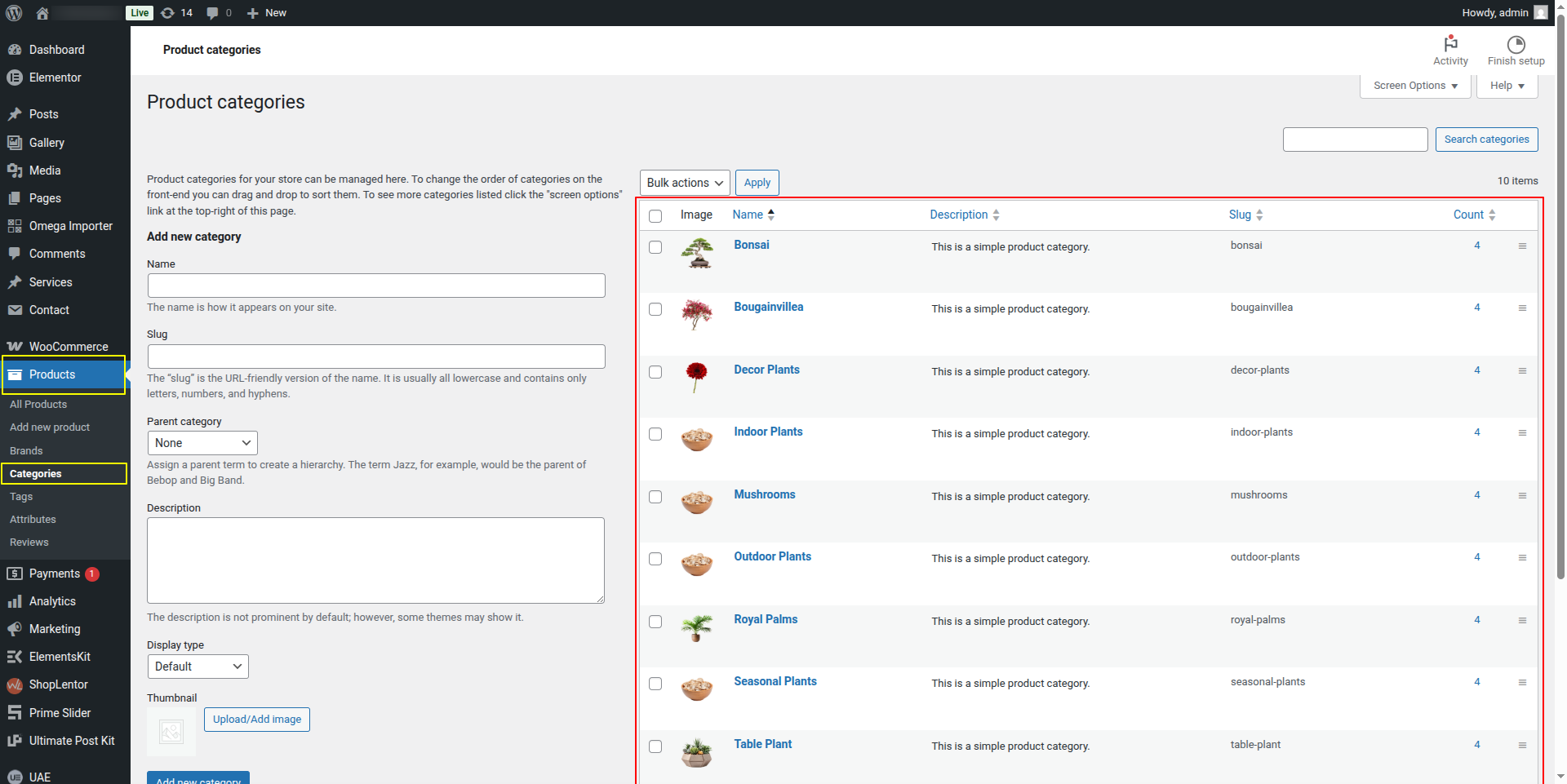
Product category comes-->from dashboard
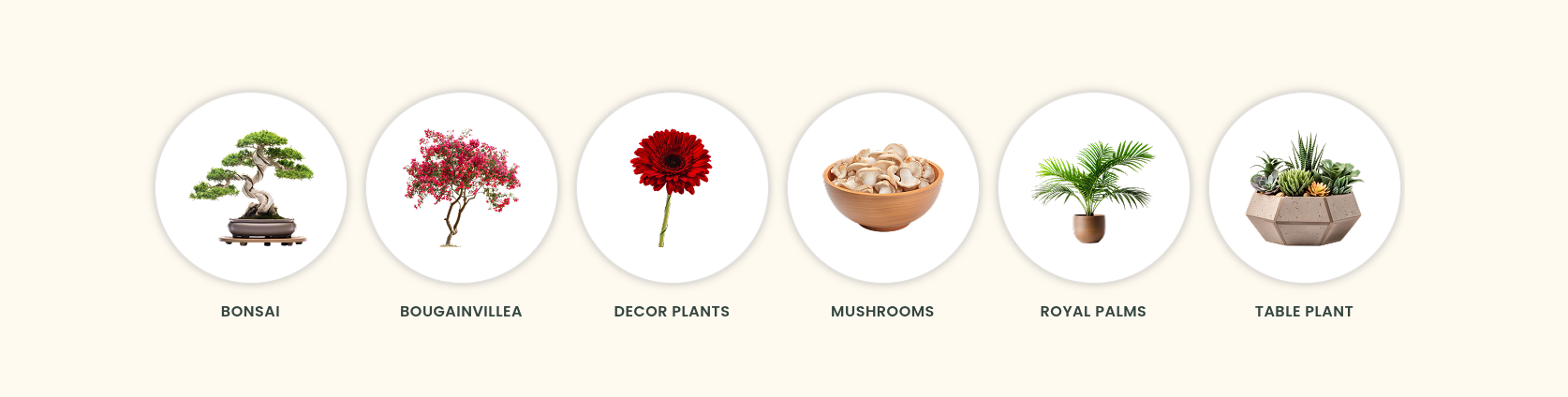
On the front end, it will appear as shown.
Starting with the Special offers Section
Edit any page with Elementor.Add a container.
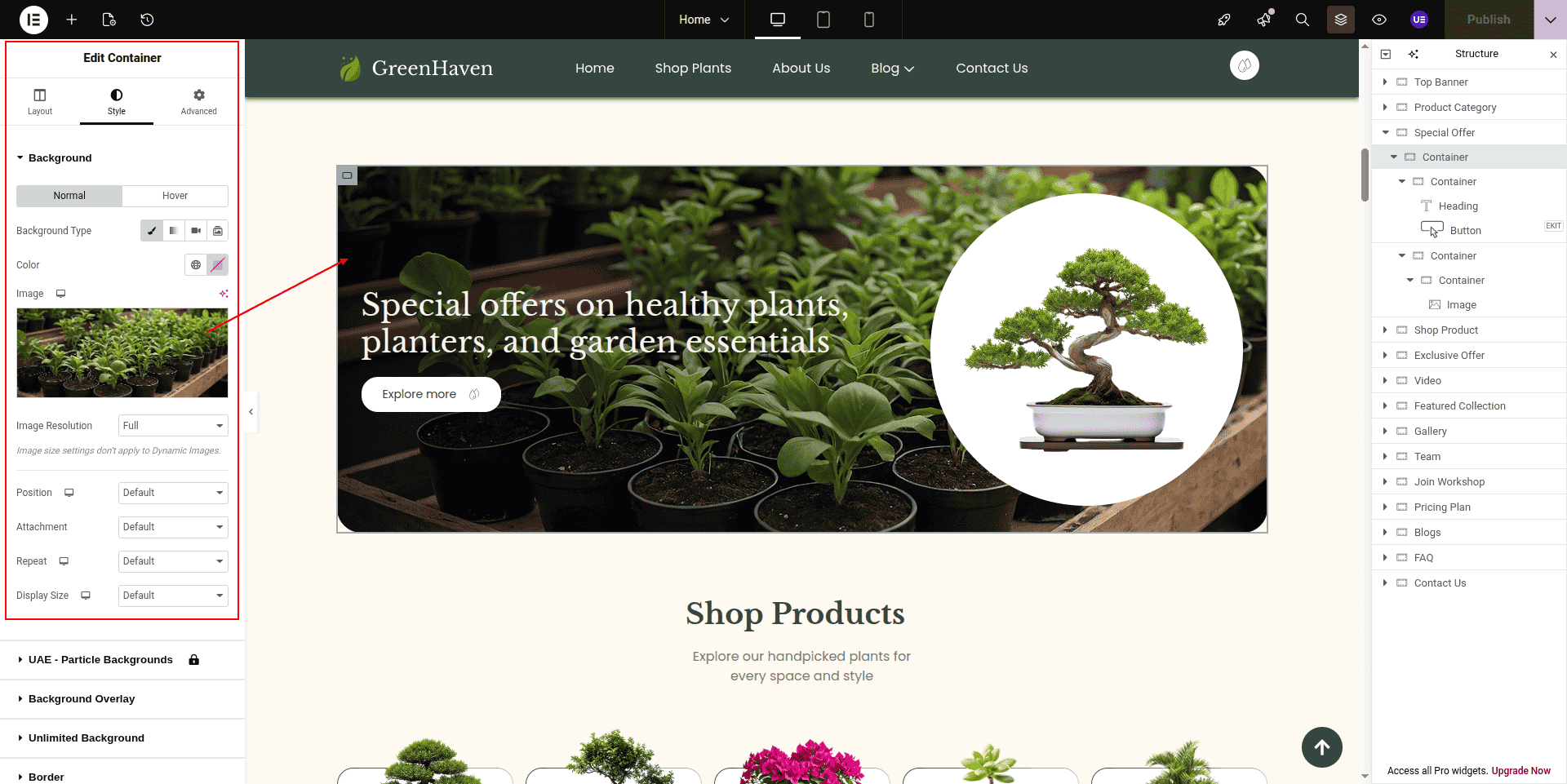
Now follow these steps
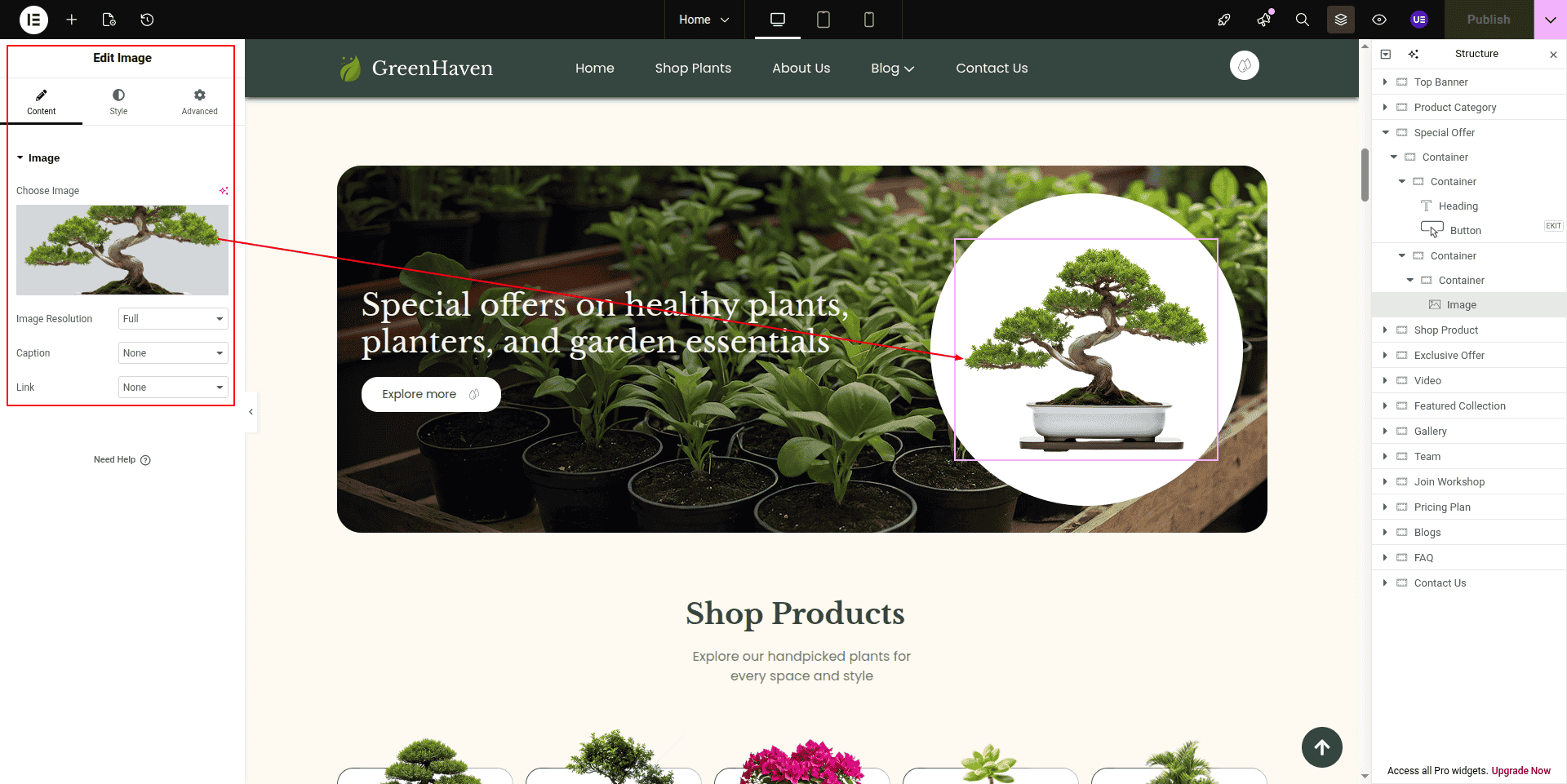
This is a normal Image widget in a container.
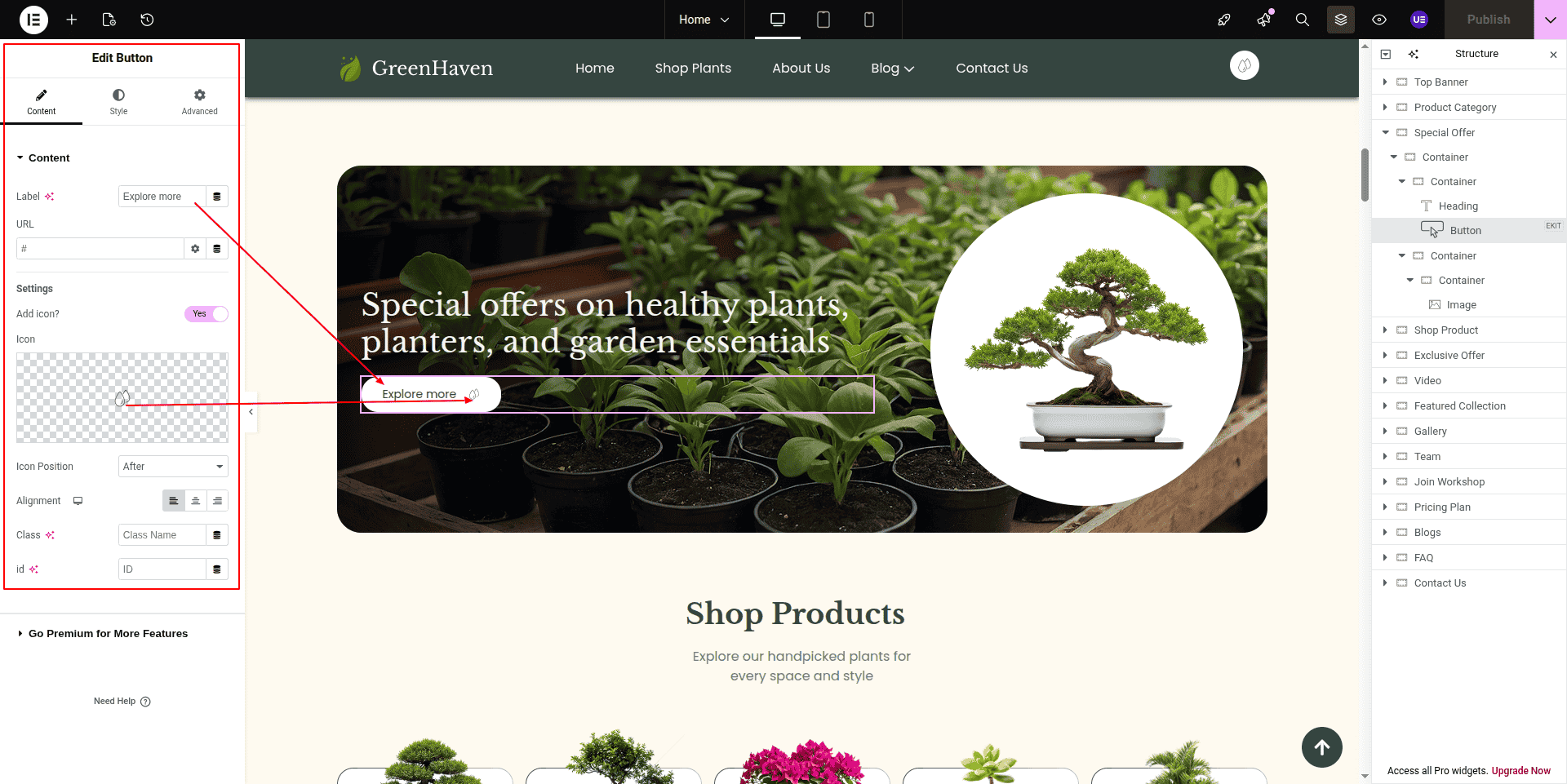
This is a normal button
This is a normal image widget
On the front end, it will appear as shown.
Starting with the Shop Products Section
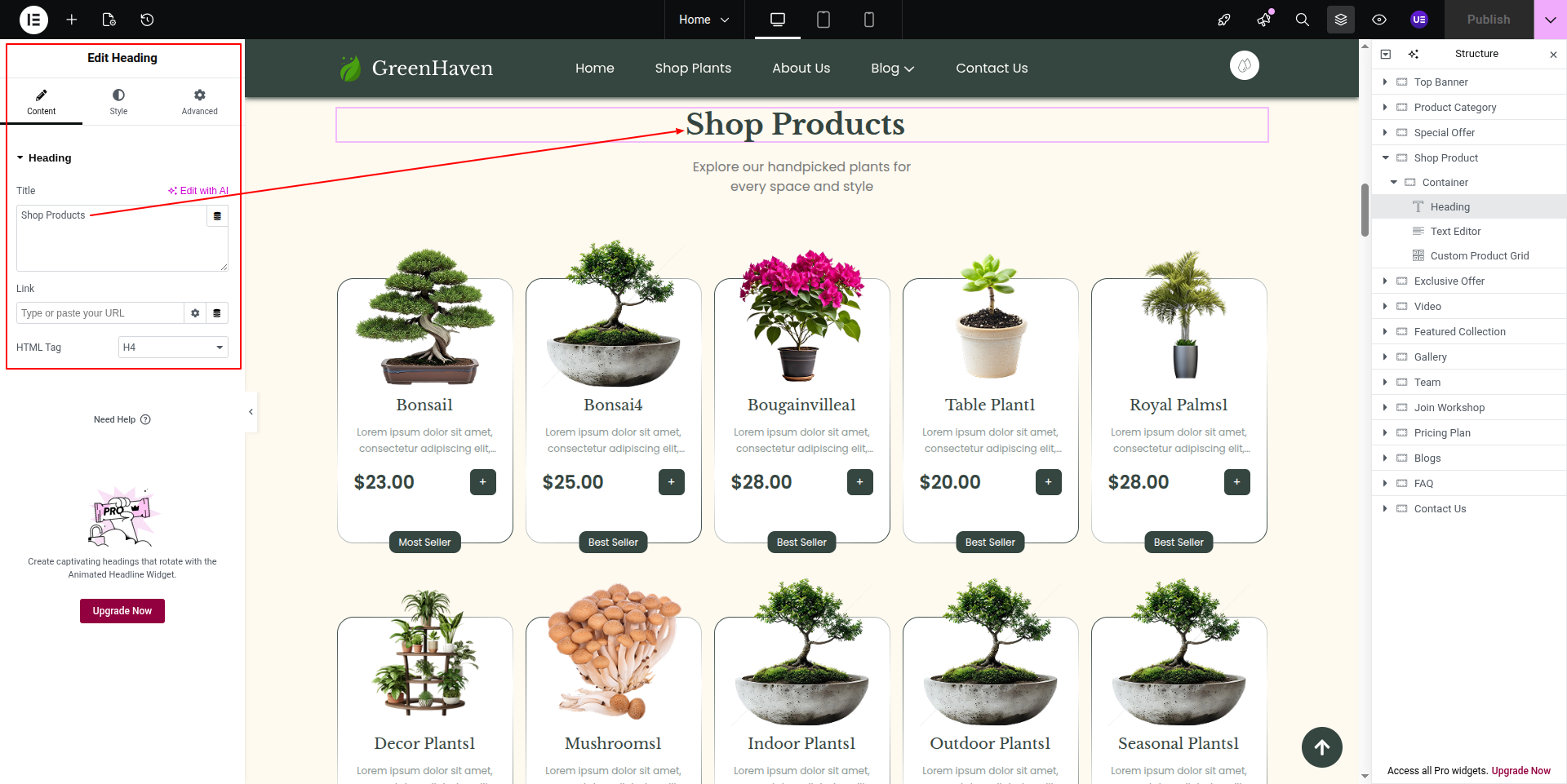
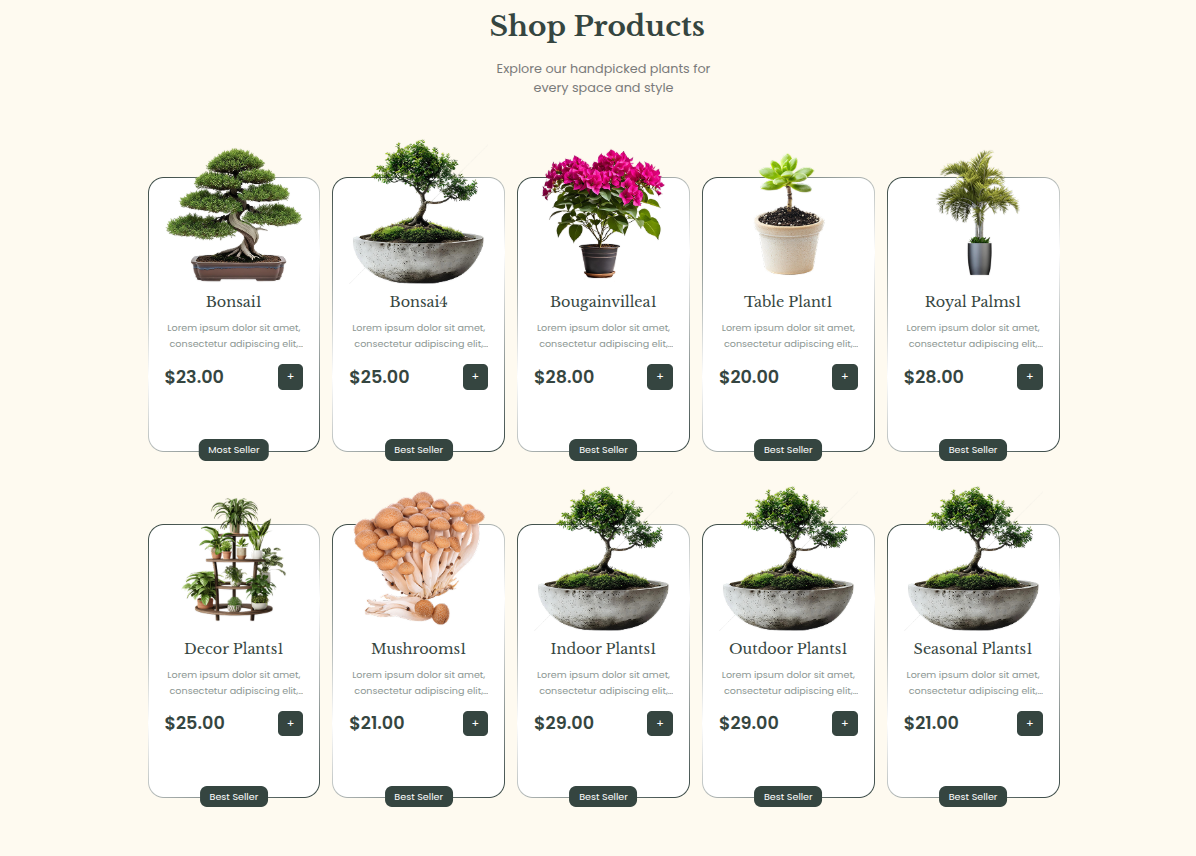
This is ---> normal heading text
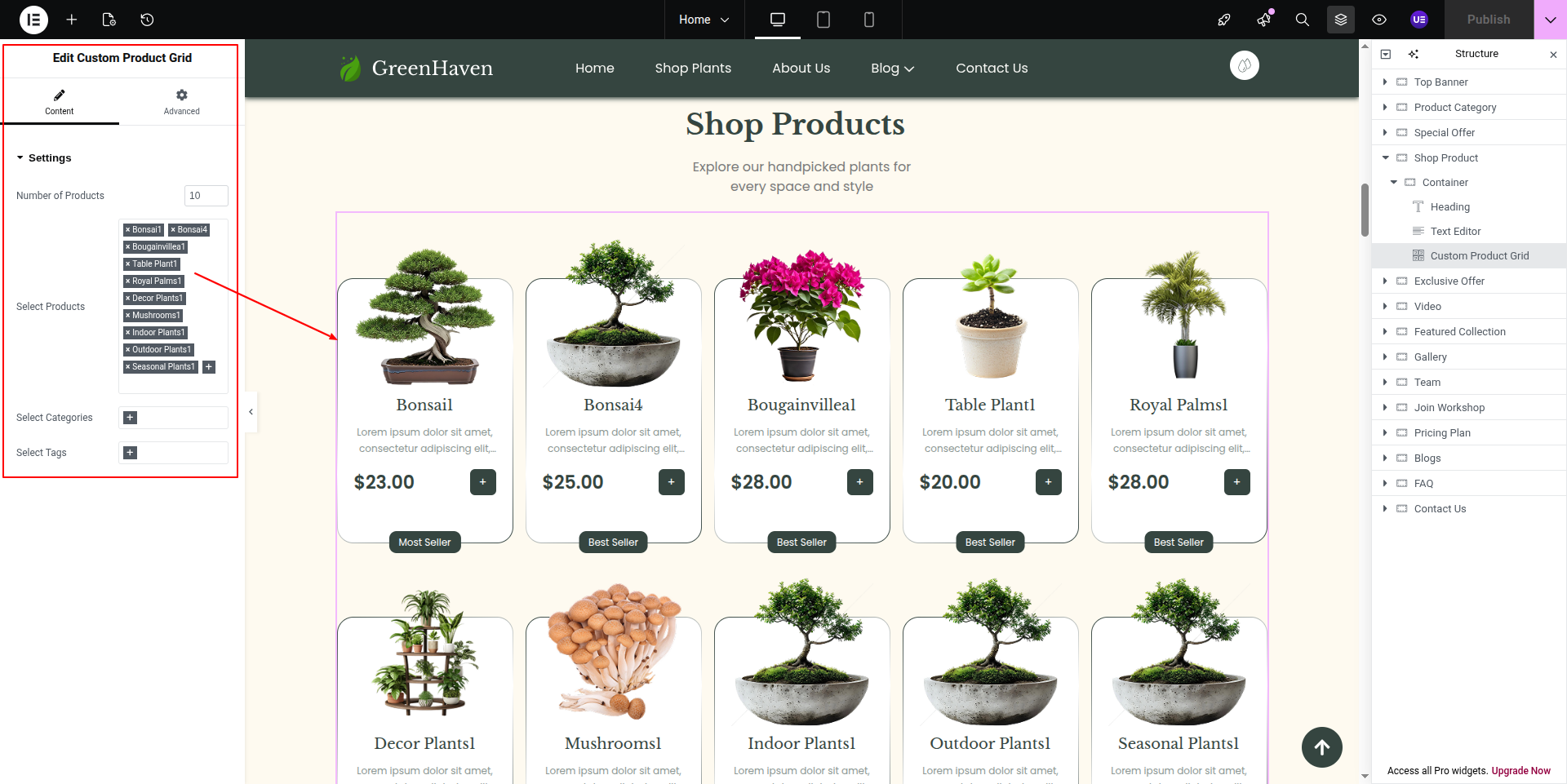
Go to Any Page--->Edit with Elementor --->Add widget, as this section is custom created and could be fetched through widget.
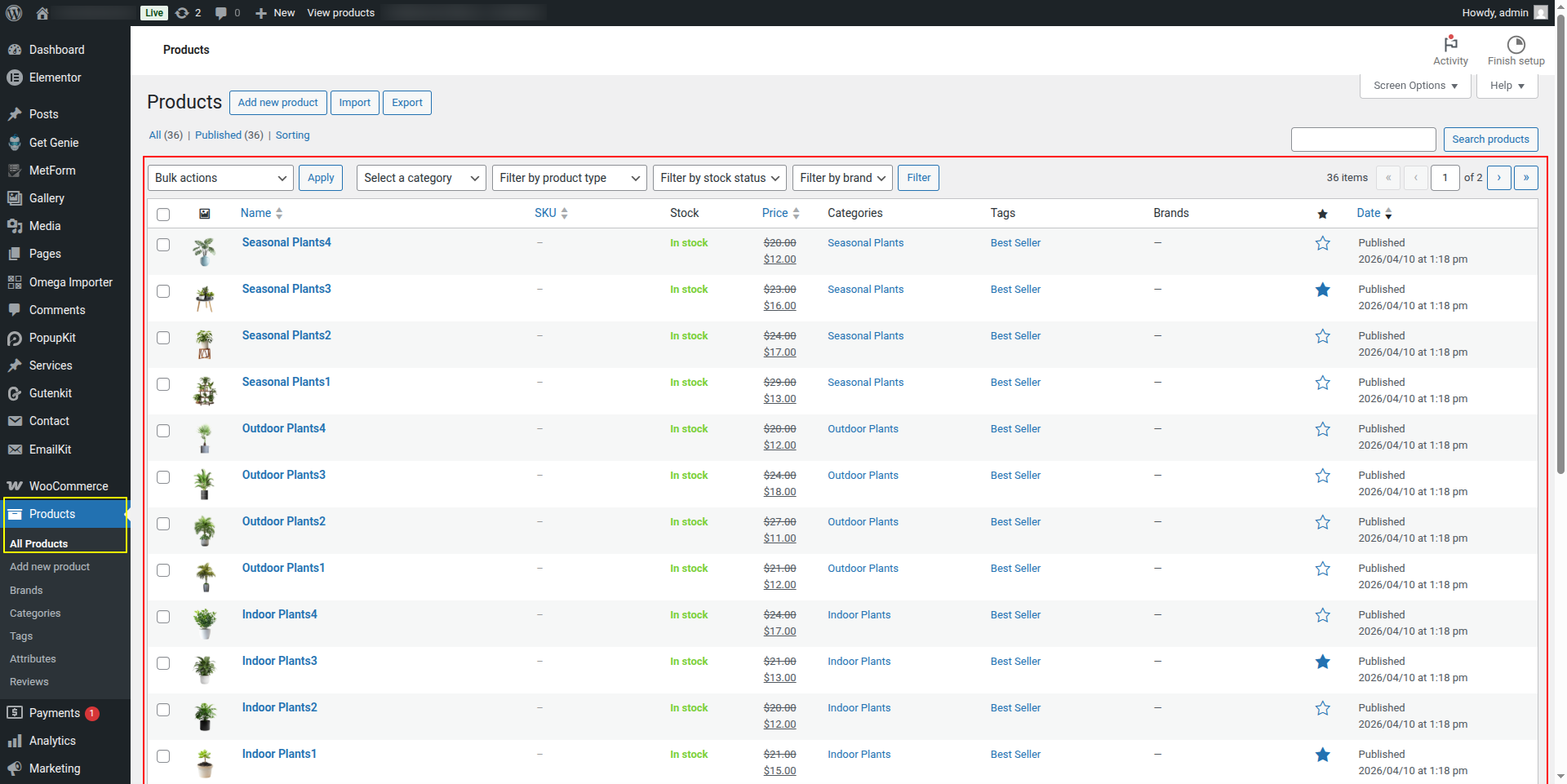
This products comes from dashboard
Front-end visuals will resemble this.
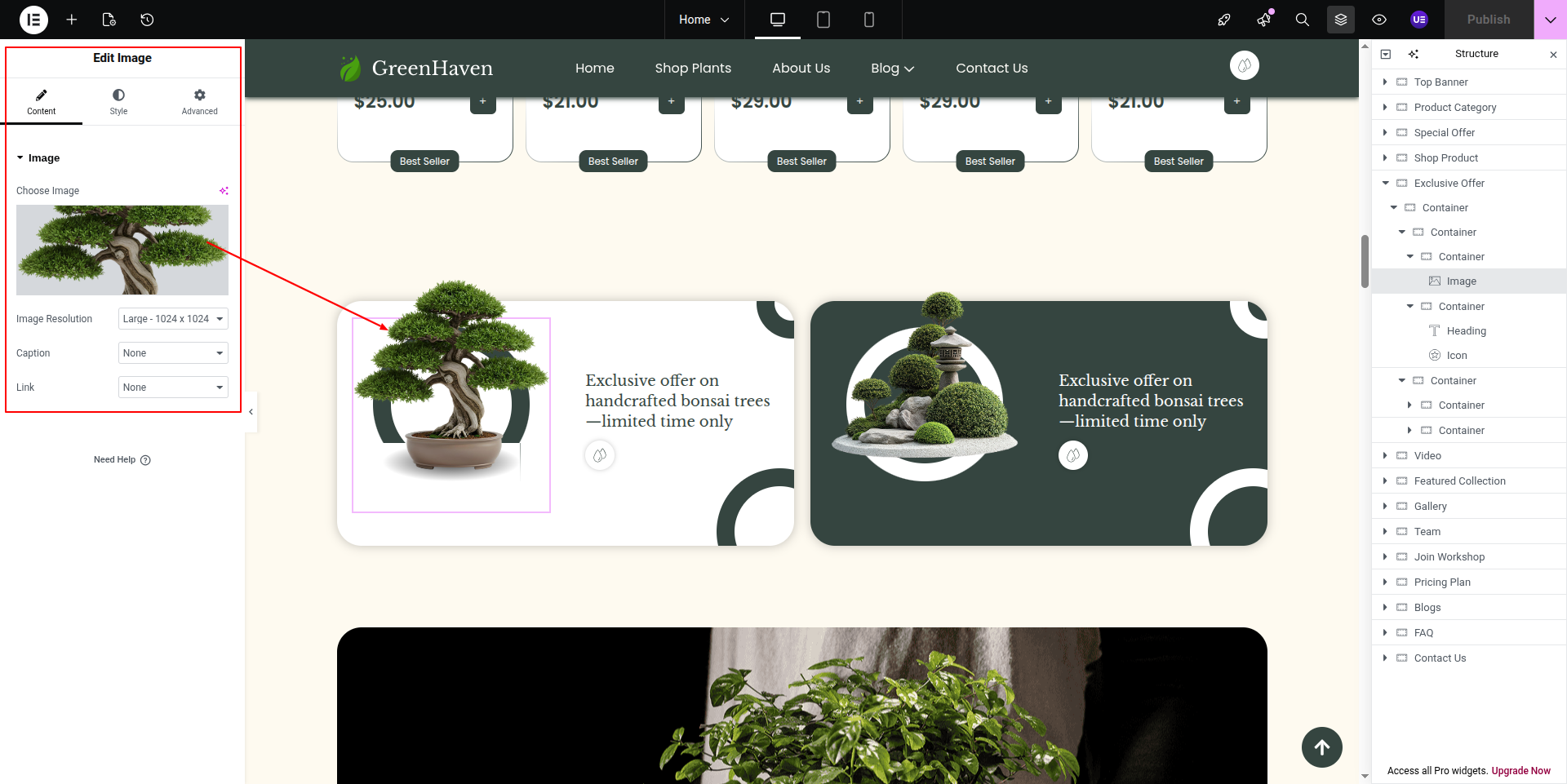
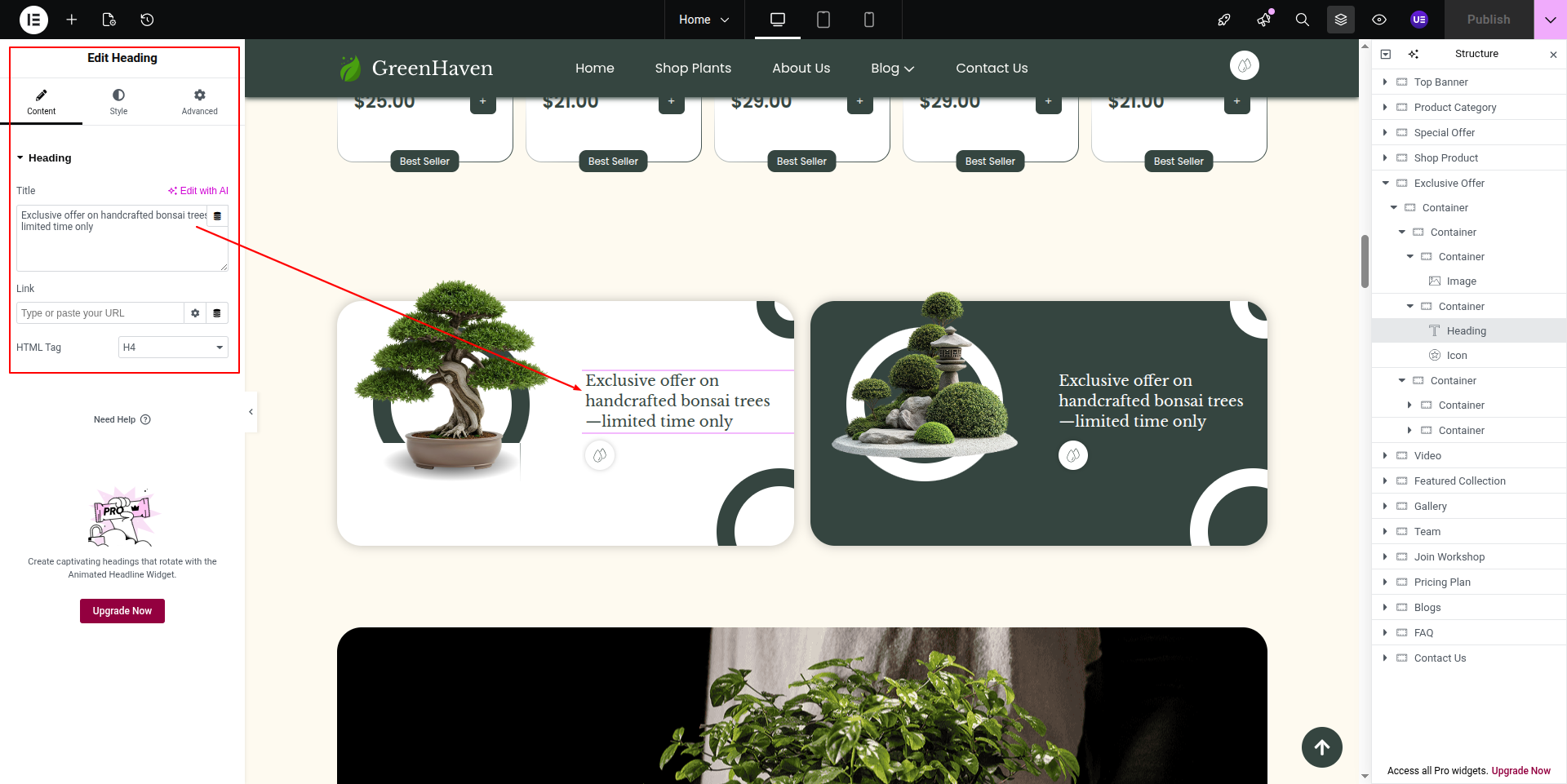
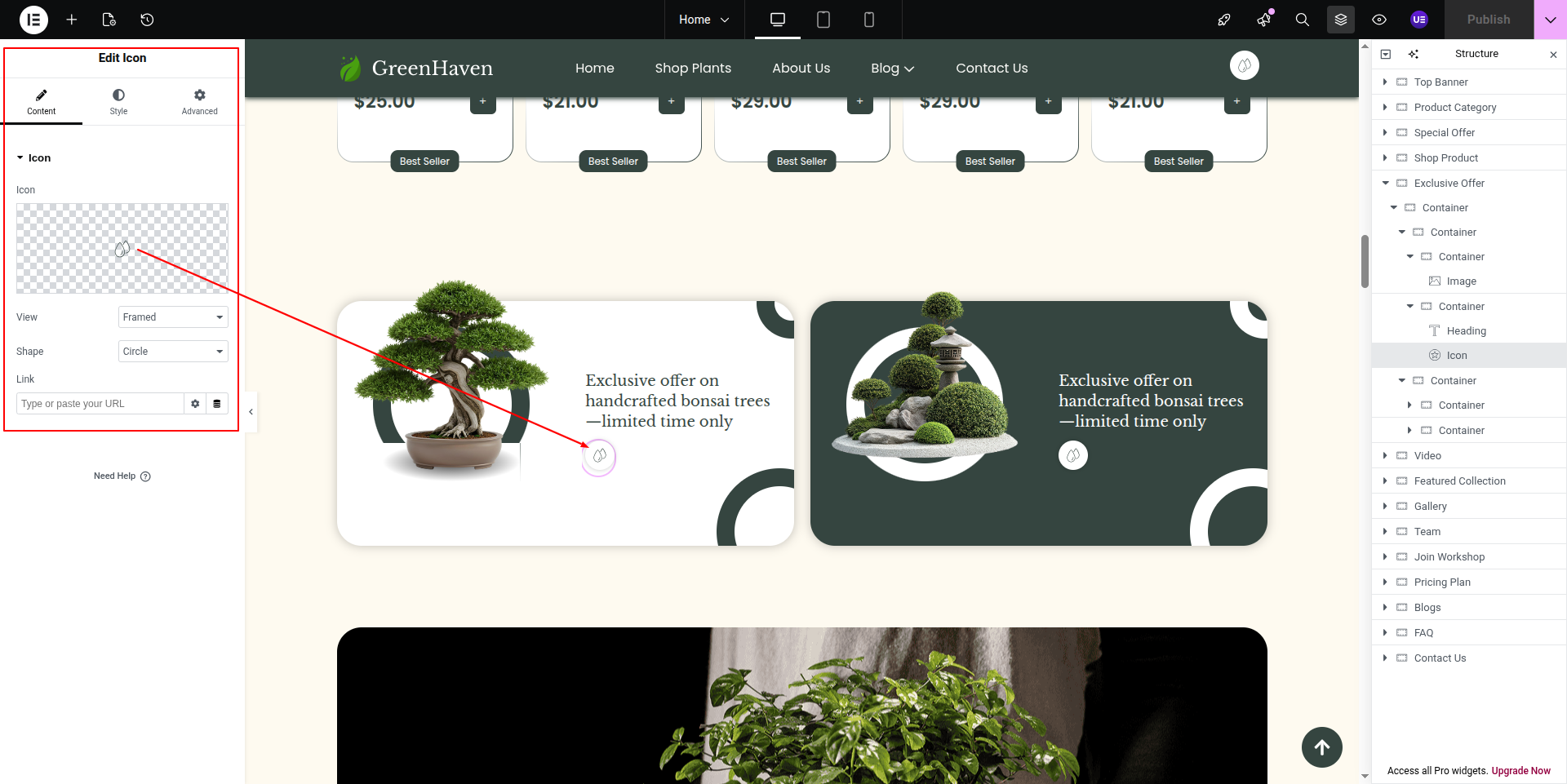
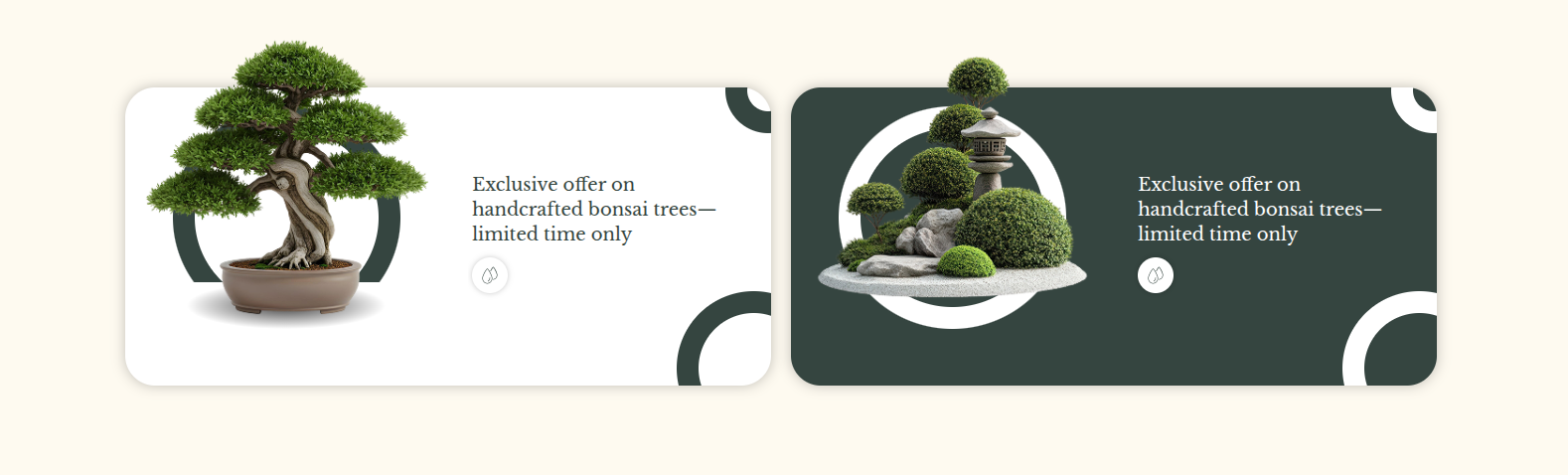
Starting with the Exclusive Offer With Me.
You must first edit the page with Elementor.After you add a container.
Click on Widget---> and start adding yor data .
These are both Image Widget.
These are Text Heading Widget.
This is normal icon.
On the front end, it will appear as shown.
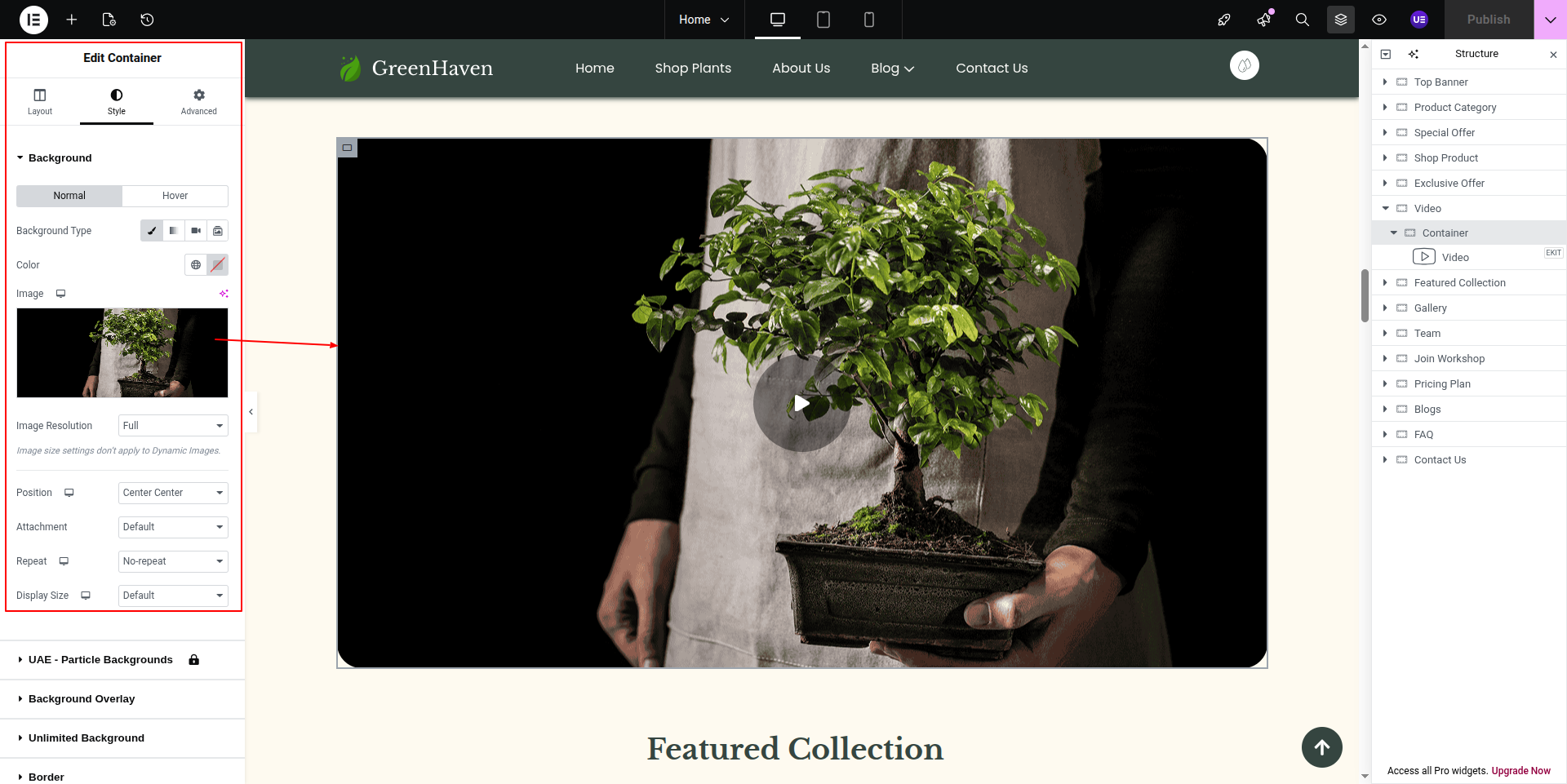
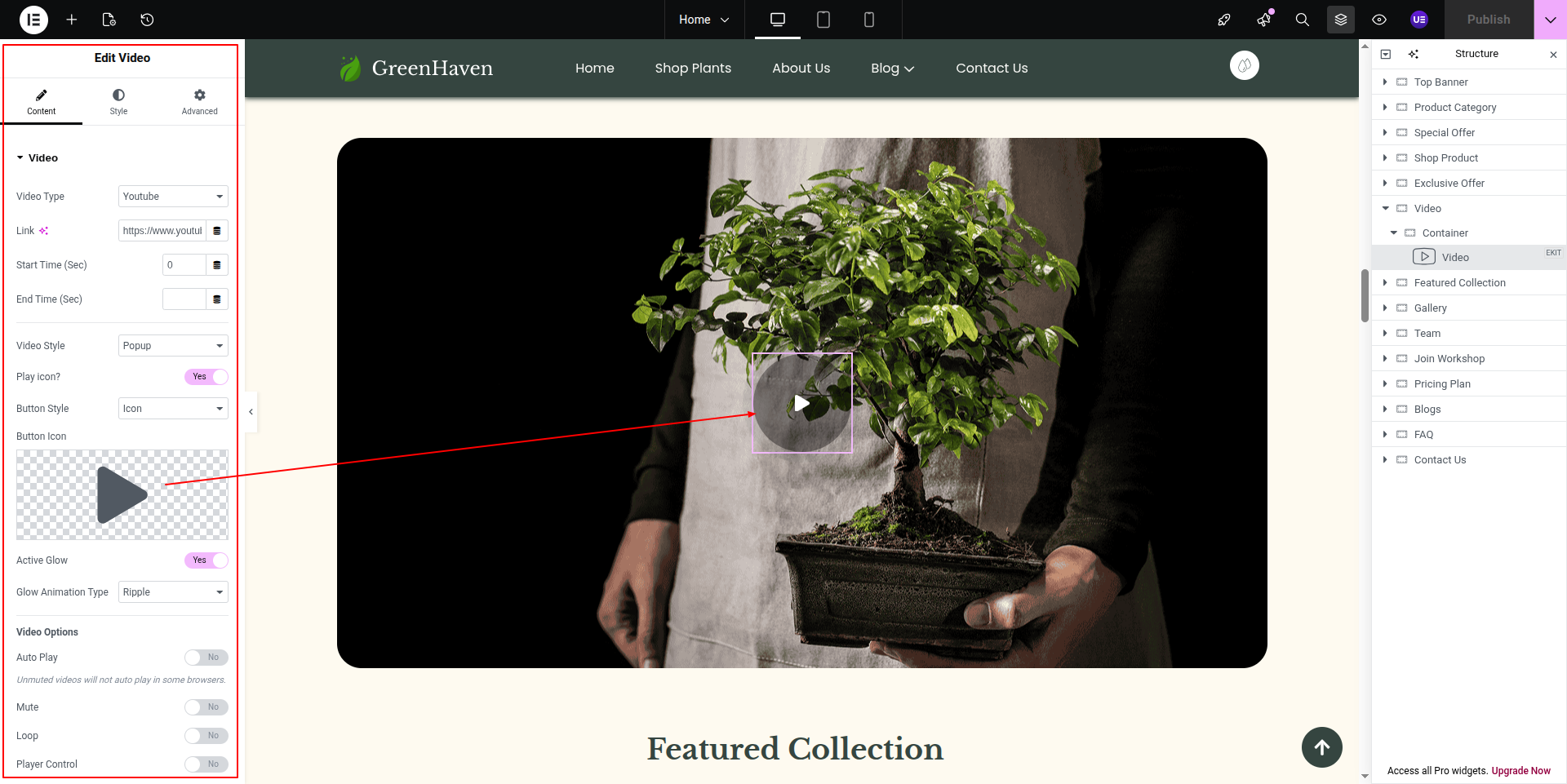
Starting with the video section,
This section's data is fetched through My Process Posttype
This is custom widget, this widget is fetched through shortcode.
On the front end, it will appear as shown.
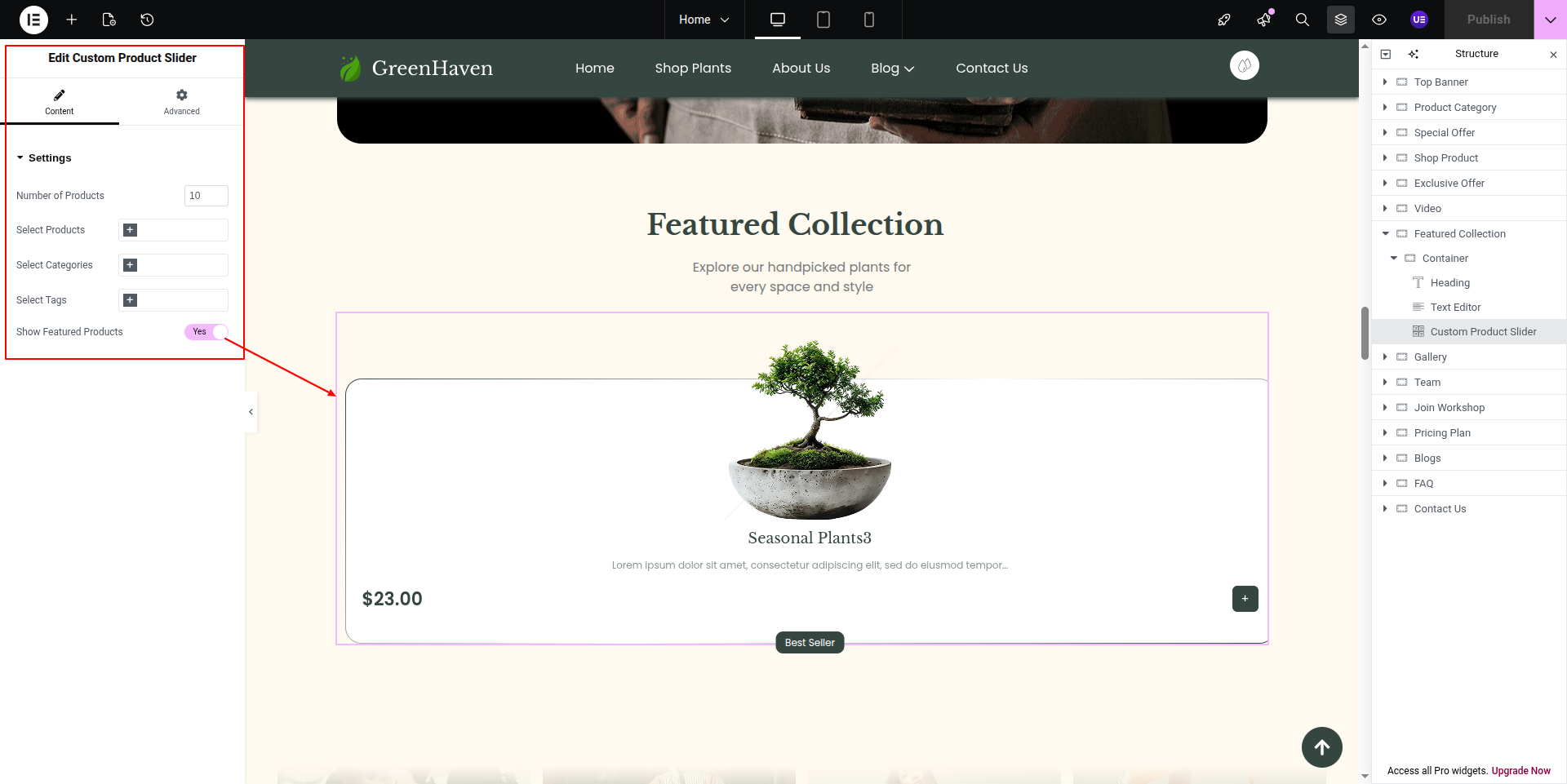
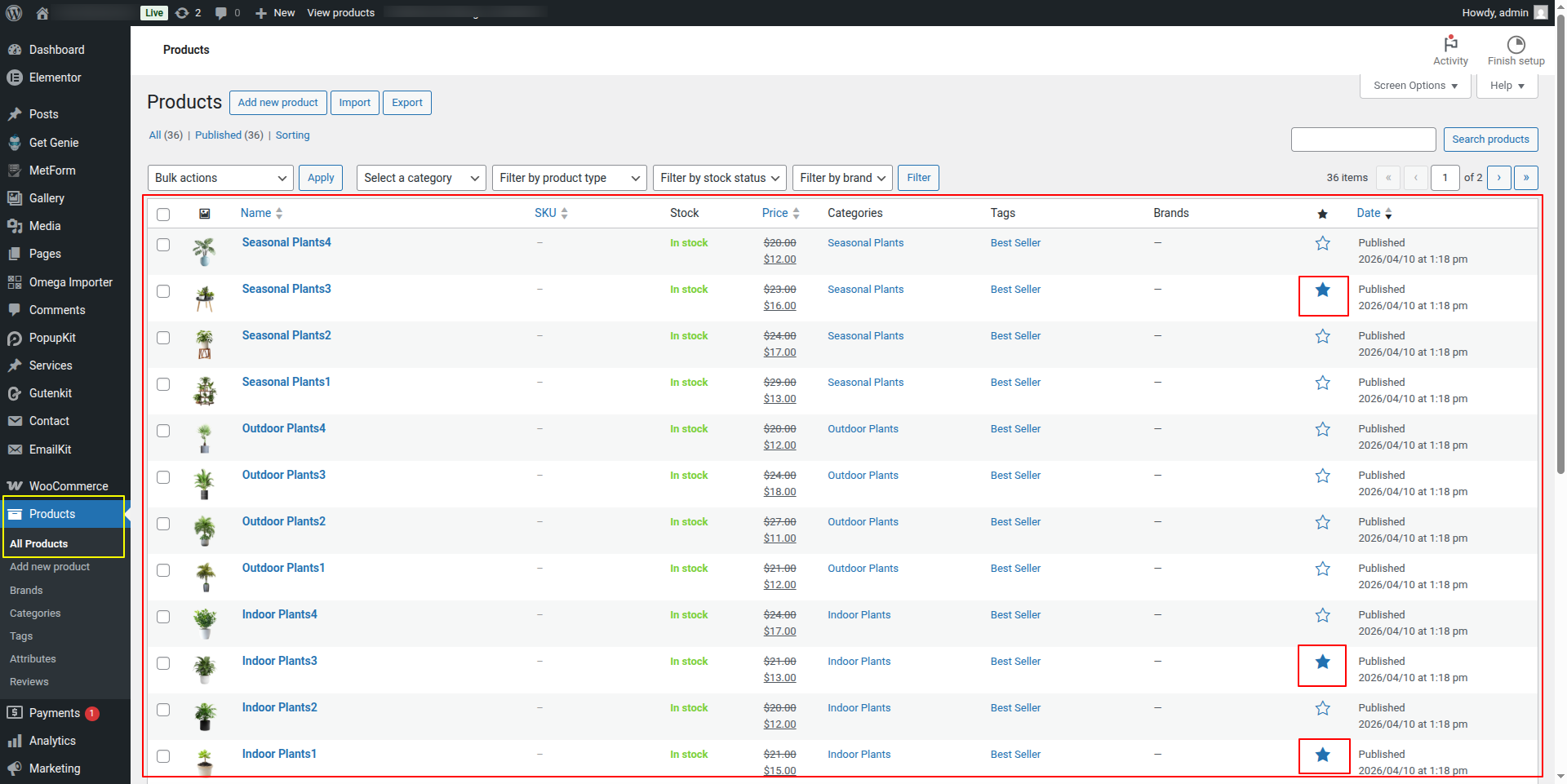
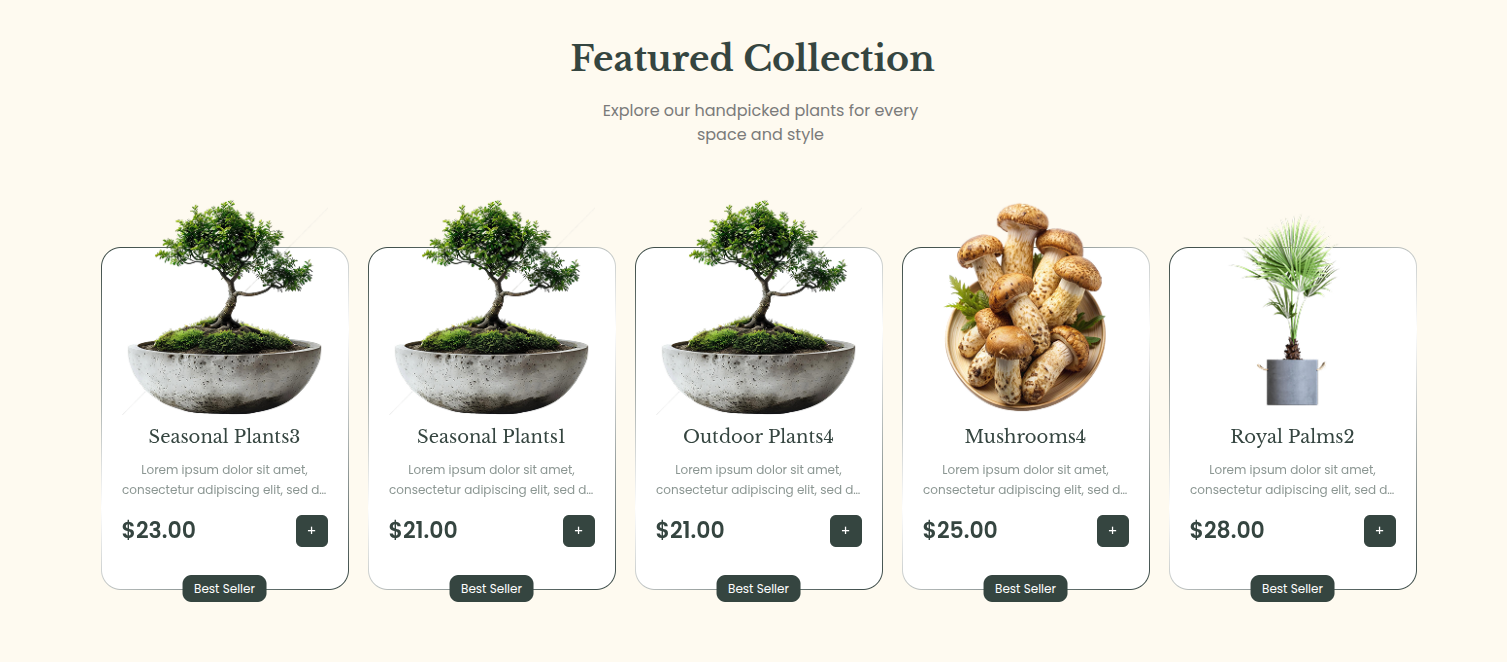
Beginning with Featured Collection
This is the custom product carousel.
This section data is fetched through product posttype and these products are featured product.
On the front end, it will appear as shown.
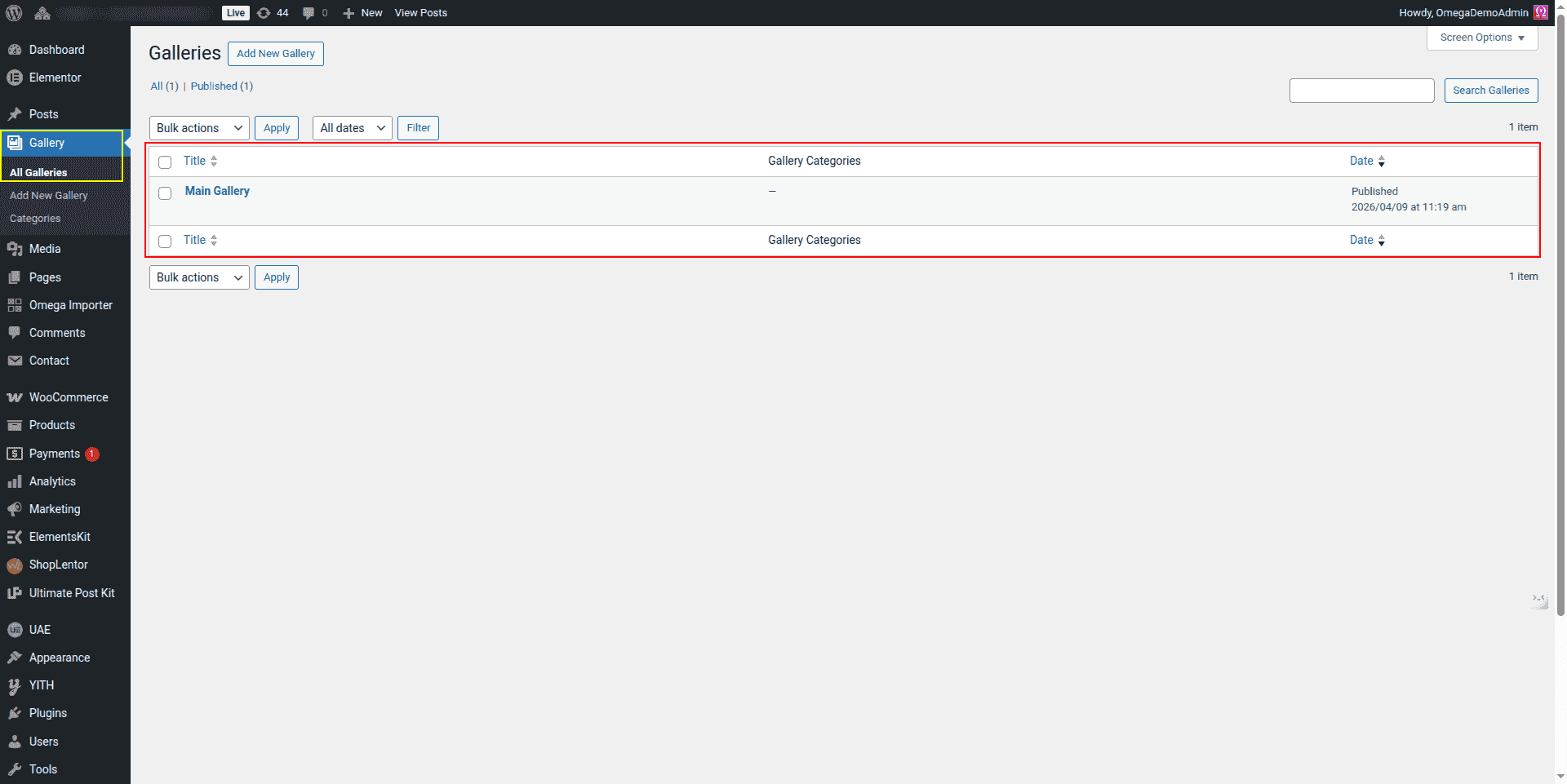
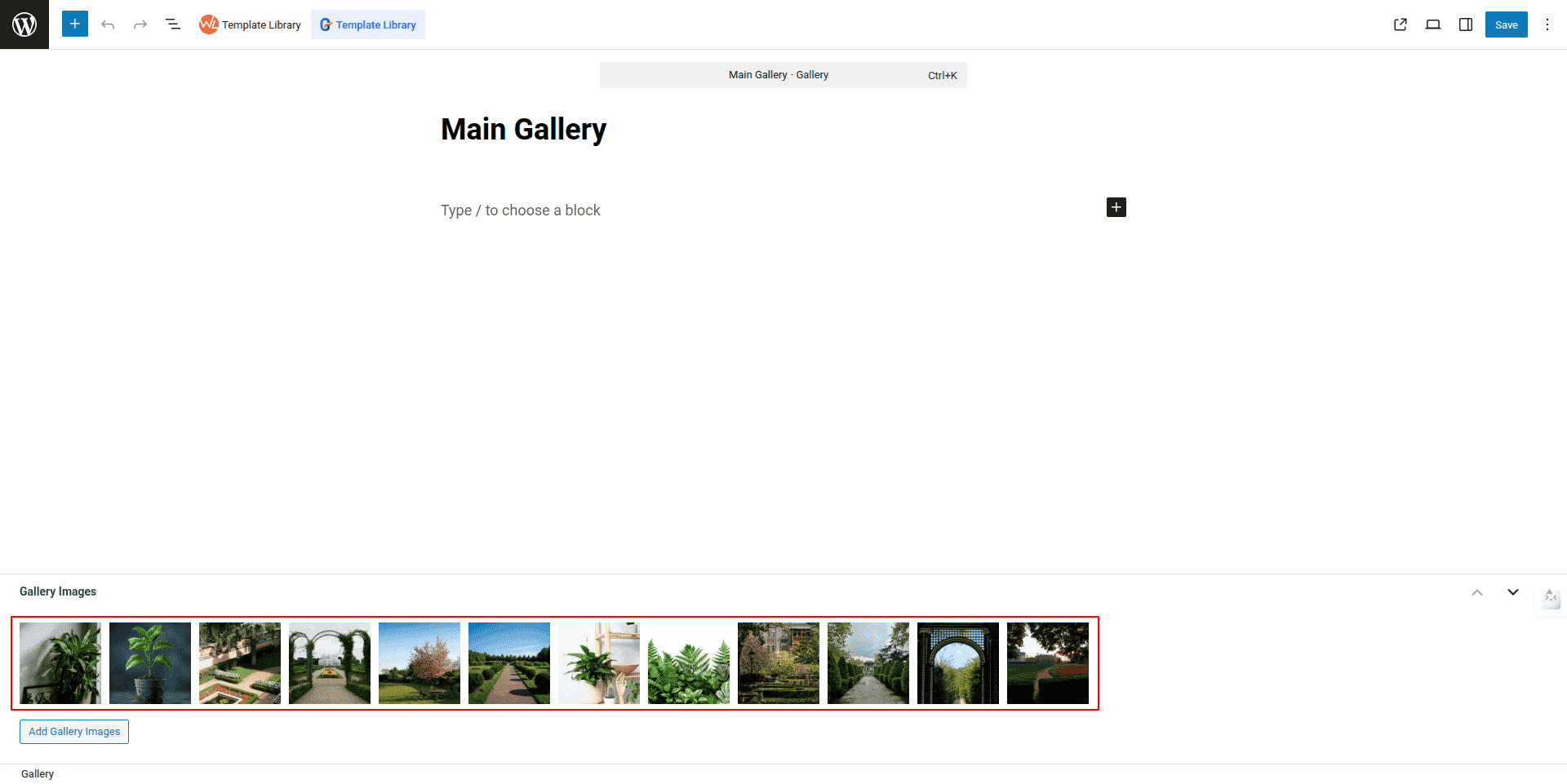
THis is also fetched through gallery posttype.
Add new images for gallery
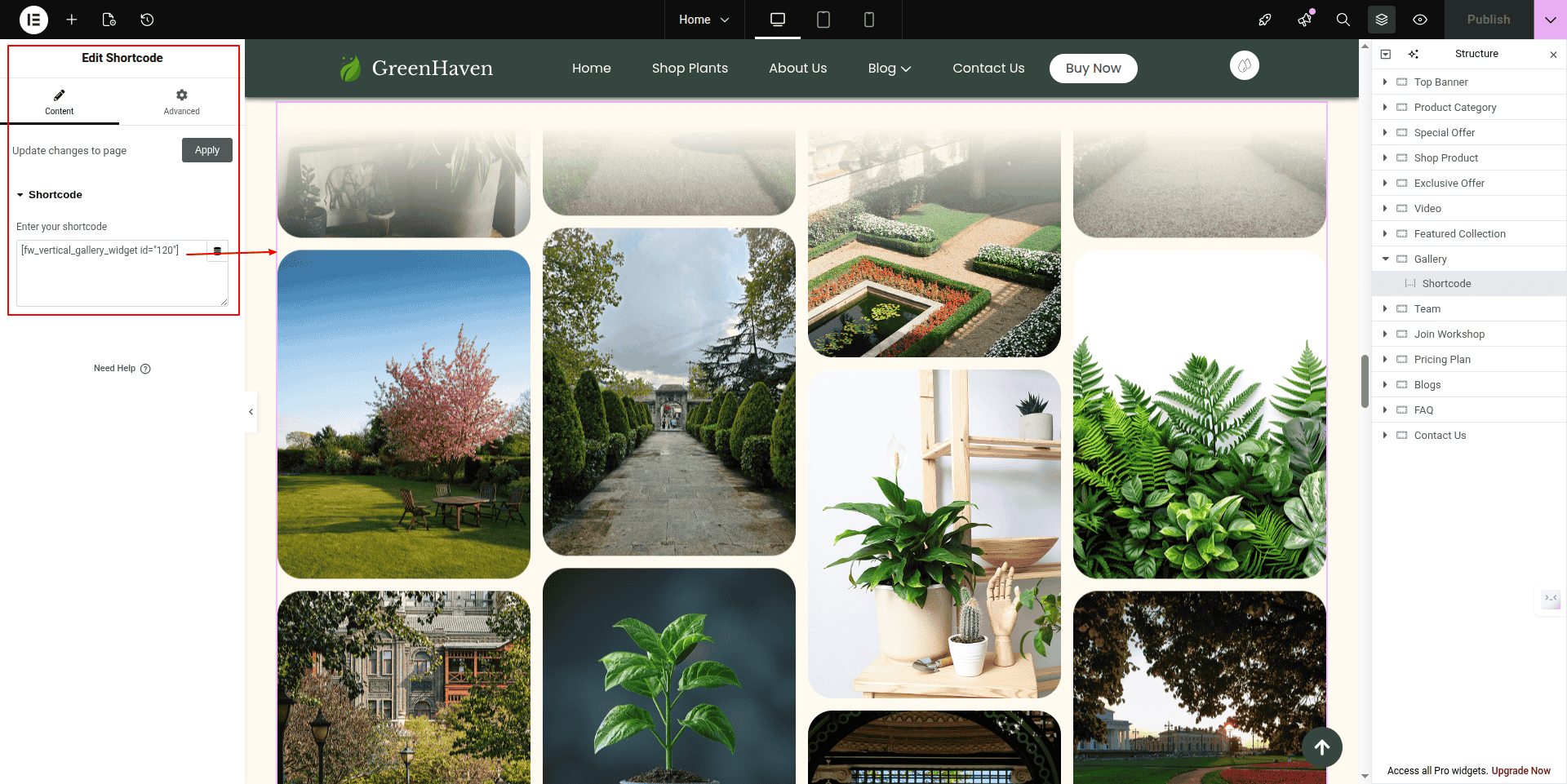
THis gallery section is also created custom and fetched through shortcode.
This gallery section images you can add here.
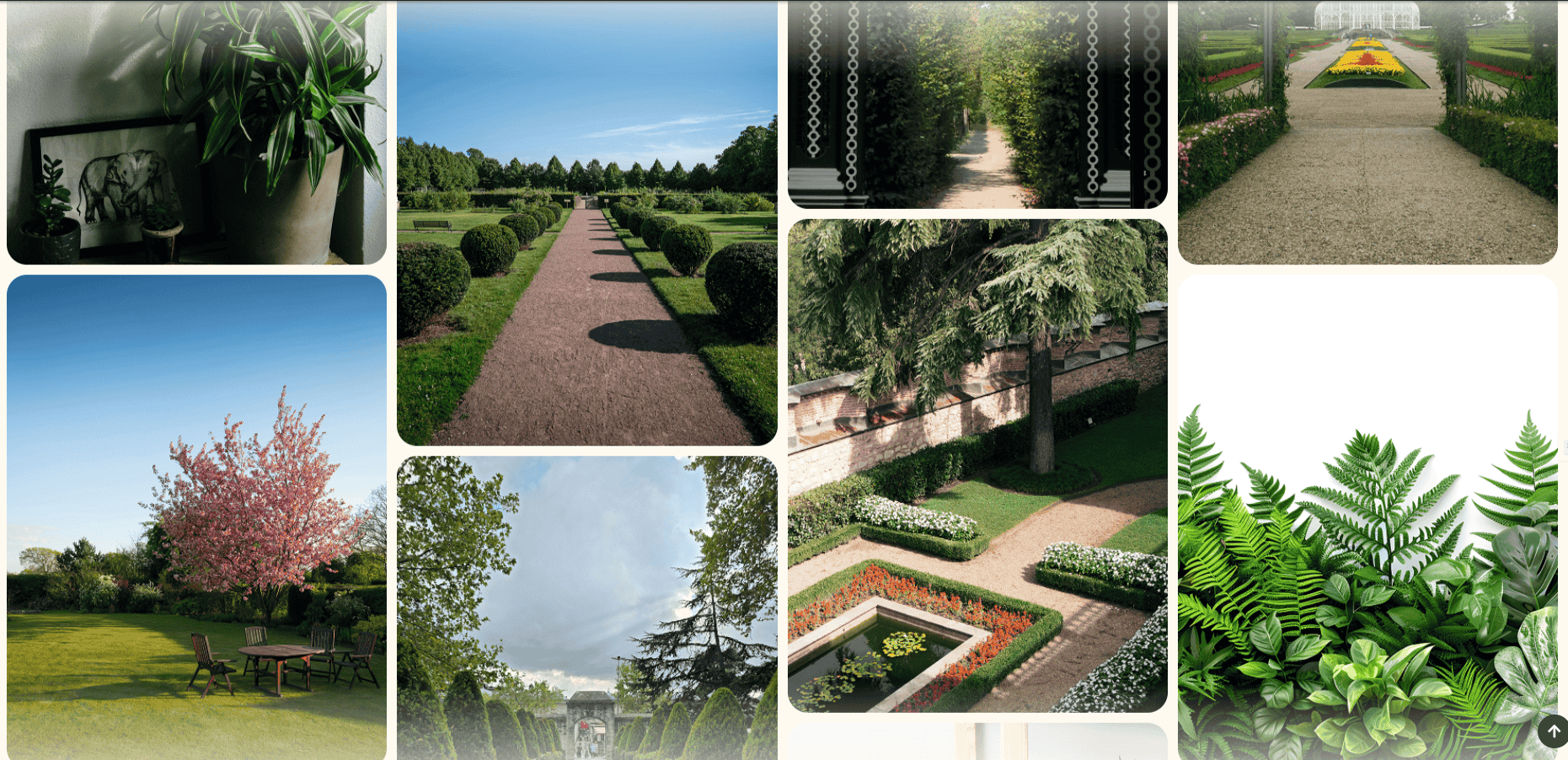
On the front end, it will appear as shown.
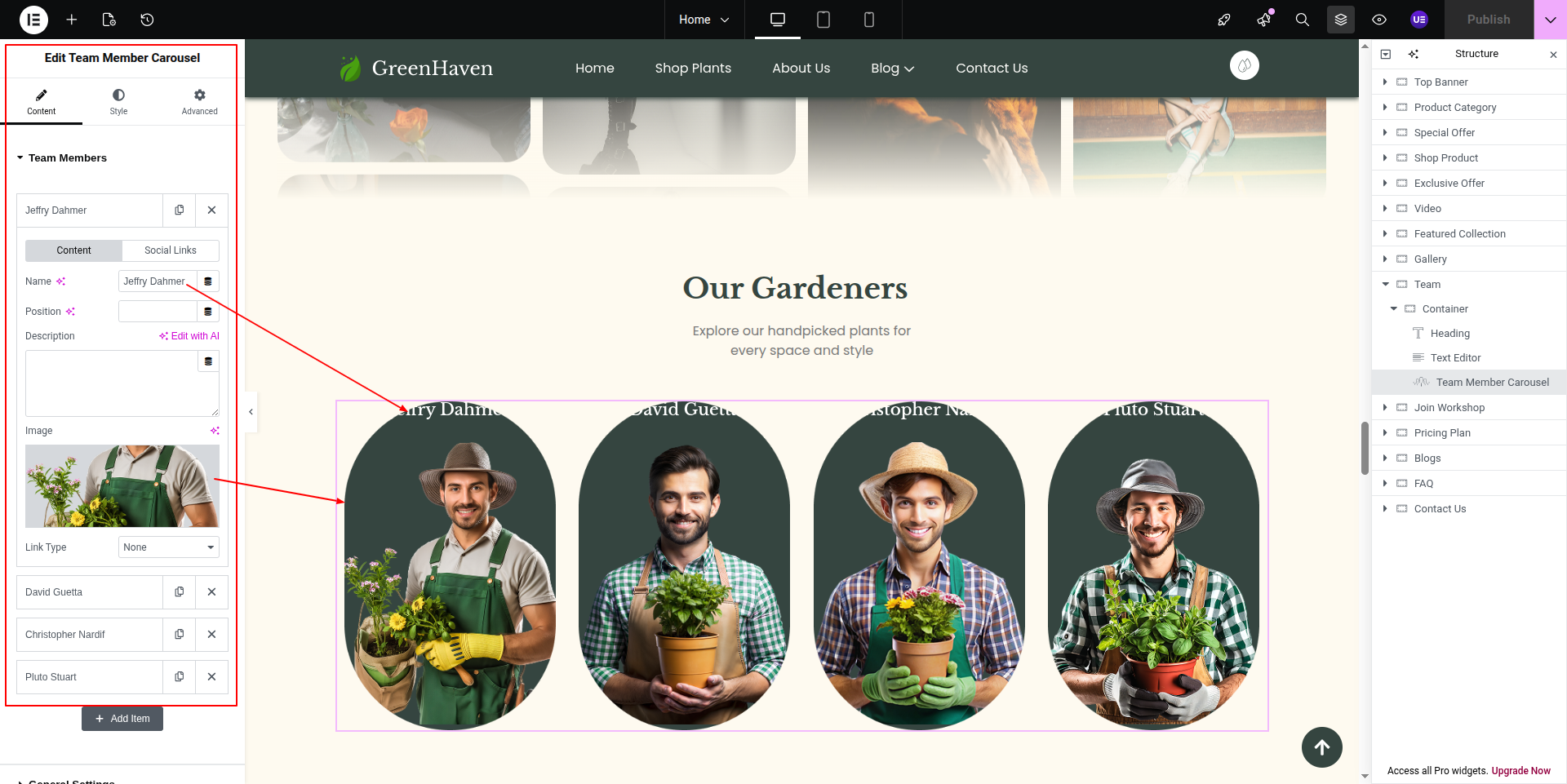
Starting with the Our Gardeners Section,
Add Heading Widget.
This is the custom created element, the code is present in function.php file
On the front end, it will appear as shown.
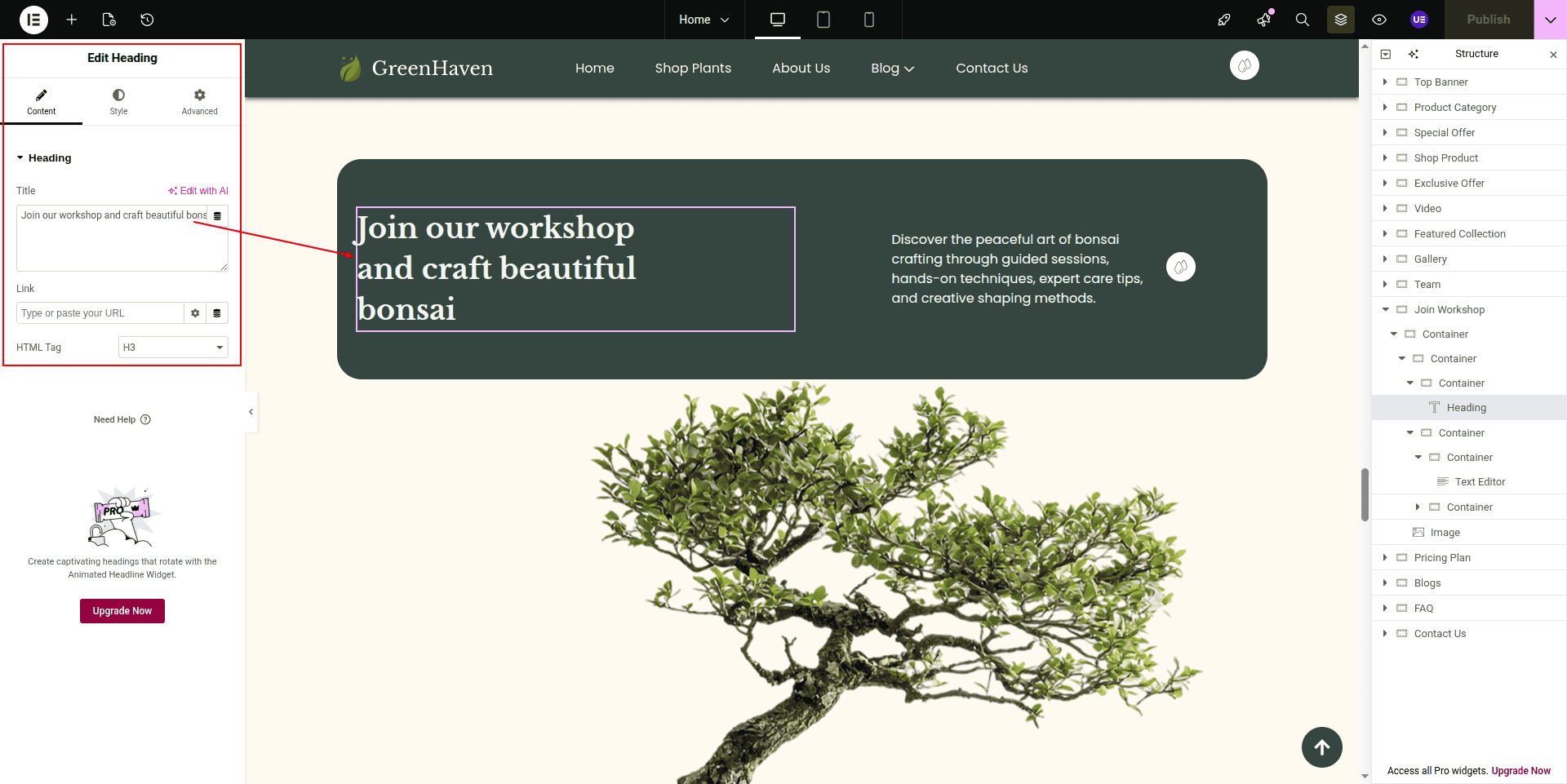
Starting with the Join Workshop Section
This is Join Workshop Carousel
by Unlimited ELements.
This is how it will initially seem.
Starting with the Pricing Plans
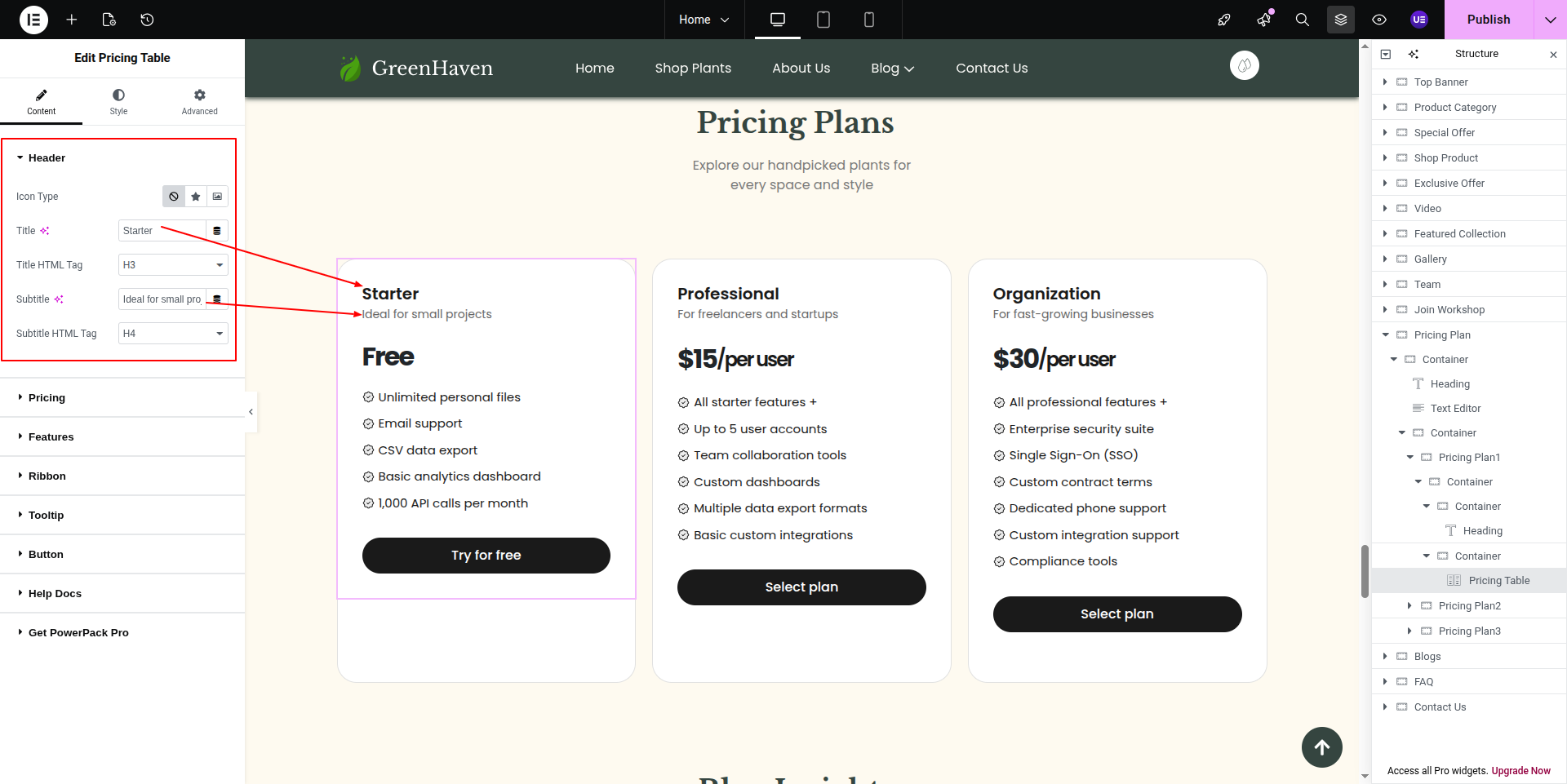
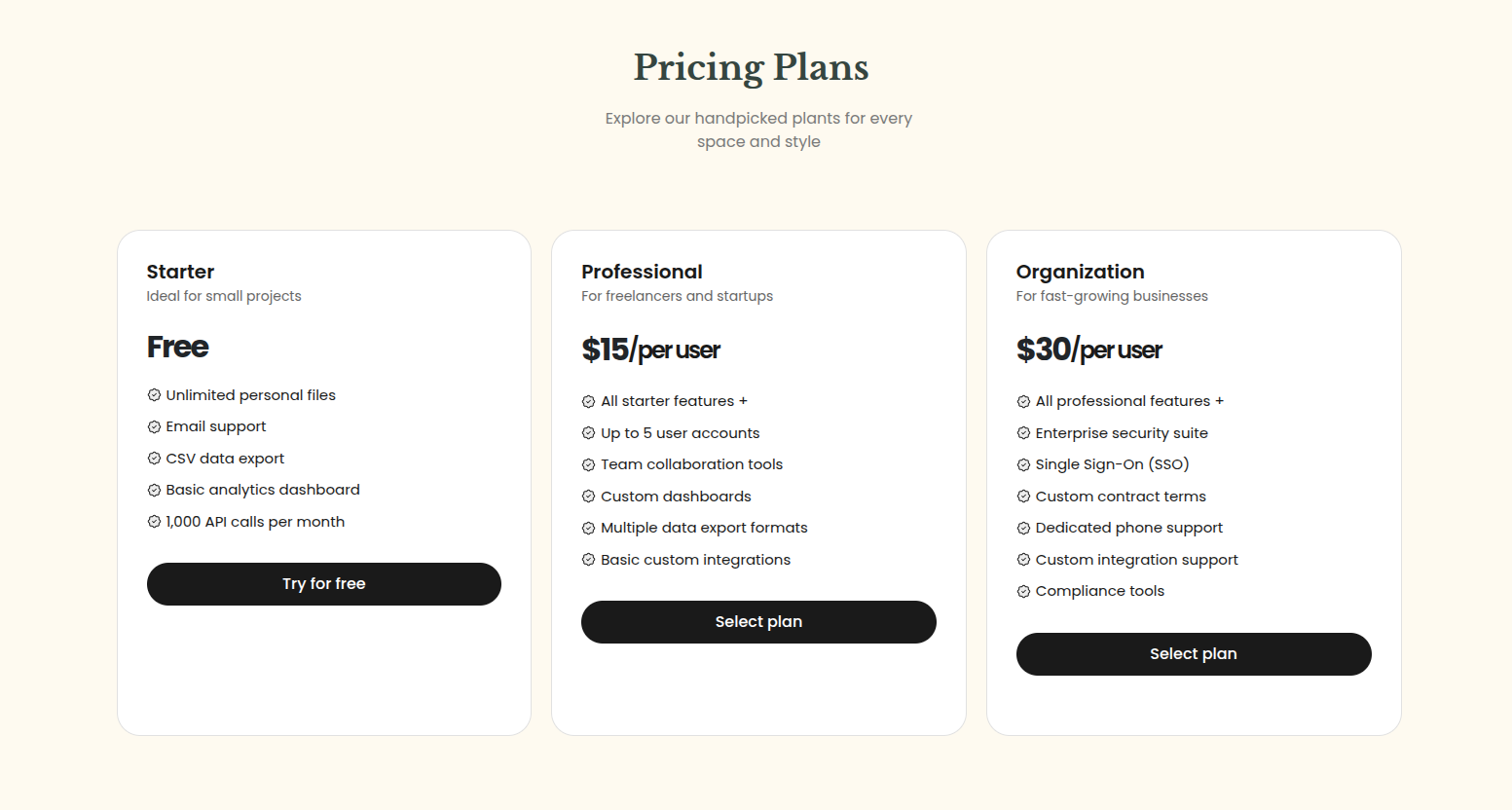
This is the Pricing Plan fetched by Pricing Table widget.
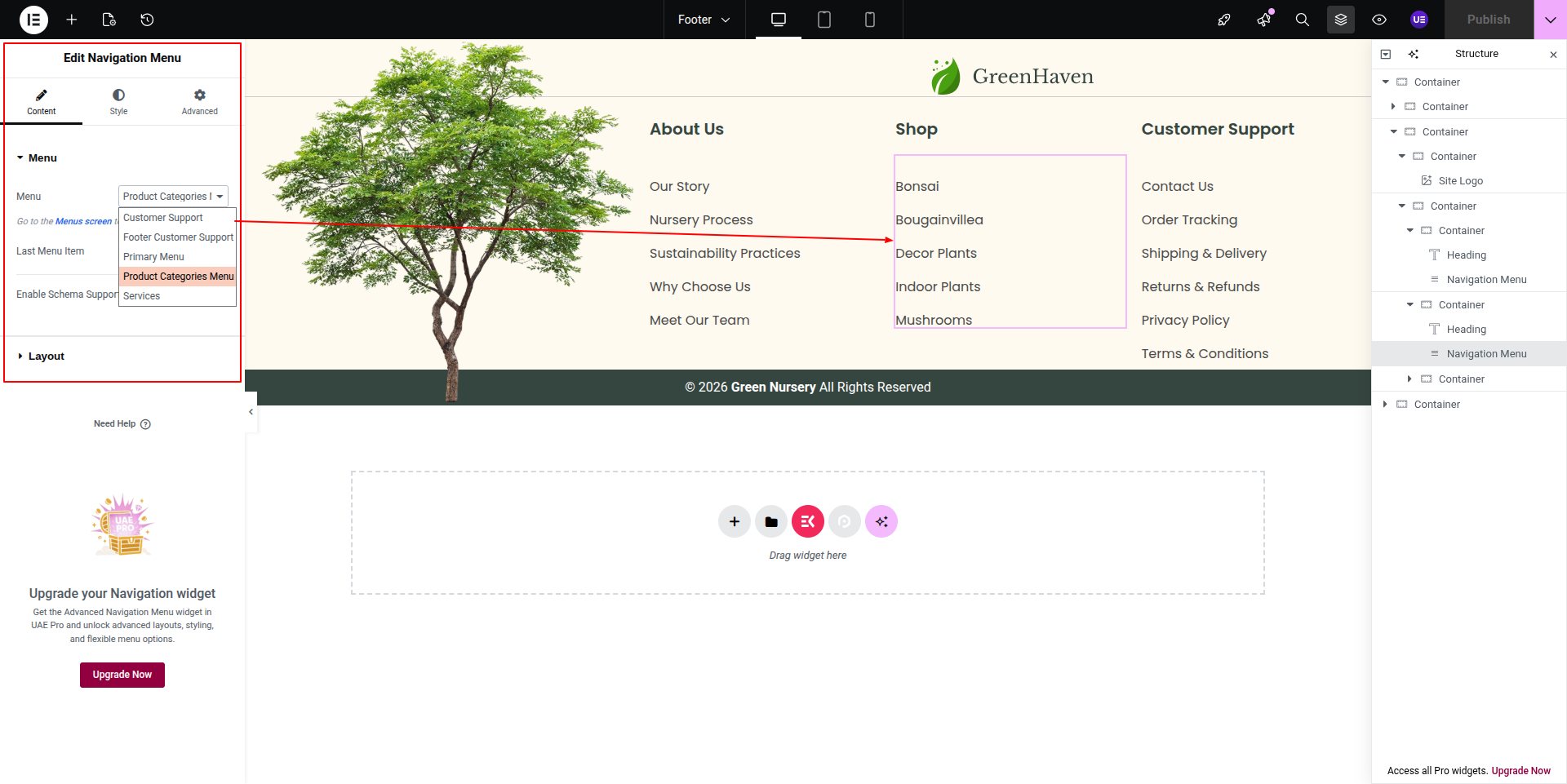
This is the header content.
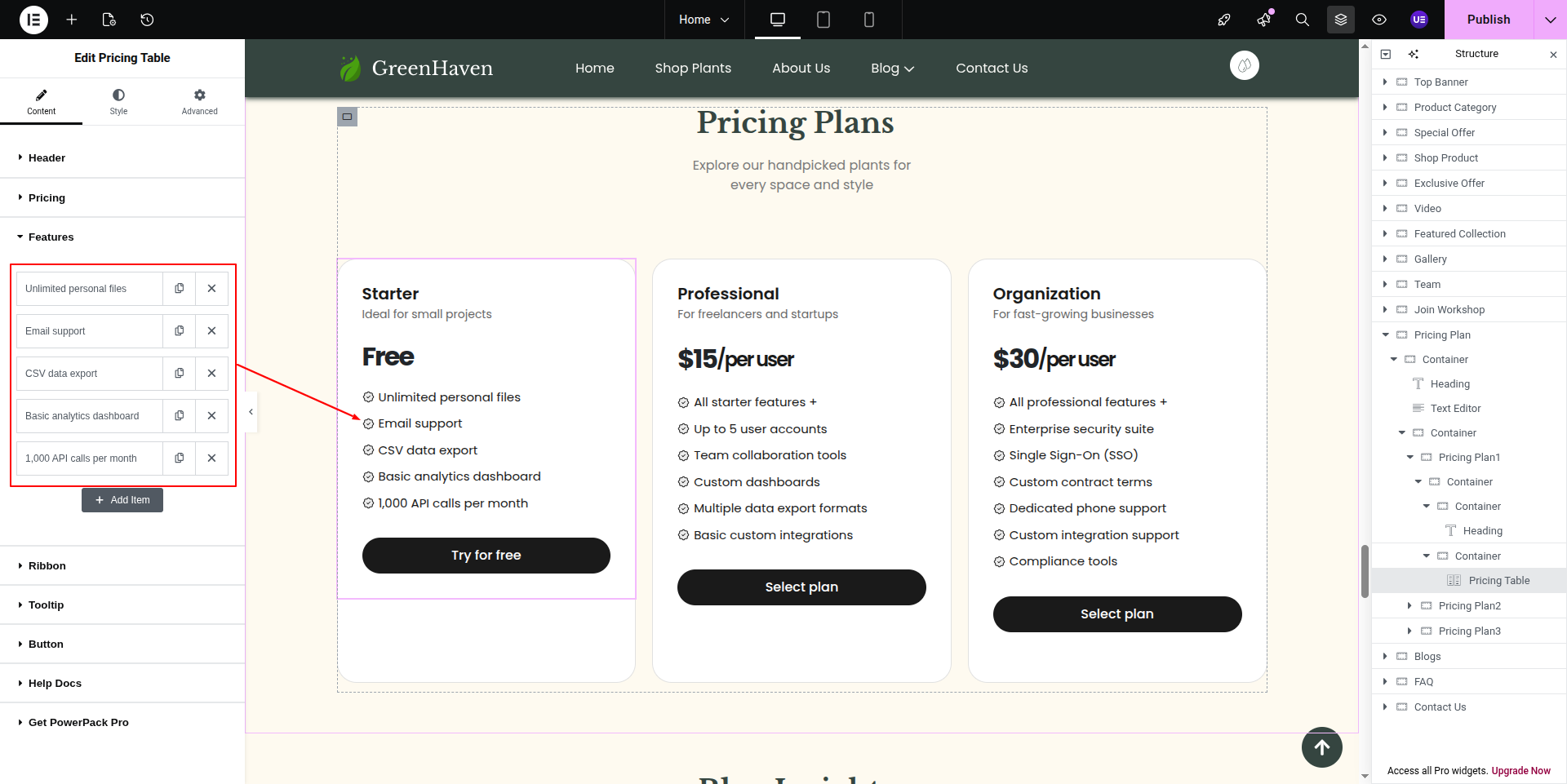
This is the normal feature content.
This is how it will initially seem.
Starting with the Blogs Section
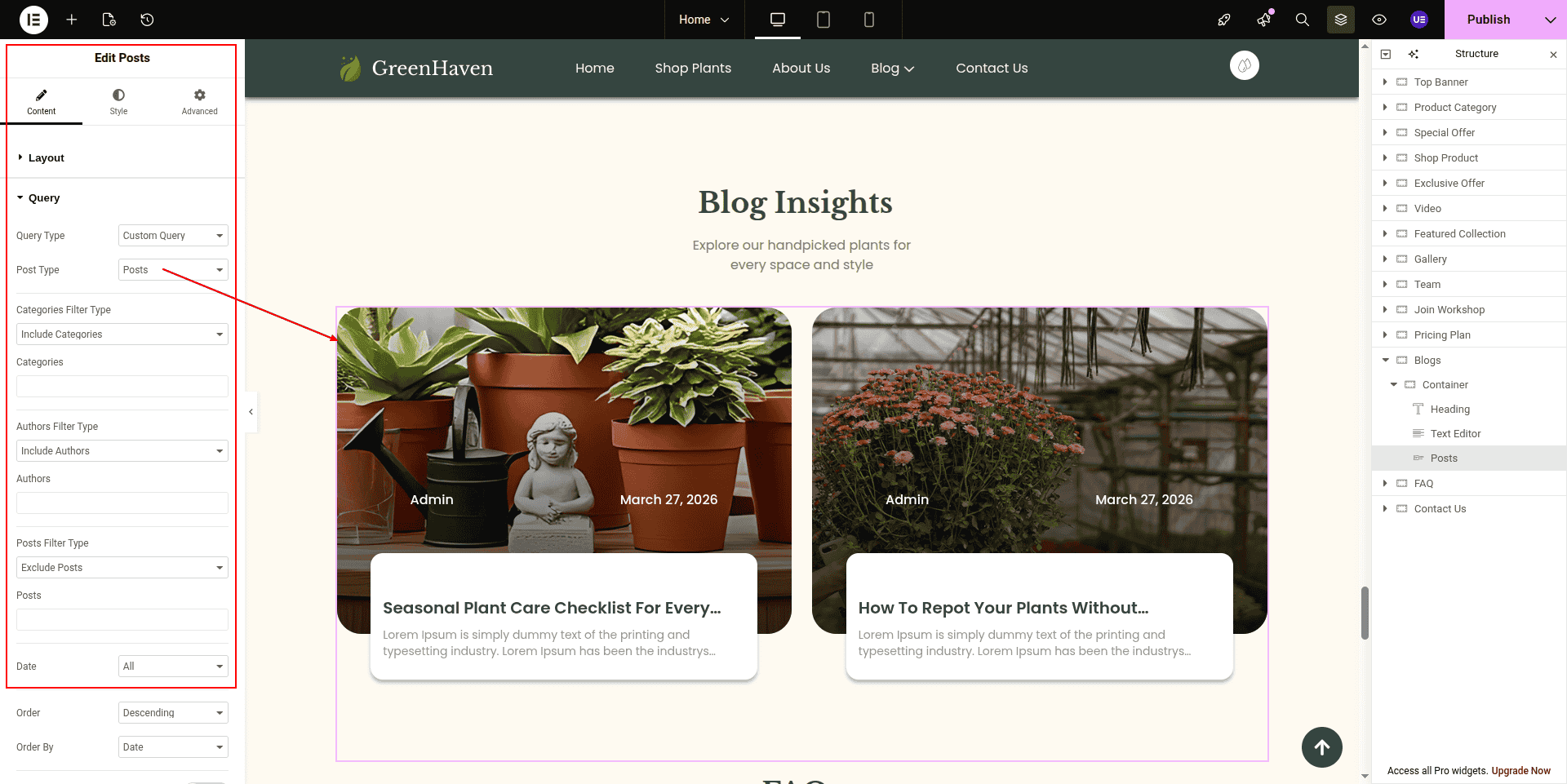
This is post widget
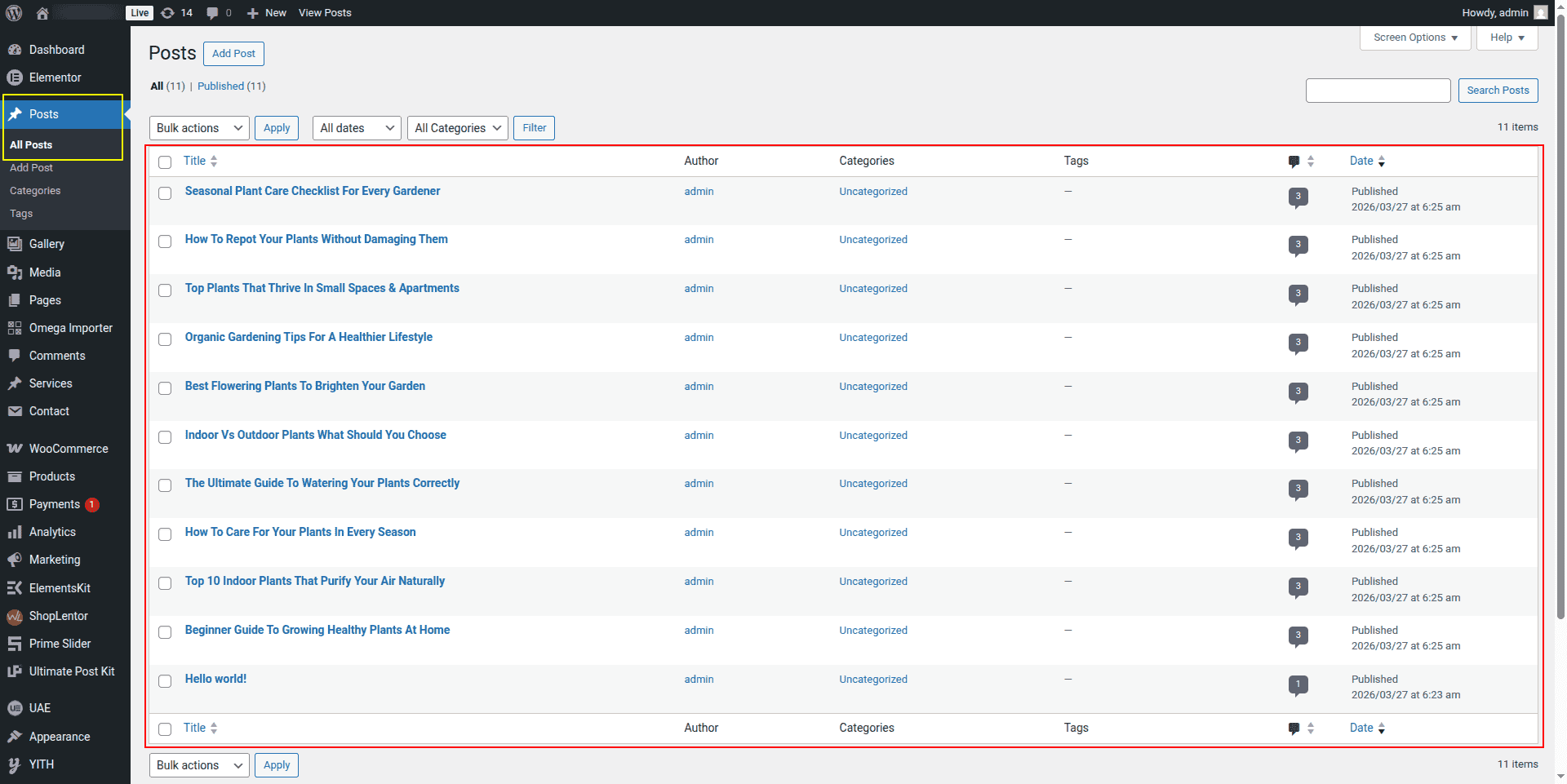
As this section is showing post.
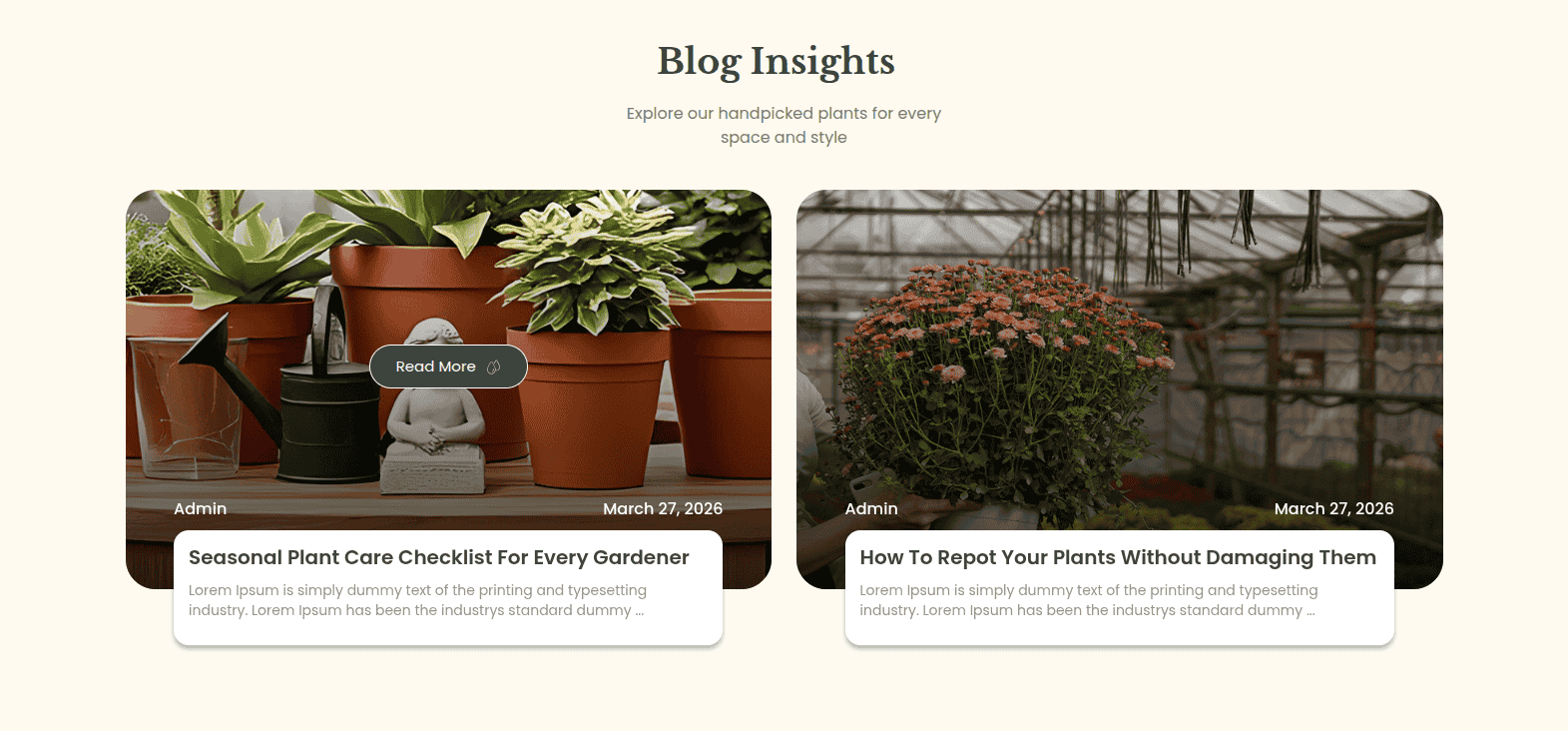
This is how it will initially seem.